Loading
In this article, you will learn how to integrate the systeme.io MCP server with ChatGPT so you can interact with your account data using AI.
What you will need:
A systeme.io account
An MCP key generated from your systeme.io account (How to use the systeme.io MCP server (Model Context Protocol)
A ChatGPT account
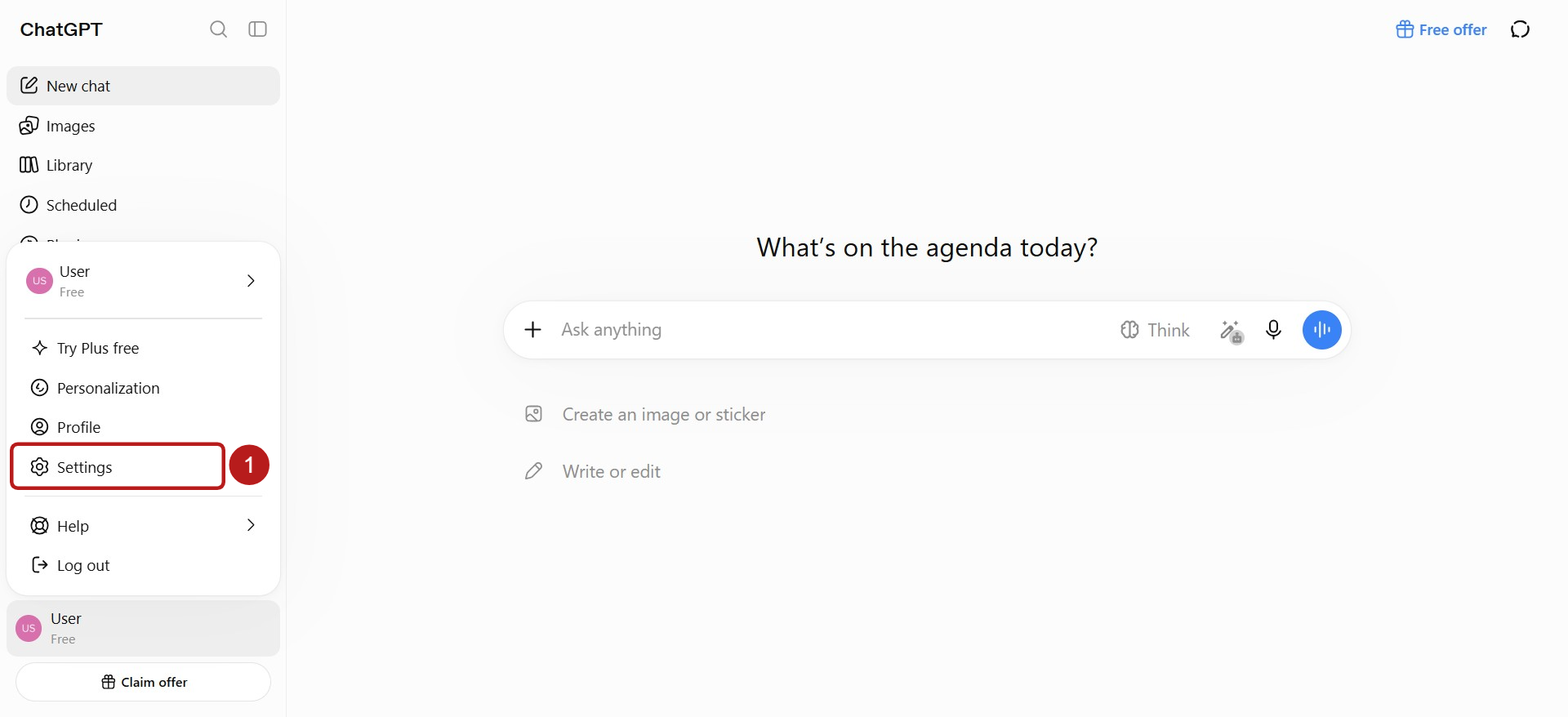
To connect systeme.io to ChatGPT using an MCP key, log in to your ChatGPT account. Click your profile at the bottom left, then click Settings (1).
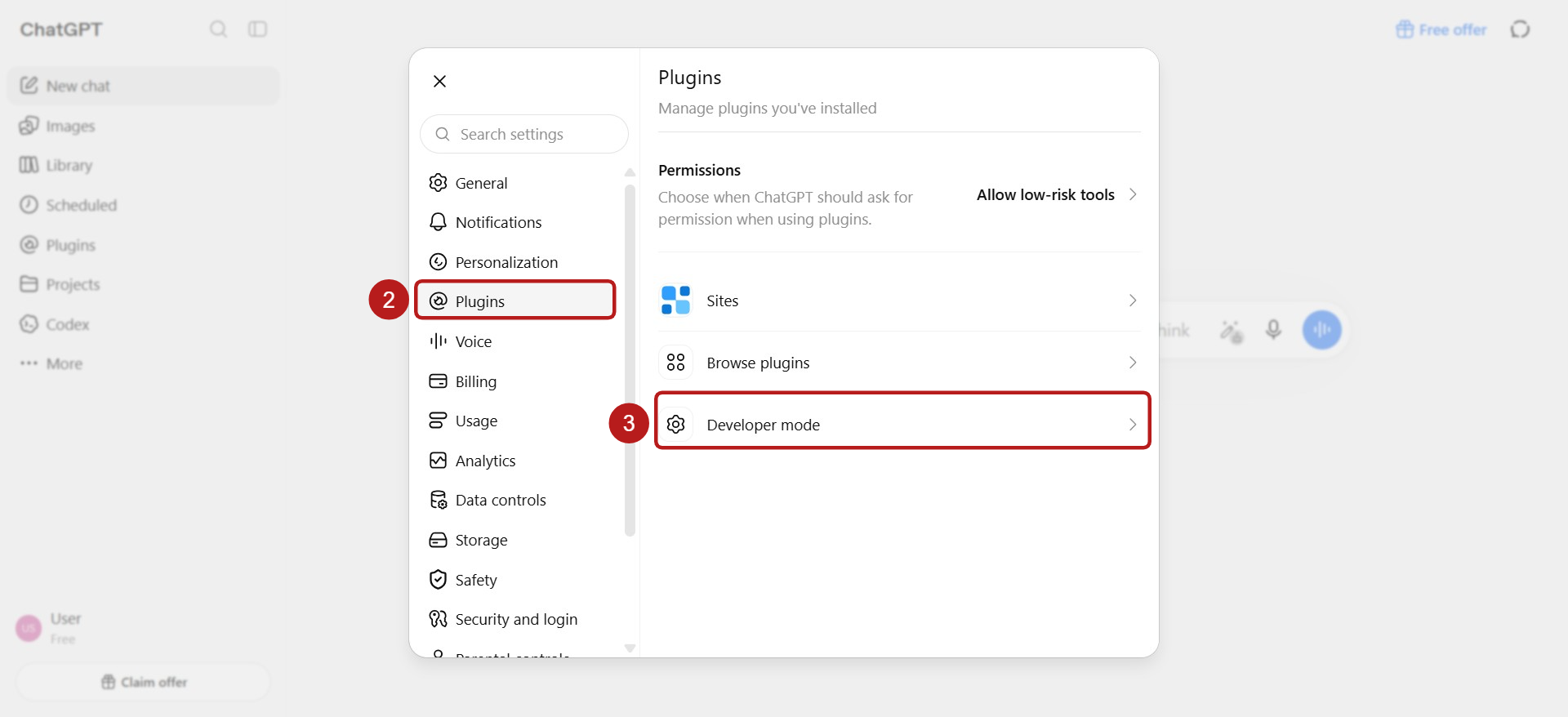
In the left menu, click Plugins (2), then click Developer mode (3).
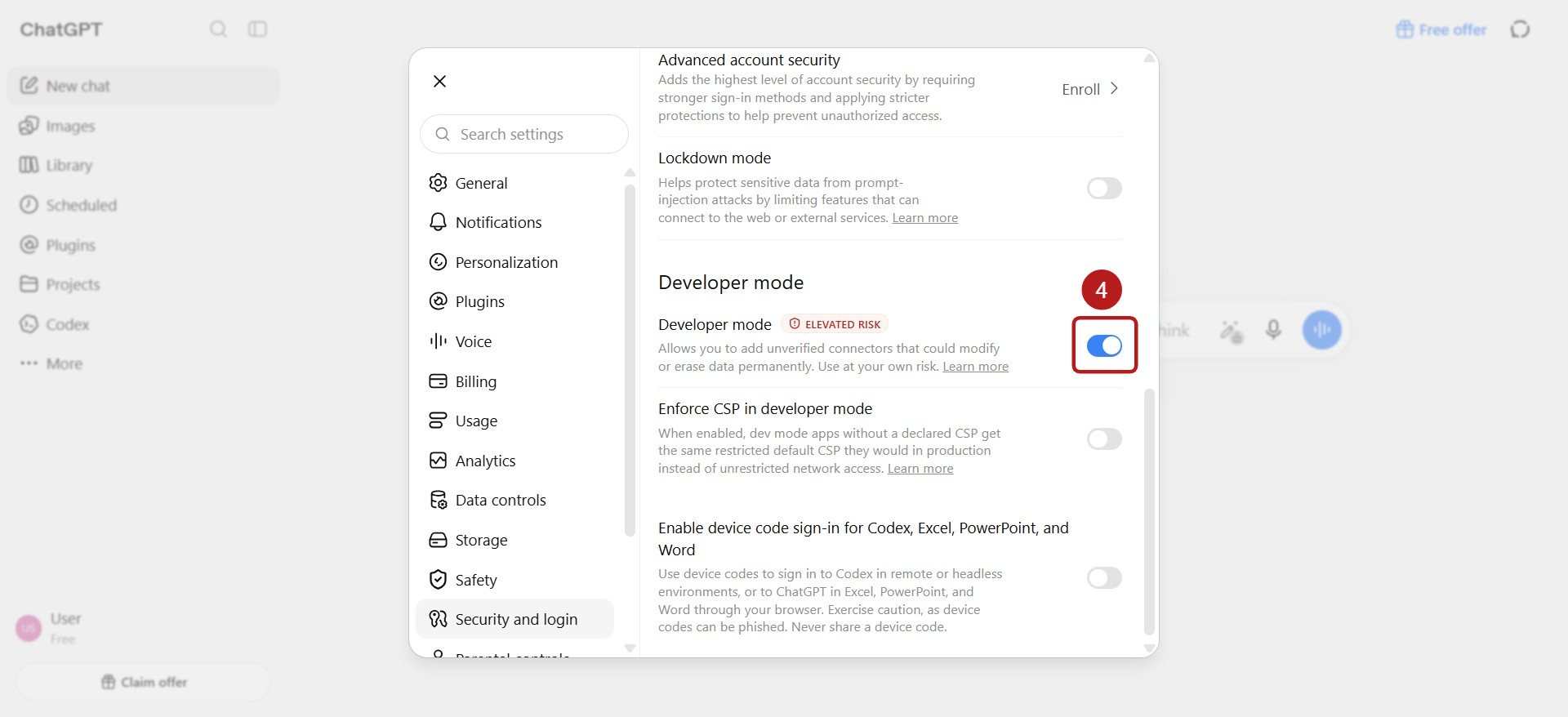
Under Developer mode, toggle the switch on (4).
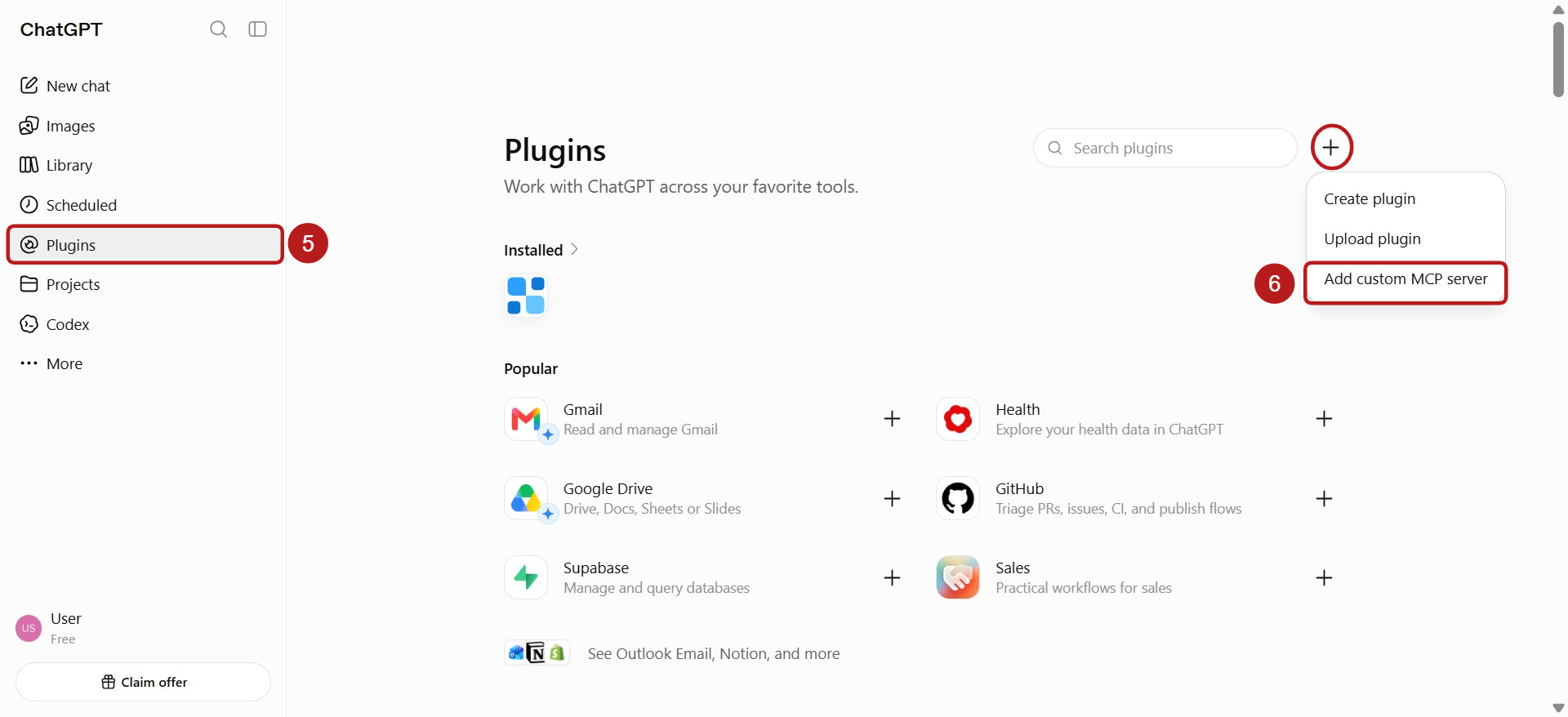
Next, click Plugins (5) in the left panel, click the (+) icon next to the search box, and select Add custom MCP server (6).
In the New Plugin window, click Create MCP App (7).
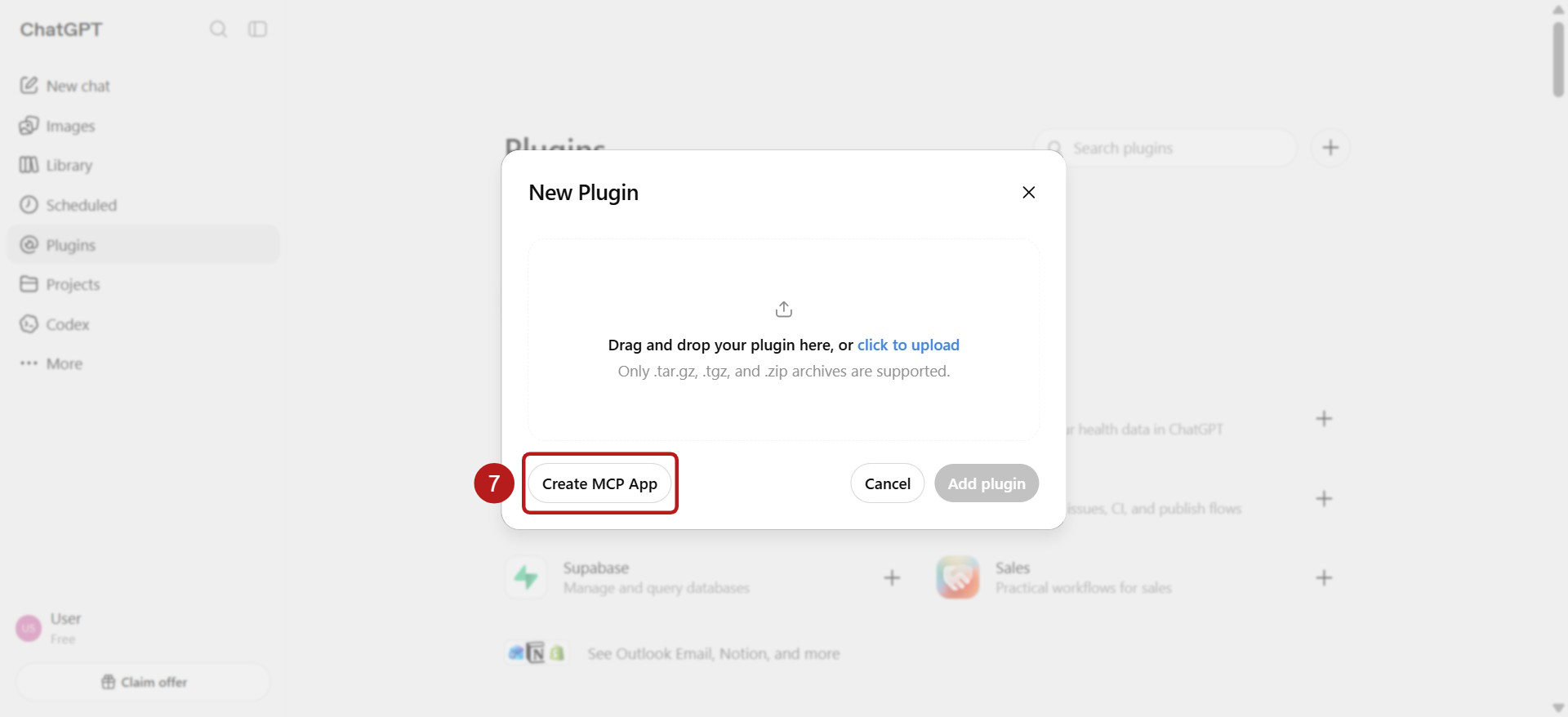
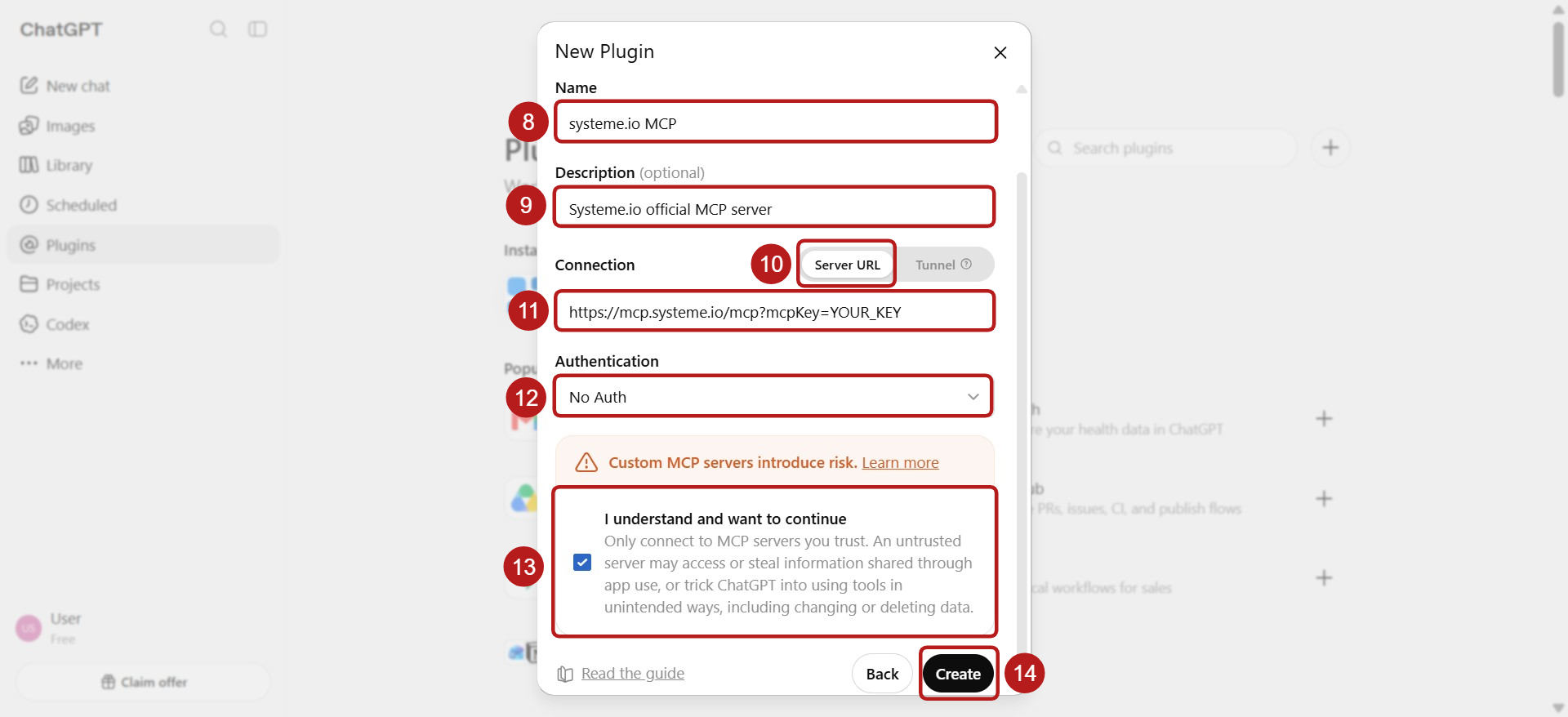
In the setup popup, enter the following details:
Name (8): Systeme.io MCP
Description (optional) (9): Systeme.io official MCP server
Connection (10): Server URL
Server URL (11): https://mcp.systeme.io/mcp?mcpKey=YOUR_KEY
Note: Replace YOUR_KEY with the MCP key you created on your systeme.io account.
Authentication (12): No Auth
Tick the I understand and want to continue box (13), then click Create (14).
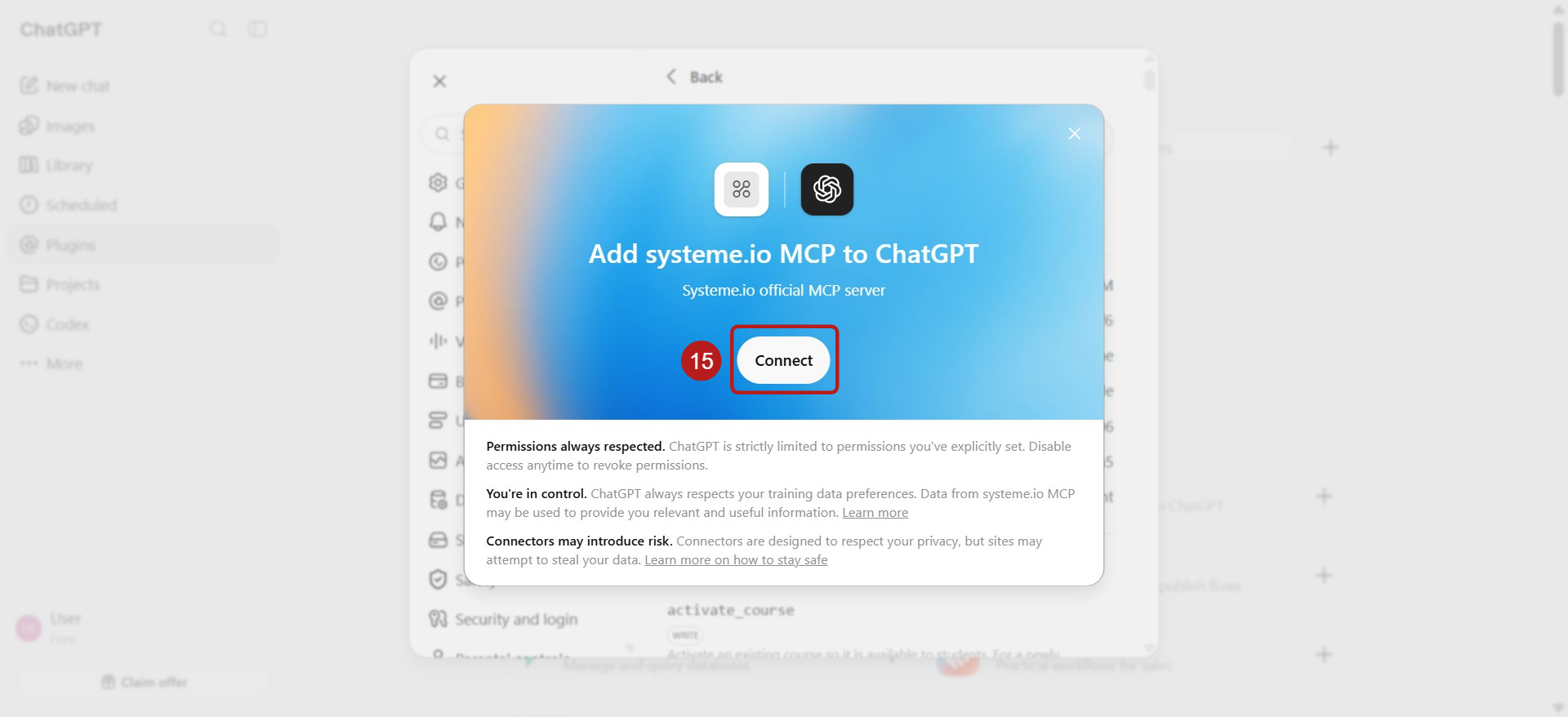
In the "Add Systeme.io MCP server to ChatGPT" window, click Connect (15).
Once connected and set up, start a new chat in ChatGPT and start using commands to interact with your systeme.io account.
Notes:
some actions (like create/update/delete) may be restricted or require additional confirmation. See ChatGPT permissions and action restrictions.
If the server fails to connect, ensure that:
Your MCP key is valid and not expired, and you correctly provided it to the server.
Developer Mode is active in your ChatGPT settings.
You can also connect your systeme.io account to ChatGPT using the direct app connection. If you prefer this option over a manual setup with MCP keys, follow the following guide: How to connect your systeme.io account to ChatGPT.