Loading
In this article, you'll learn how to use systeme.io's built-in AI Chat.
Built directly into your dashboard, it requires no extra setup, API keys, or external tools like ChatGPT. It acts as an execution tool; simply give it commands to automatically build pages, generate content, and manage elements directly within your account.
Notes:
AI Chat is currently available only on the Unlimited plan. It will be rolled out to all users in a future update.
AI Chat is only available to workspace owners and admins. Assistants do not have access to this feature.
1. How to access the AI Chat
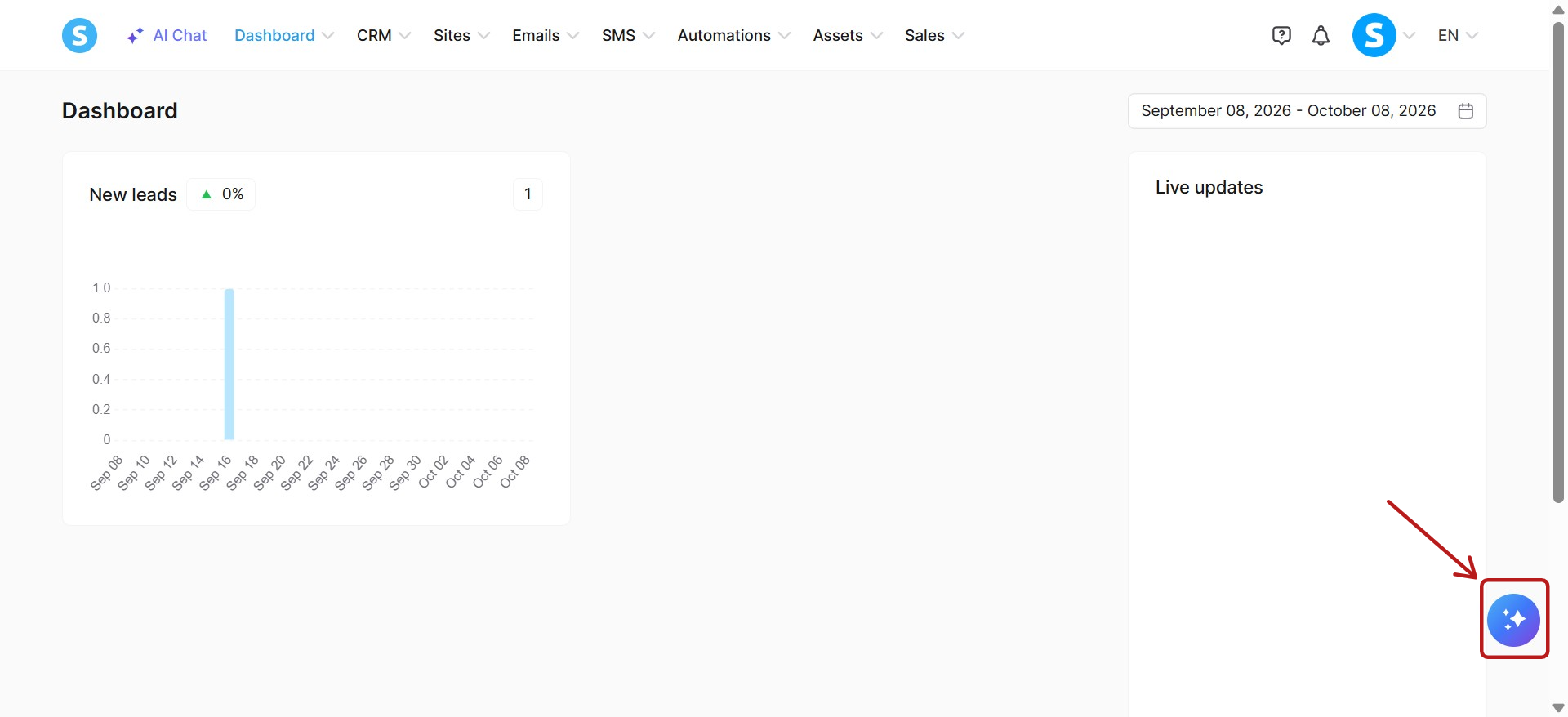
To open the chat interface, simply log into your systeme.io account and click on the button located on the top navigation bar (1).
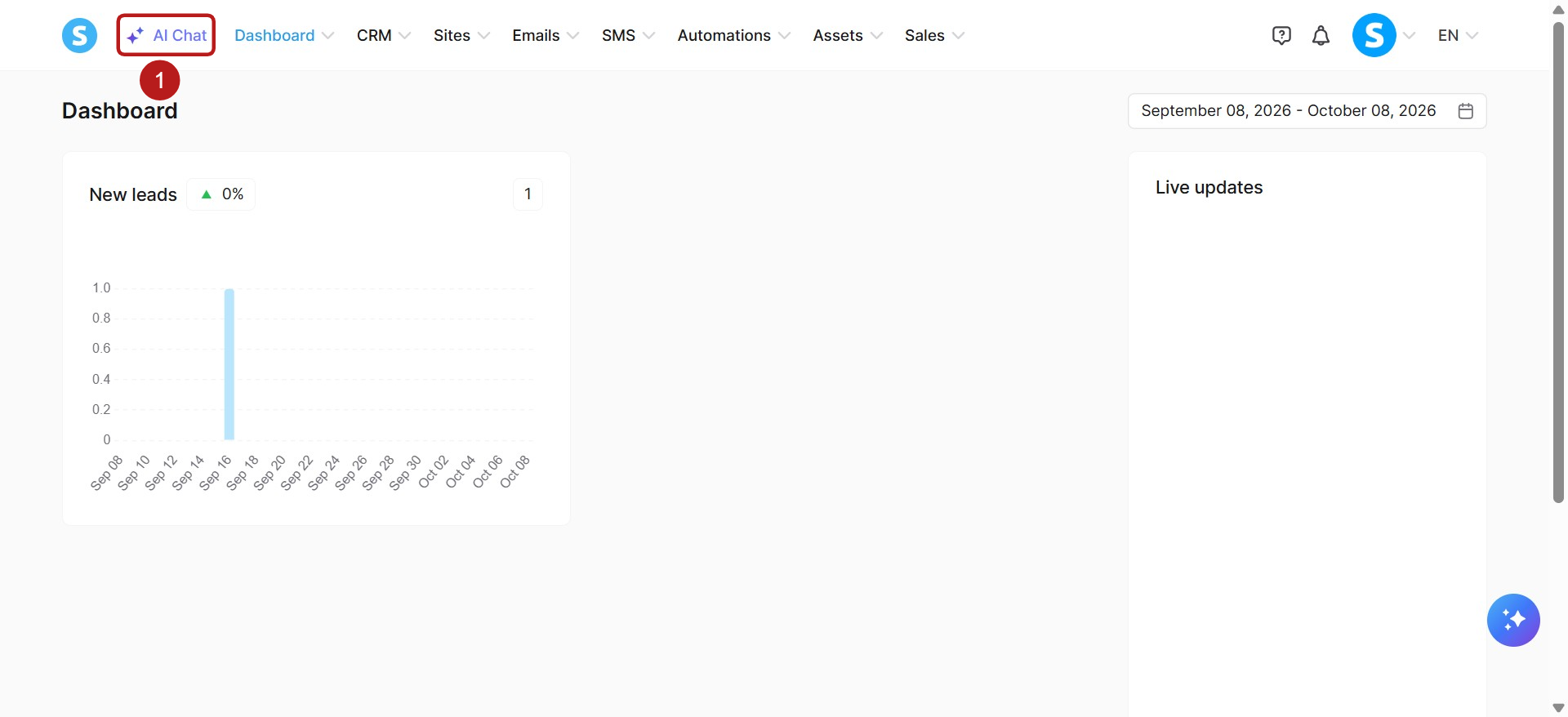
This will open a chat panel on the left side of your screen. From here, you can start typing your prompts directly into the message box.
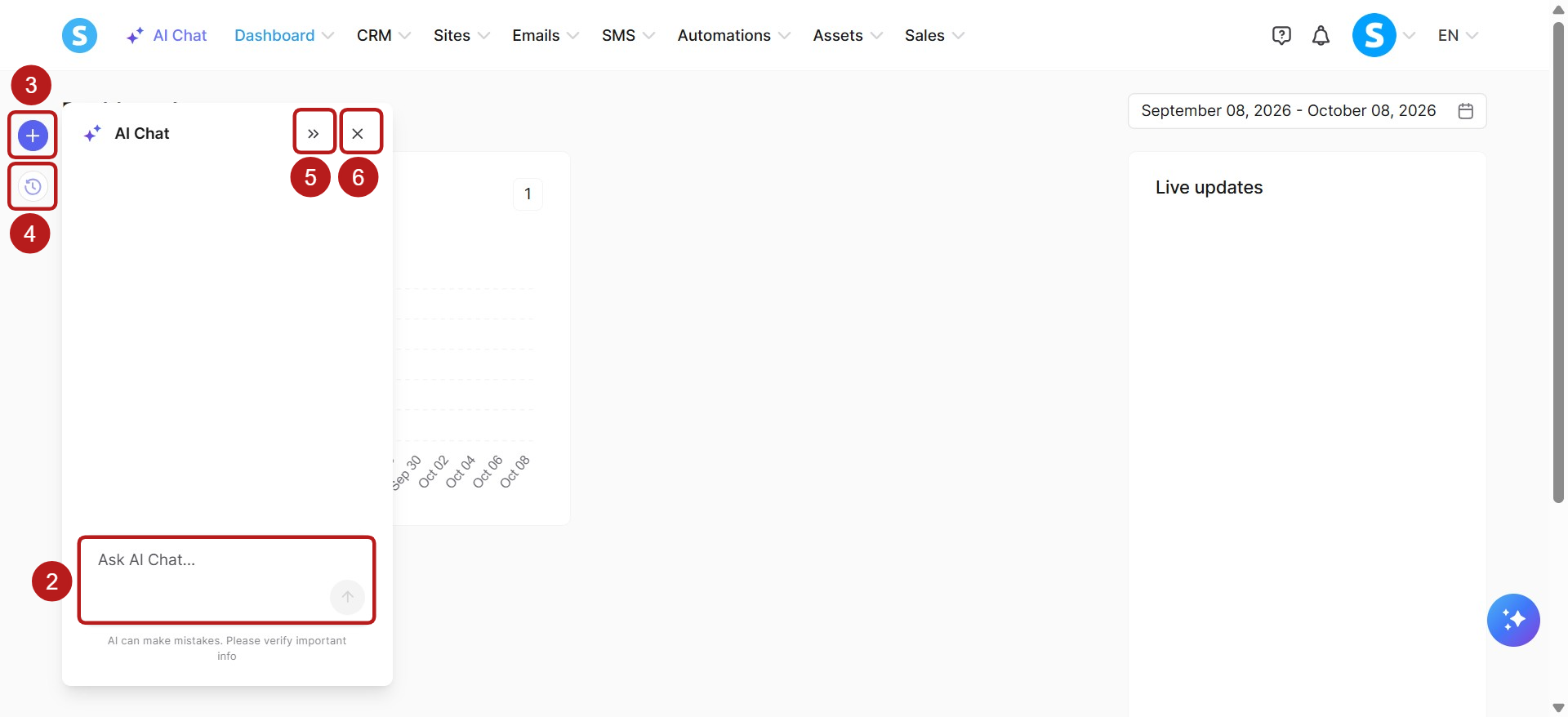
On this panel, you will also see several icons to help you navigate:
Ask AI Chat field (2): Enter your request here to chat with the AI.
New chat (3): Click the "+" (plus) icon to start a fresh conversation.
Chat history (4): Click the clock icon to view and access your past conversations.
Expand/Collapse (5): Click the ">>" icon to expand the chat panel for a wider view, or collapse it back to its original size.
Close (6): Click the "X" icon to close the AI Chat and return to your full dashboard.
2. How to prompt the AI Chat
Unlike a traditional conversational chatbot, the AI Chat is designed to execute tasks. You can use natural language to instruct the AI to manage your workspace by creating, updating, listing, or deleting elements directly from the chat window.
If you have questions about how to use systeme.io or need step-by-step tutorials (e.g., "How do I create a funnel?"), use our dedicated AI Assistant.
For the AI Chat, simply give it direct commands to execute.
3. What can the AI Chat do?
Our AI Chat is constantly expanding. Currently, you can manage the following features directly through the chat:
a. Contacts & Tags management:
Contacts: List contacts, create contacts, view contact details, update contacts, delete contacts, assign a tag to a contact, remove a tag from a contact, and list contact fields.
Tags: List tags, create tags, view tag details, update tags, and delete tags.
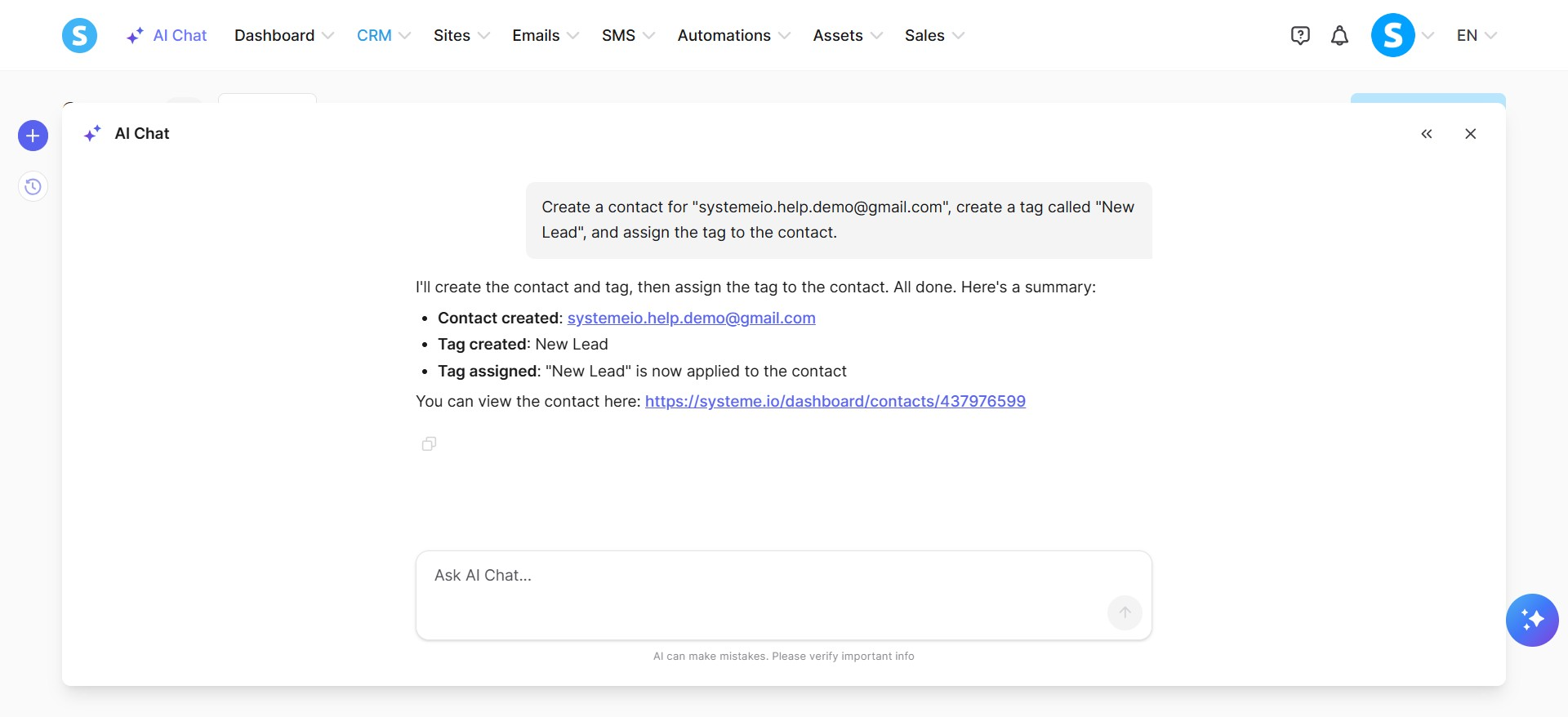
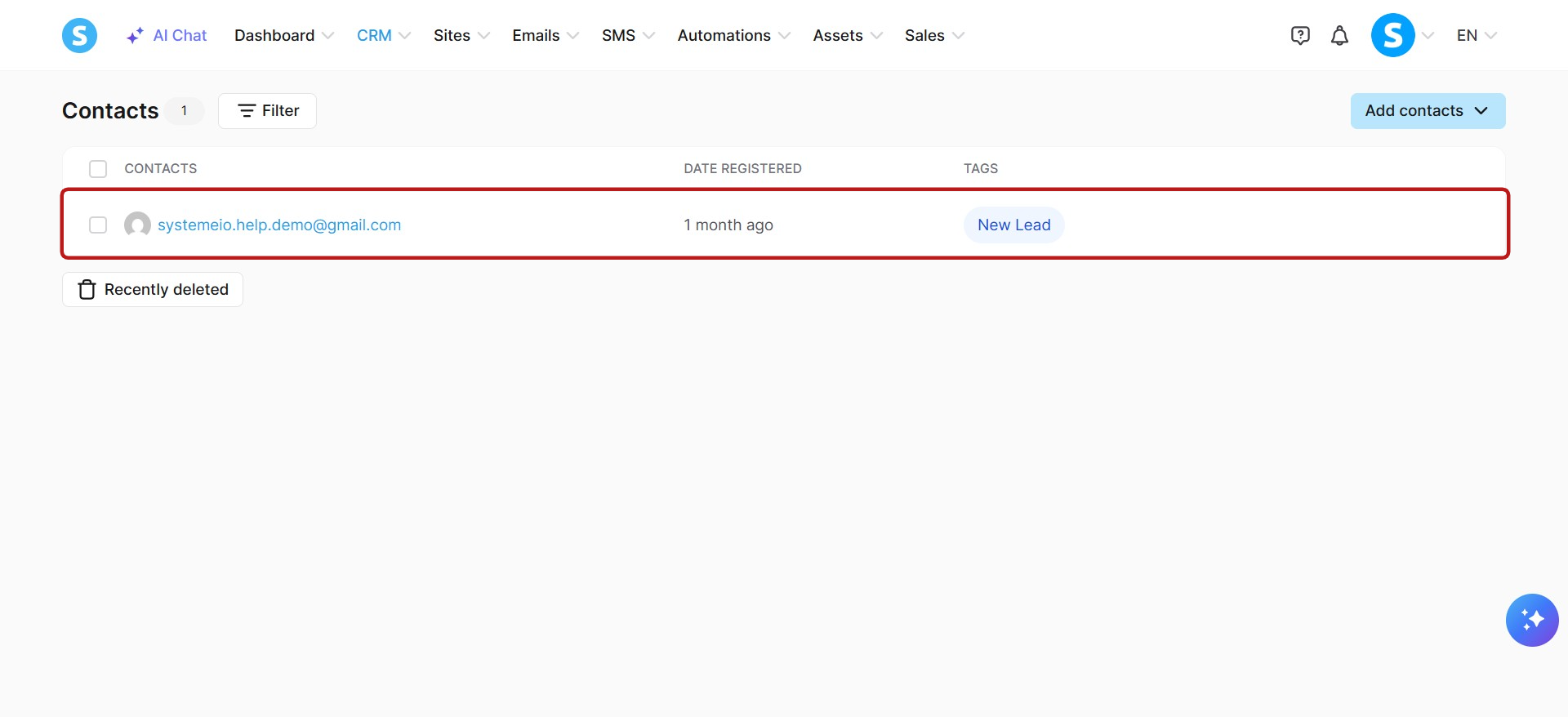
Example: Create a contact for "systemeio.help.demo@gmail.com", create a tag called "New Lead", and assign the tag to the contact.
b. Funnels & Pages management:
Funnels: Create funnels, list funnels, and view funnel details.
Funnel pages: Create funnel pages, list funnel pages, view funnel step details, generate page content for funnel steps, and edit specific parts of existing pages.
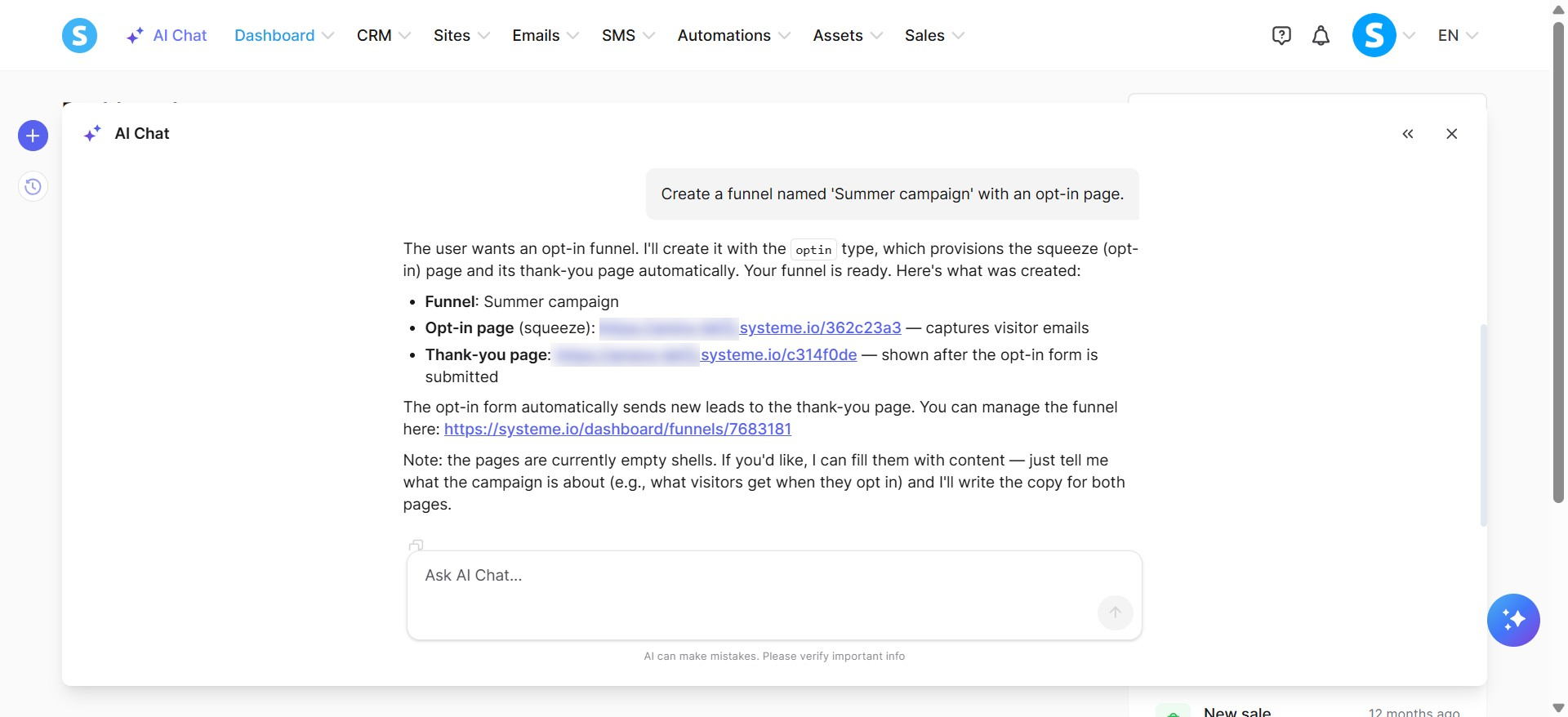
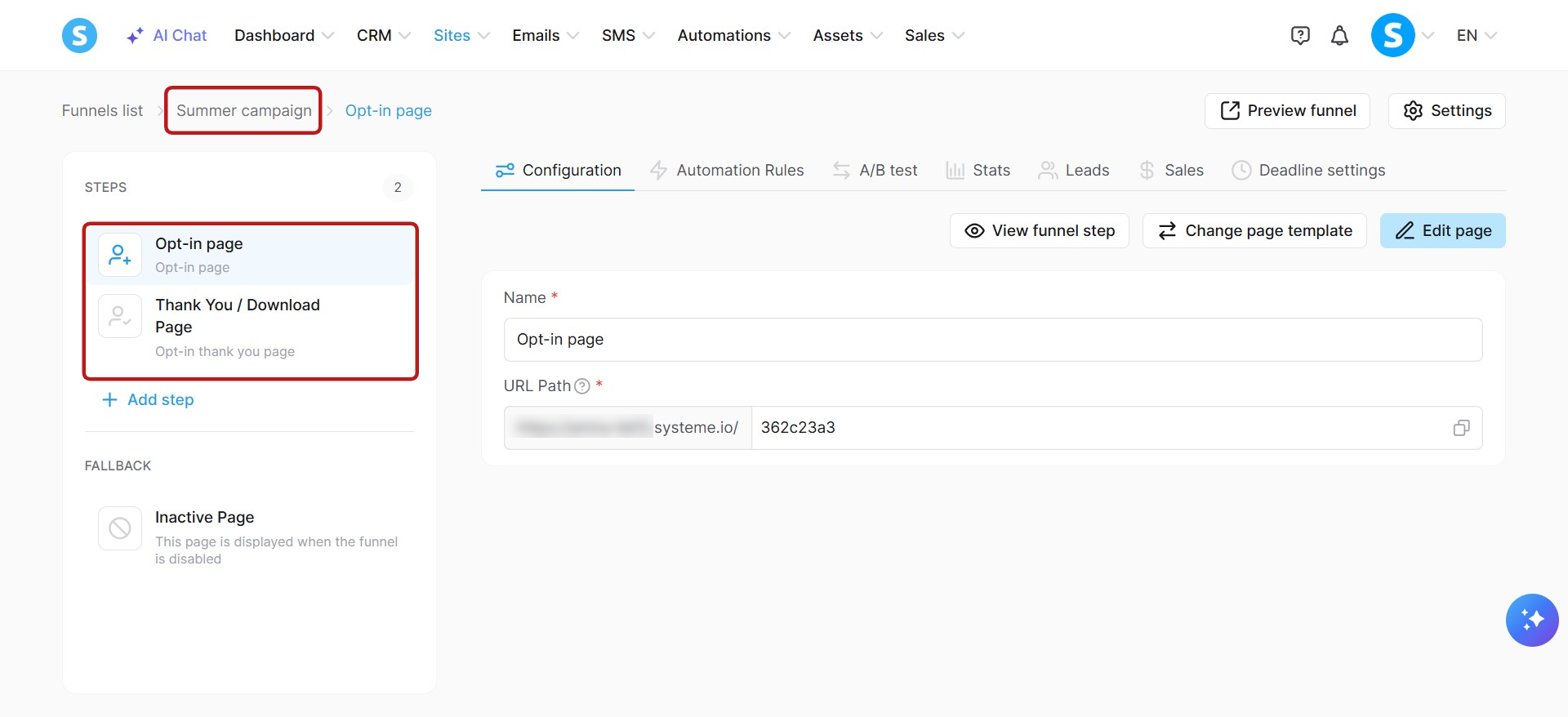
Example: Create a funnel named 'Summer campaign' with an opt-in page.
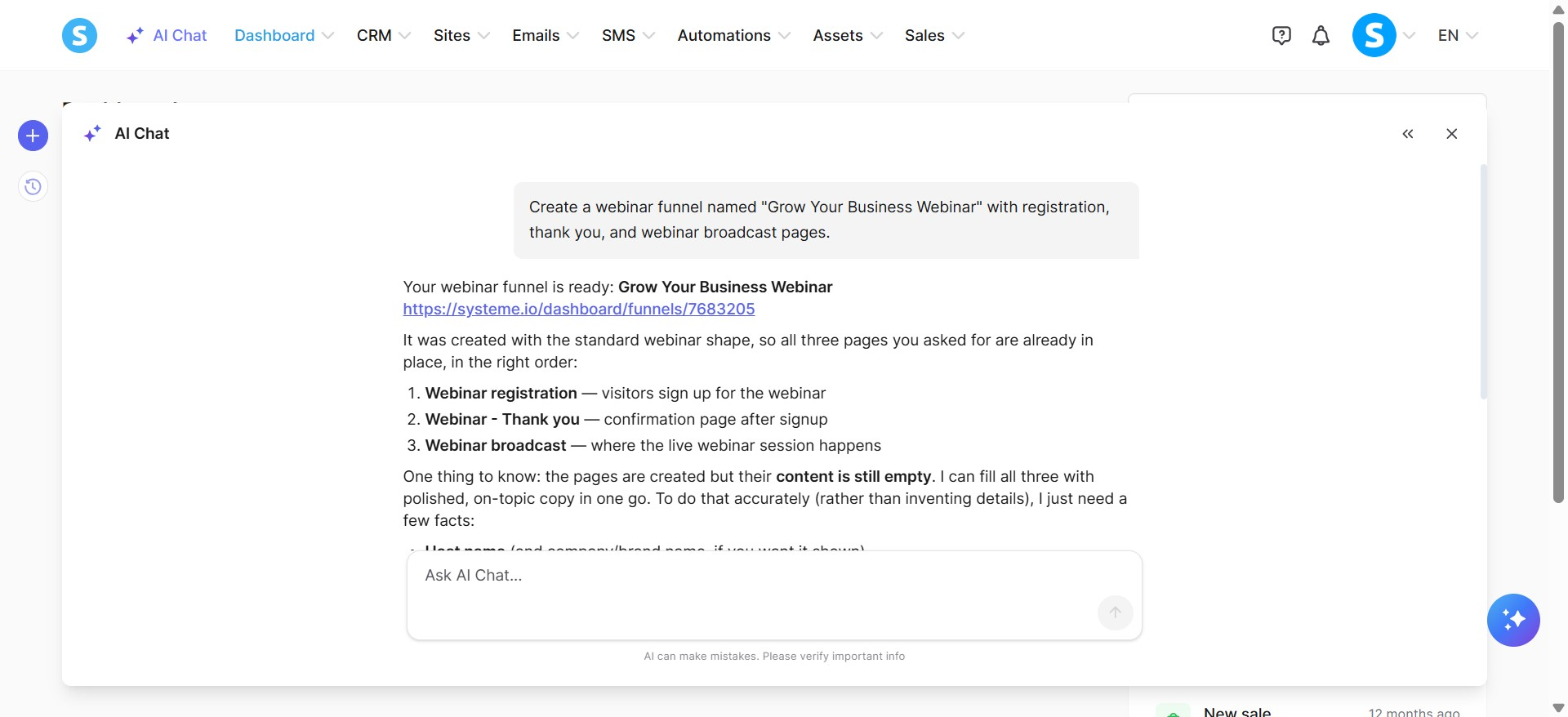
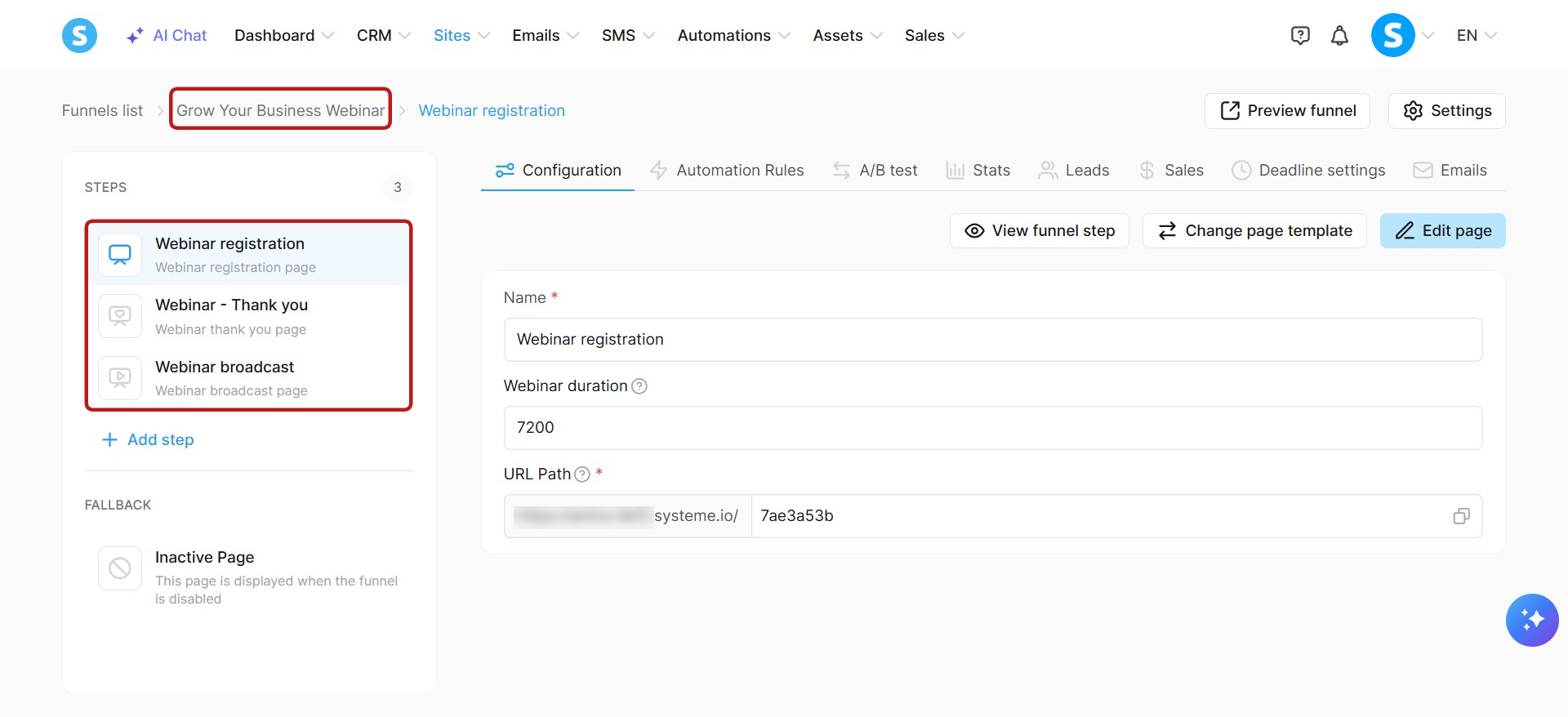
Or, create a webinar funnel named "Grow Your Business Webinar" with registration, thank you, and webinar broadcast pages.
Note on funnel pages: Deleting funnel pages through the AI Chat is not currently supported.
c. Newsletters and email campaigns management:
Newsletters: Create newsletters, update newsletters, list newsletters, view newsletter details, delete newsletters, list included tags for a newsletter, list excluded tags for a newsletter, set included tags, set excluded tags, configure sender details, schedule or remove scheduling, send test emails, and send newsletters directly.
Campaigns: Create campaigns, update campaigns, delete campaigns, list campaigns, view campaign details, create campaign steps, update campaign steps, delete campaign steps, list campaign steps, and view campaign step details.
Email statistics: Retrieve performance statistics for your newsletters, campaign emails, and automation emails. You can fetch totals for a specific period (up to 31 days) with a daily breakdown, results for each email sent during that period, or all-time results for a specific email. Statistics include sends, opens, clicks, bounces, and spam reports.
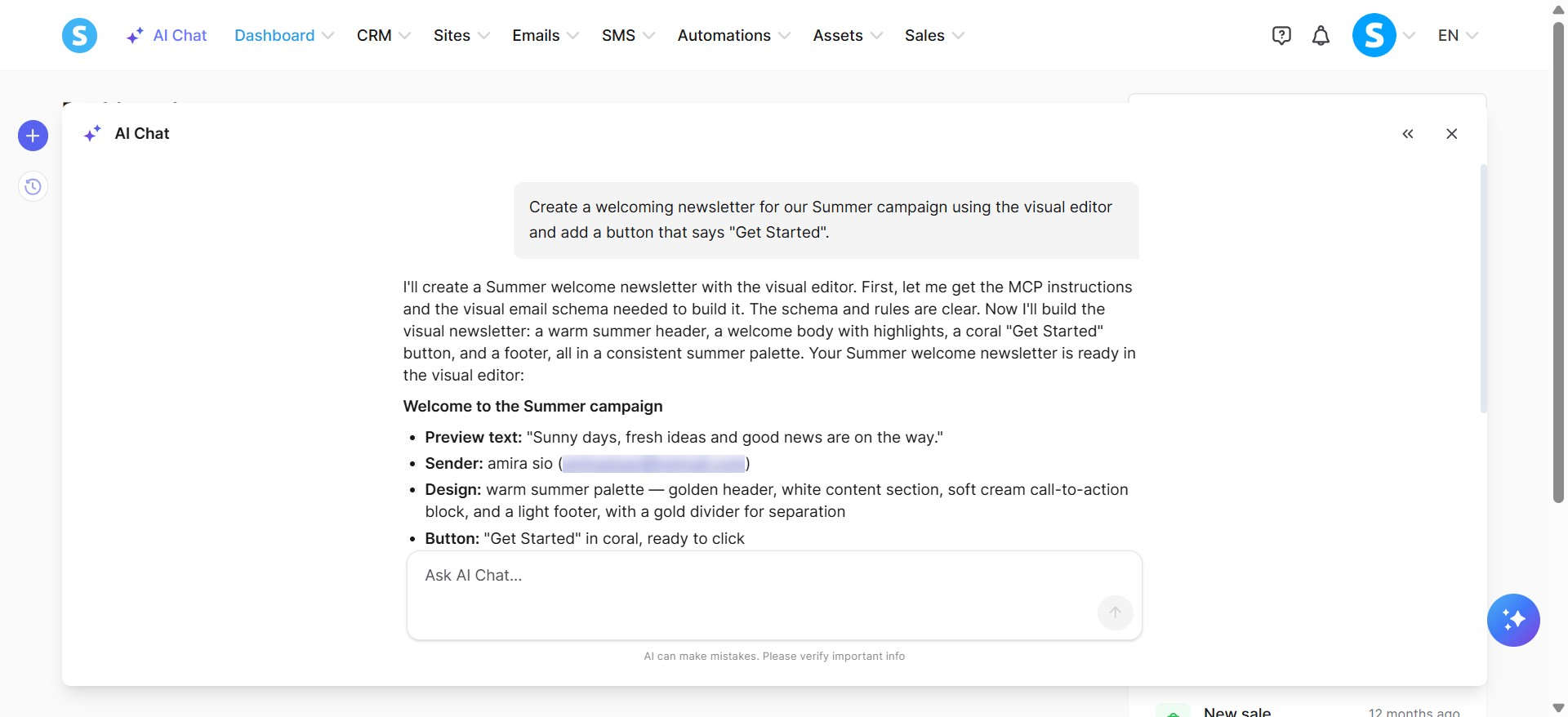
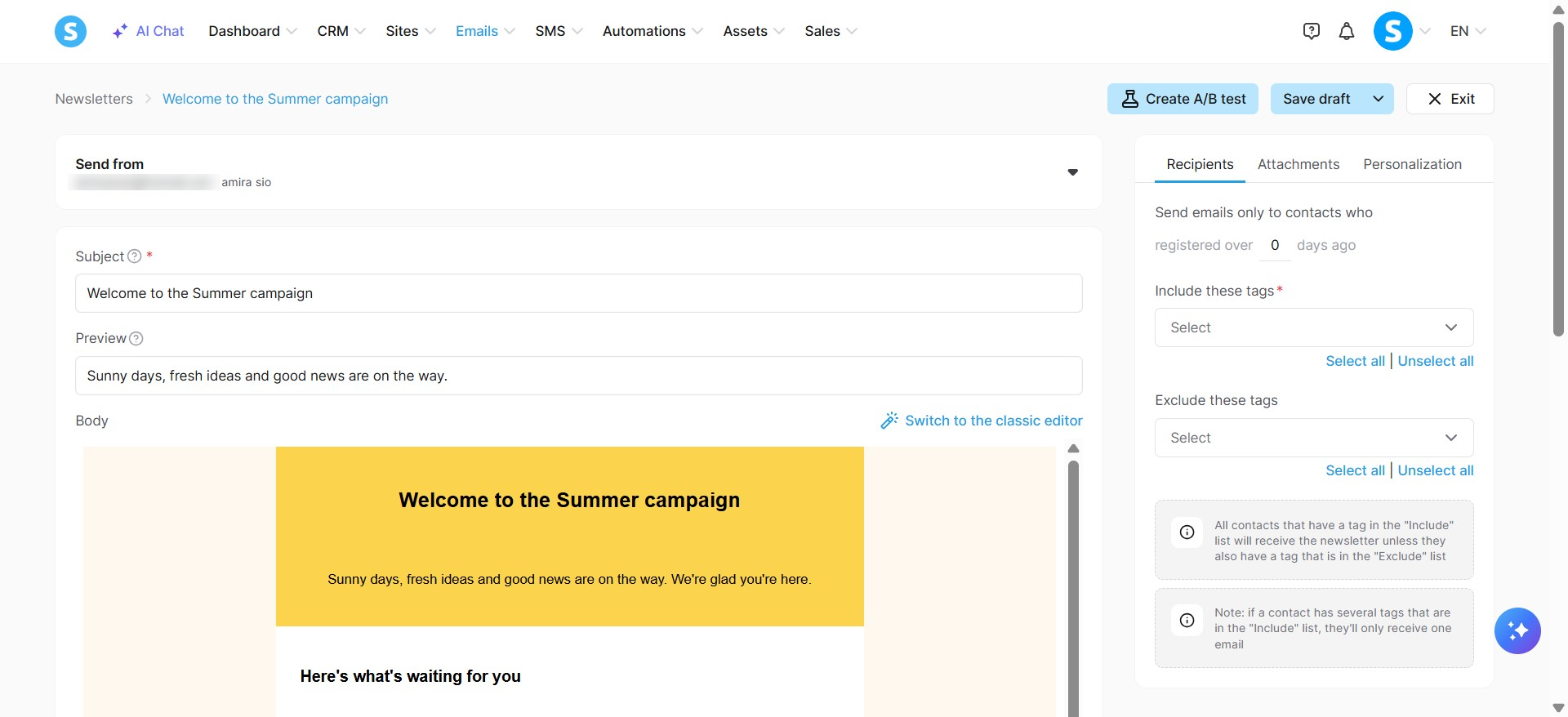
Example: Create a welcoming newsletter for our Summer campaign using the visual editor and add a button that says "Get Started".
d. Price plans & Coupons management:
Price plans: Create price plans, update price plan text fields, list price plans, view price plan details, and delete price plans.
Coupons: Create coupons, update coupons, list coupons, view coupon details, and delete coupons.
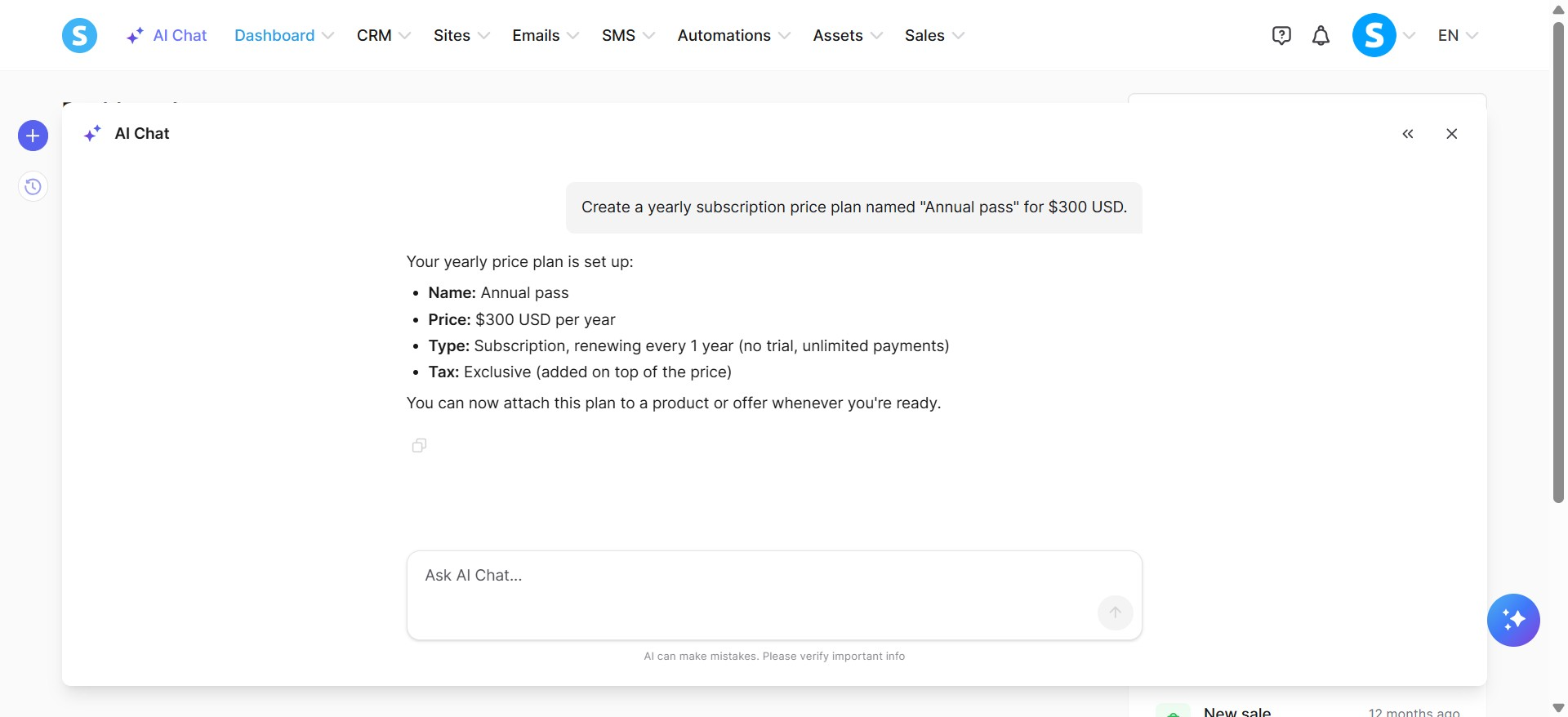
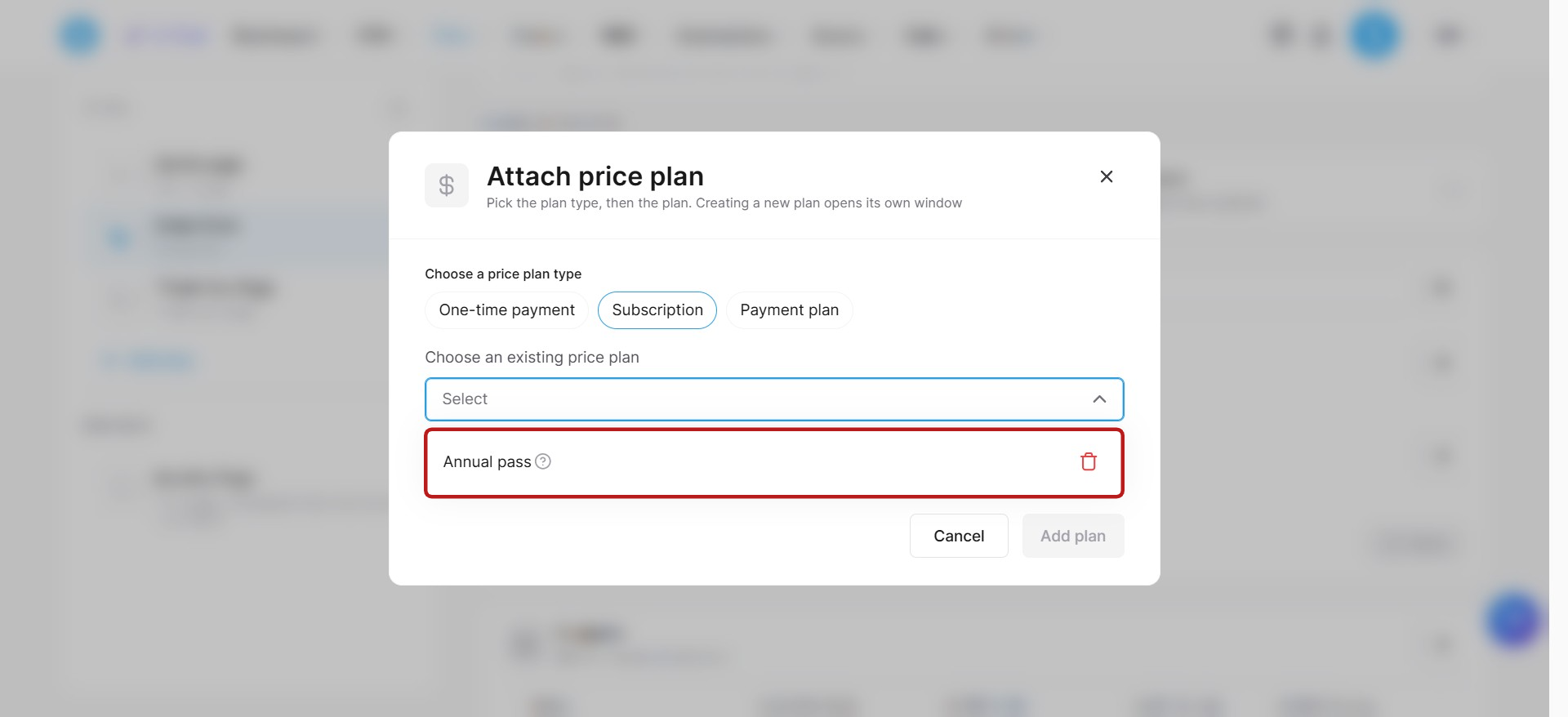
Example: Create a yearly subscription price plan named "Annual pass" for $300 USD.
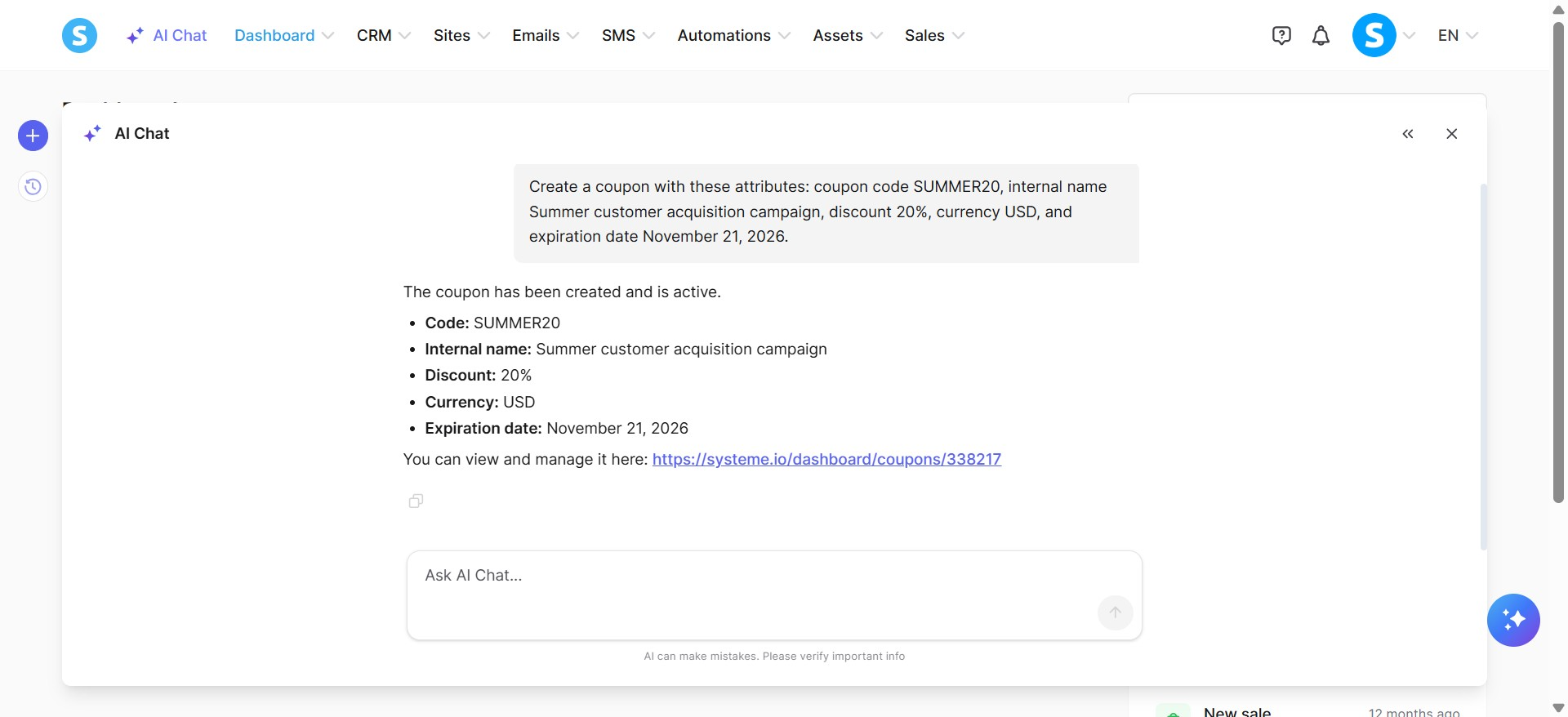
Create a coupon with these attributes: coupon code SUMMER20, internal name Summer customer acquisition campaign, discount 20%, currency USD, and expiration date November 21, 2026.
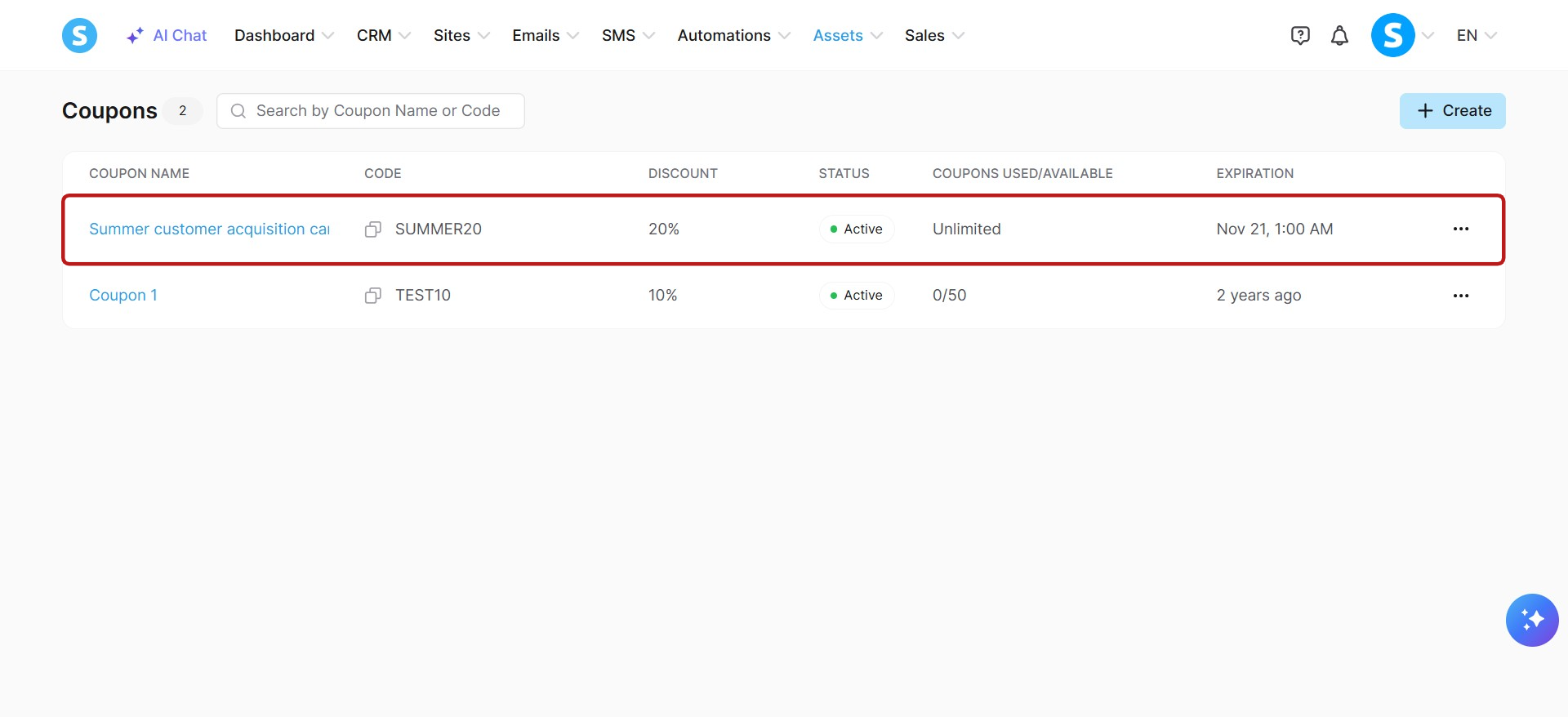
Notes:
You can use the MCP server to link your price plans directly to your digital products. You can also configure offers for your funnel payment pages and automatically attach your price plans and coupons to them.
Once a coupon is created, its discount amount or percentage cannot be changed.
e. Digital products management:
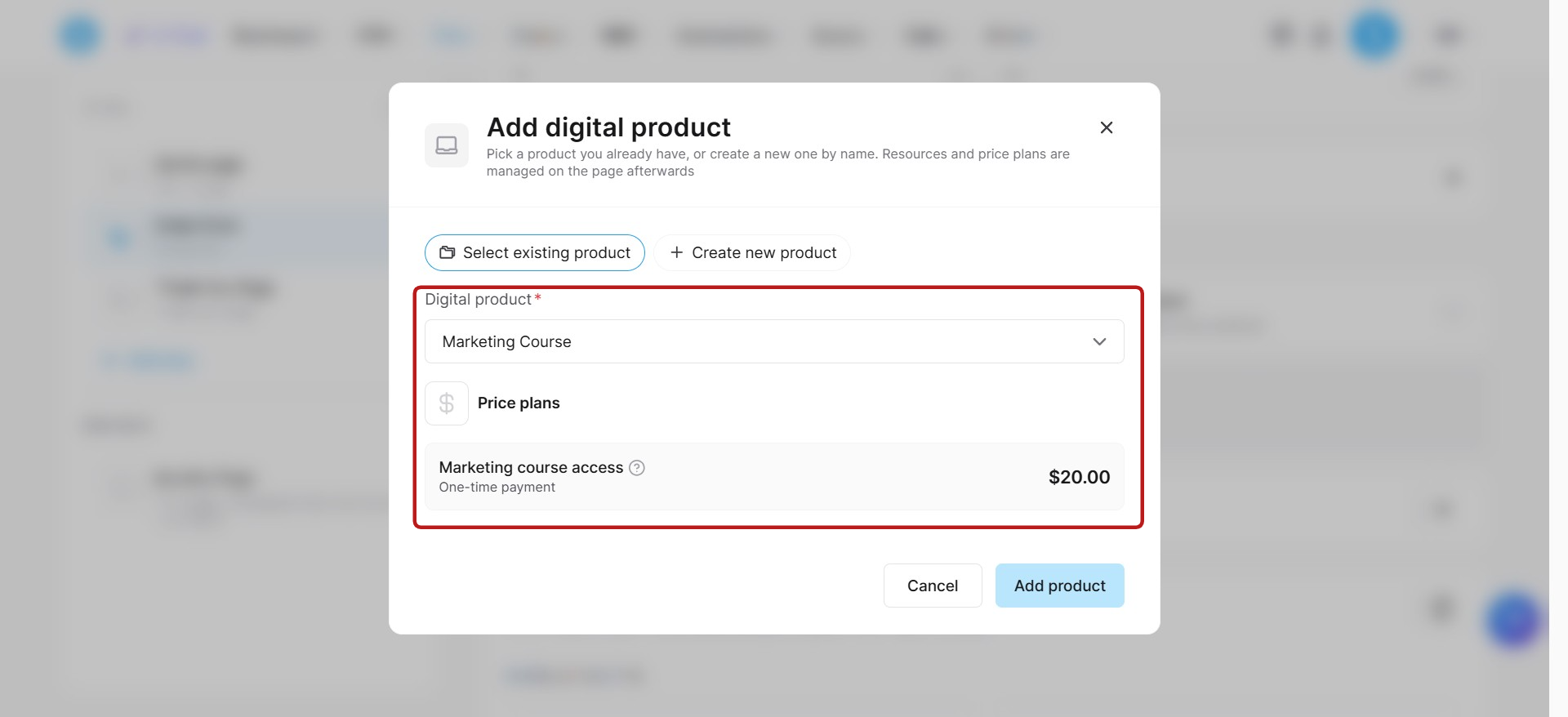
Digital products: Create digital products, update digital products, view digital product details, delete digital products, list digital products, search digital products, and create or link price plans.
Selling flows: Connect digital products to order forms, upsells, and downsells.
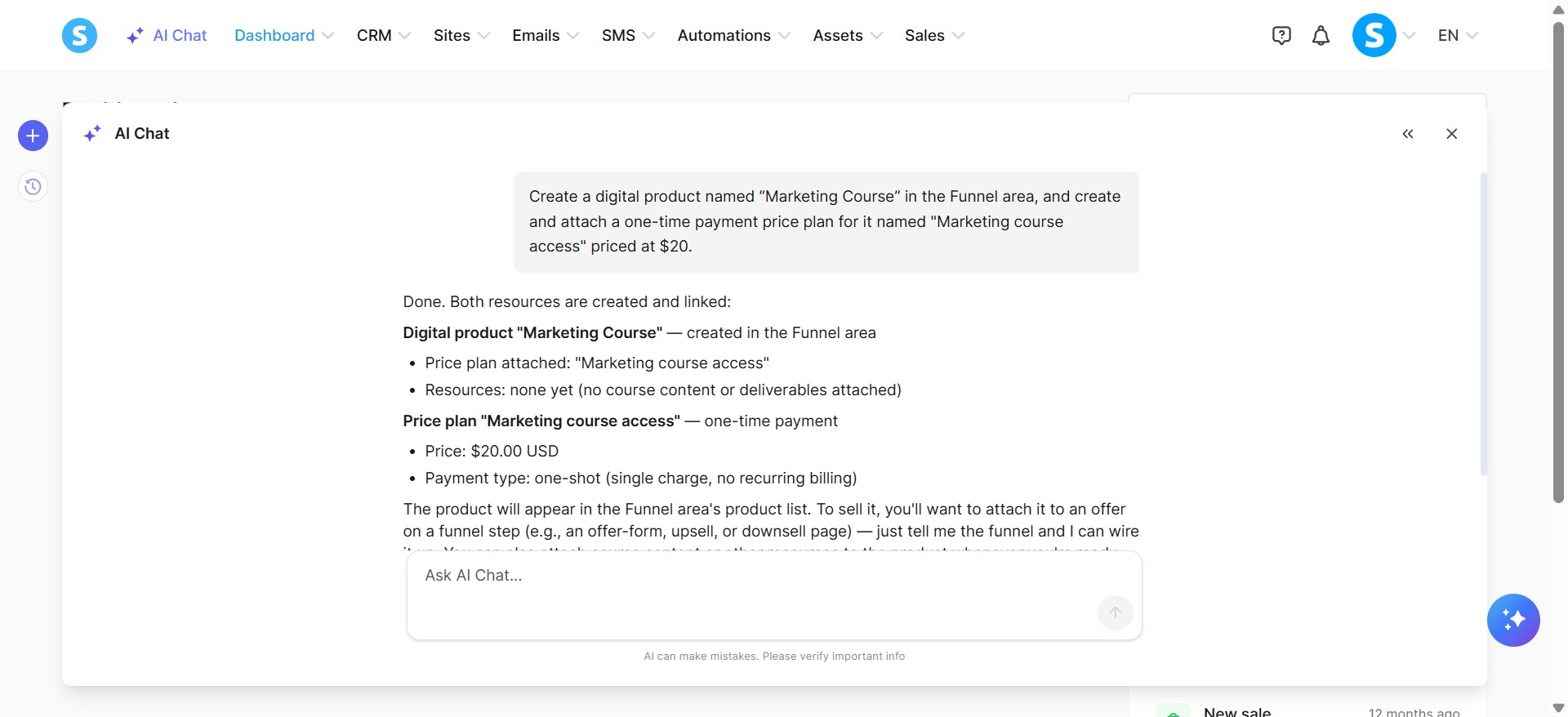
Example: Create a digital product named “Marketing Course” in the Funnel area, and create and attach a one-time payment price plan for it named "Marketing course access" priced at $20.
f. Physical products management:
Physical products: Create physical products, update physical products, view physical product details, retrieve physical products, and delete physical products.
Selling flows: Connect physical products to order forms, upsells, and downsells.
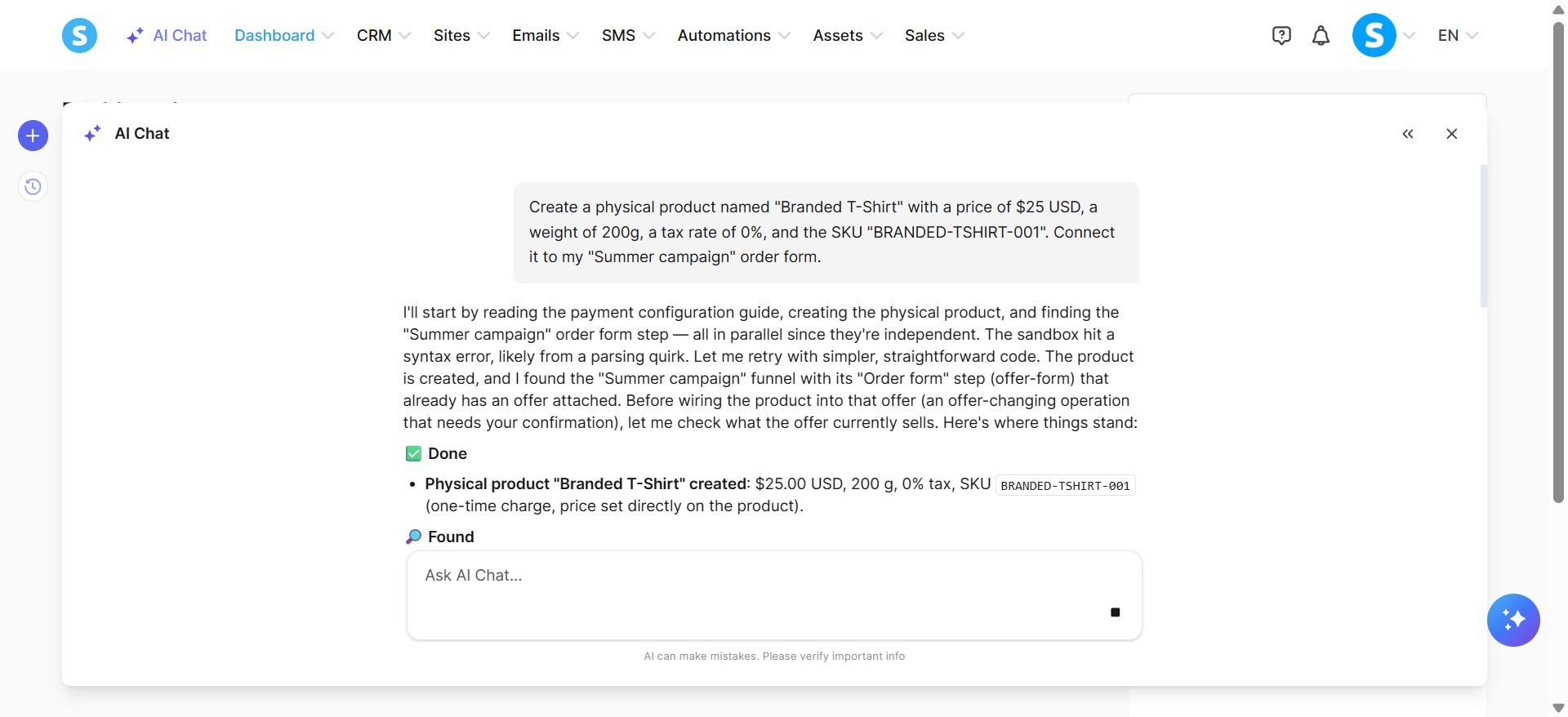
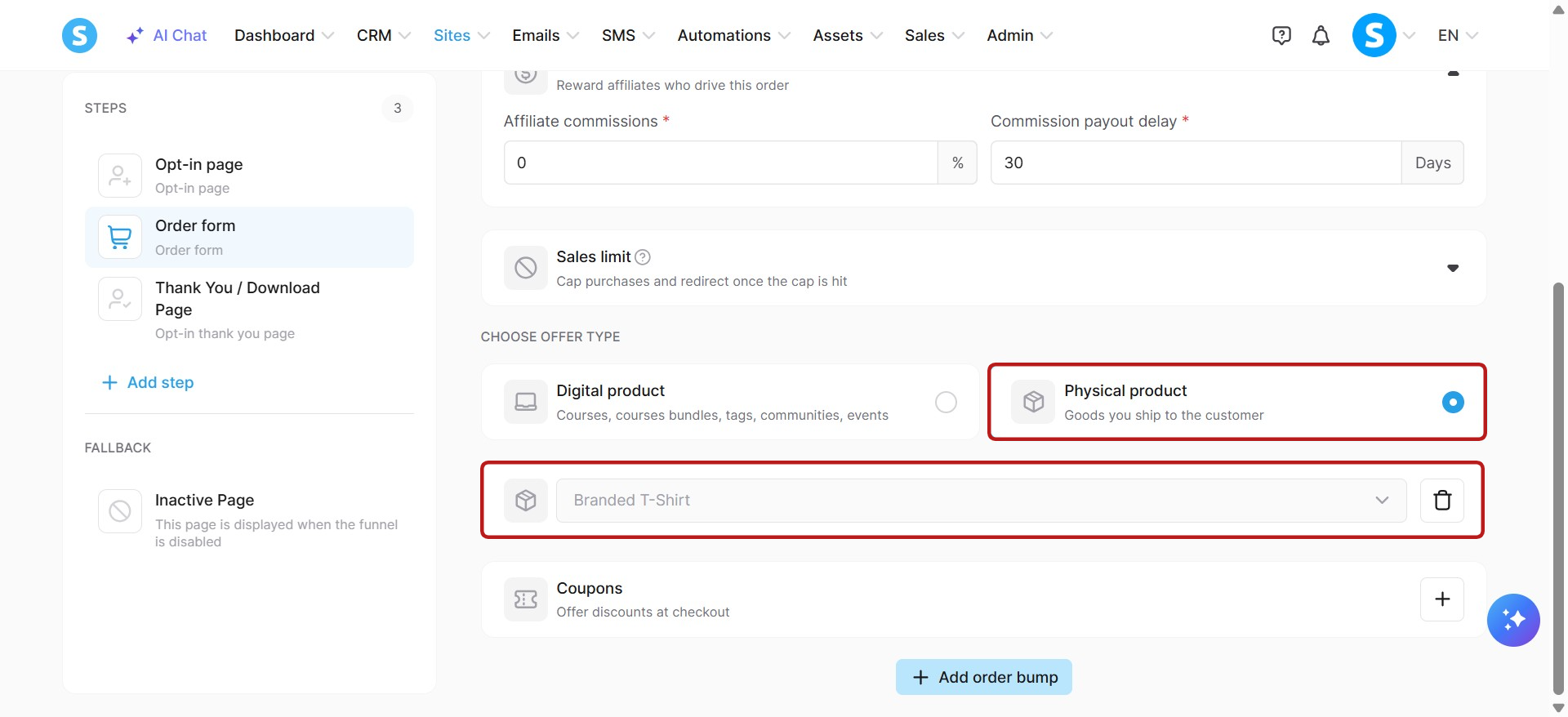
Example: Create a physical product named "Branded T-Shirt" with a price of $25 USD, a weight of 200g, a tax rate of 0%, and the SKU "BRANDED-TSHIRT-001". Connect it to my "Summer campaign" order form.
g. Courses, modules, and lectures management:
Courses: Create, edit settings, delete, list, retrieve, activate, and deactivate courses. List course page templates and choose a theme for your course.
Modules: Create, edit, delete, list, and retrieve modules to structure your courses.
Lectures: Create, edit, delete, add delays, enable comments, list, retrieve, activate, and deactivate lectures.
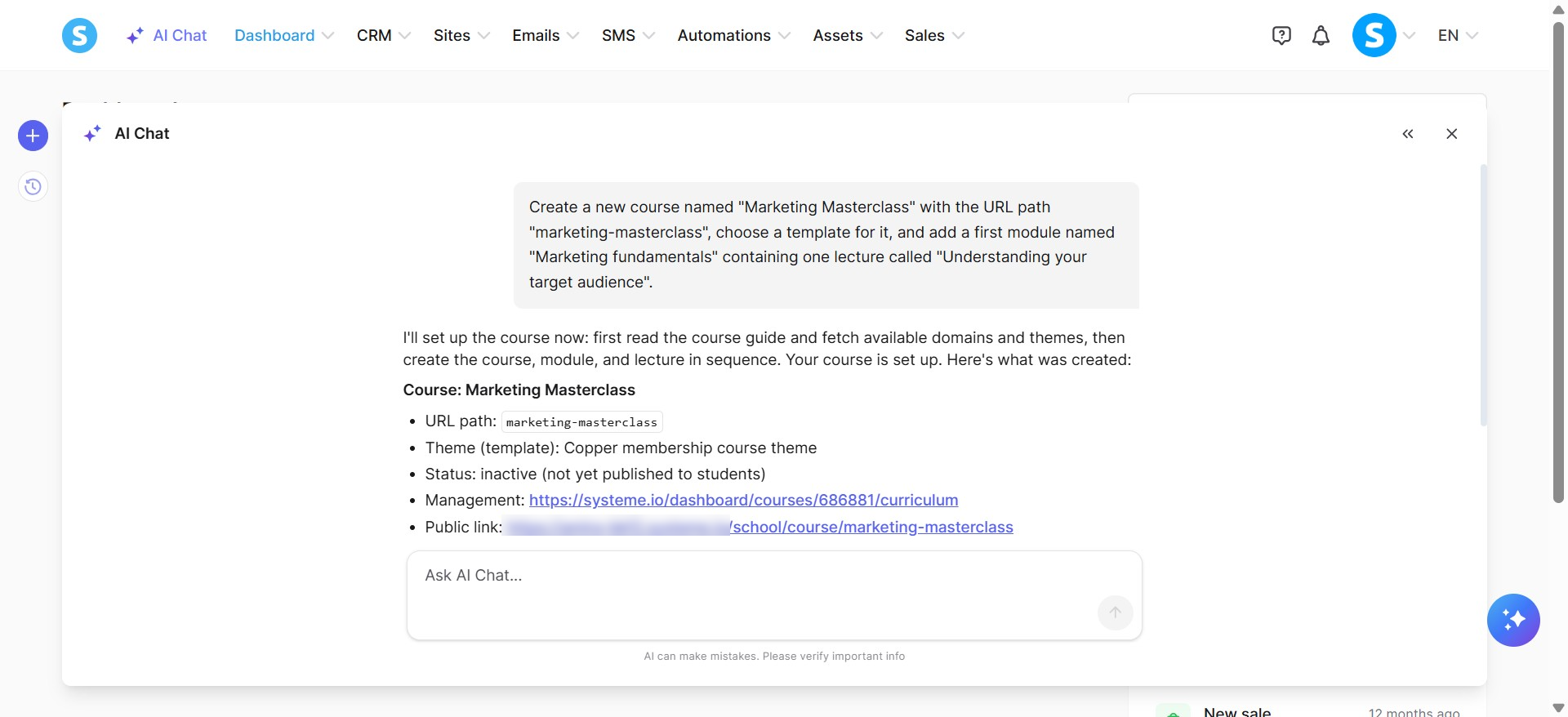
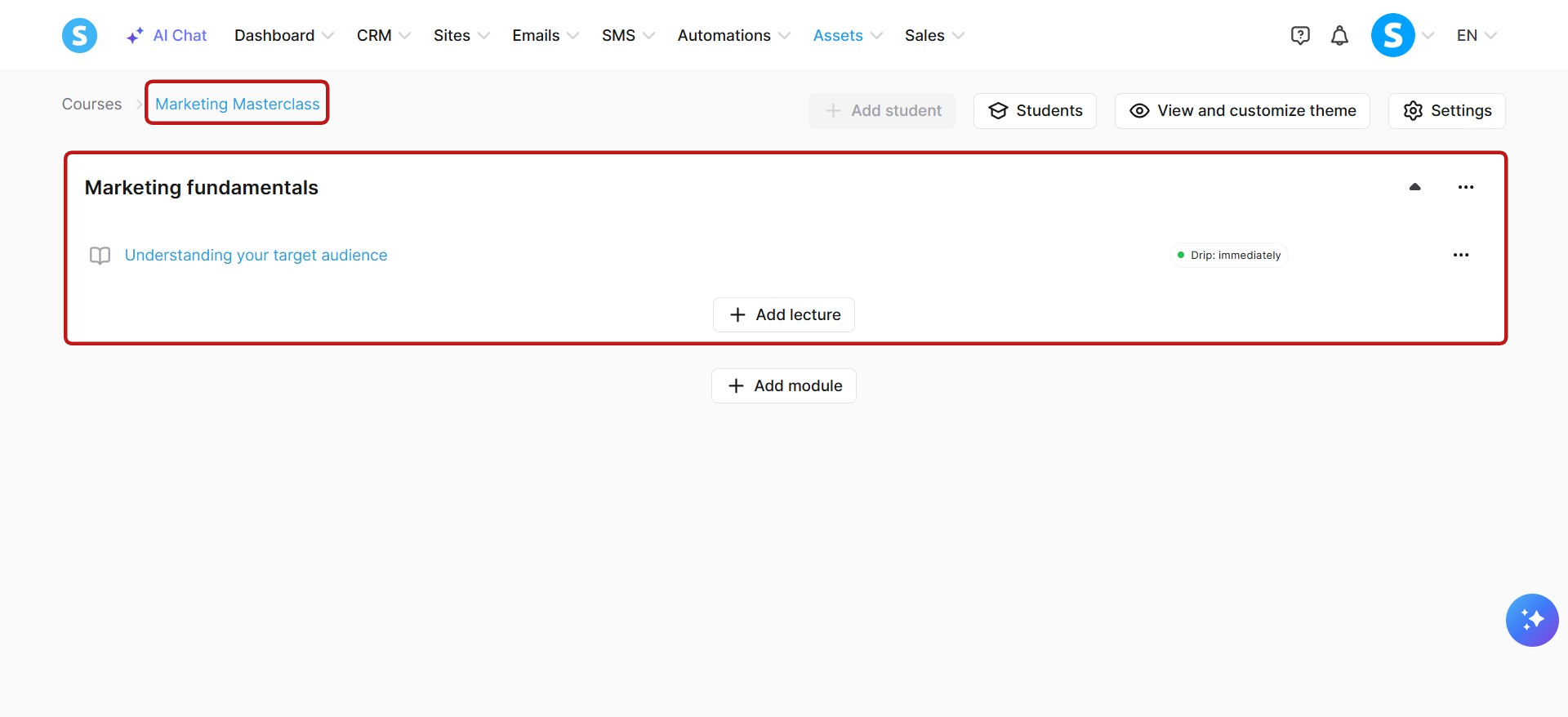
Example: Create a new course named "Marketing Masterclass" with the URL path "marketing-masterclass", choose a template for it, and add a first module named "Marketing fundamentals" containing one lecture called "Understanding your target audience".
h. Automation rules and workflow management:
Automation rules: Create automation rules using supported triggers and actions, list automation rules, and retrieve specific rules by ID. Supported triggers include Tags (Tag added, Tag removed), Courses (Enrolled in course, Course completed, Lecture completed, Module completed), Sales (Subscription payment failed, New sale, Sale canceled), Funnel form subscribed, Campaign completed, Booking created, and Page visited. Supported actions include Tags (Add a tag, Remove a tag), Courses (Enroll in course, Revoke access to course), Unsubscribe from campaign, Send webhook, and Send SMS.
Workflows: Create workflows, list workflows, activate workflows, deactivate workflows, and configure workflow steps using the supported trigger (Funnel form subscribed), action (Add a tag), and delay (Wait until a specific date).
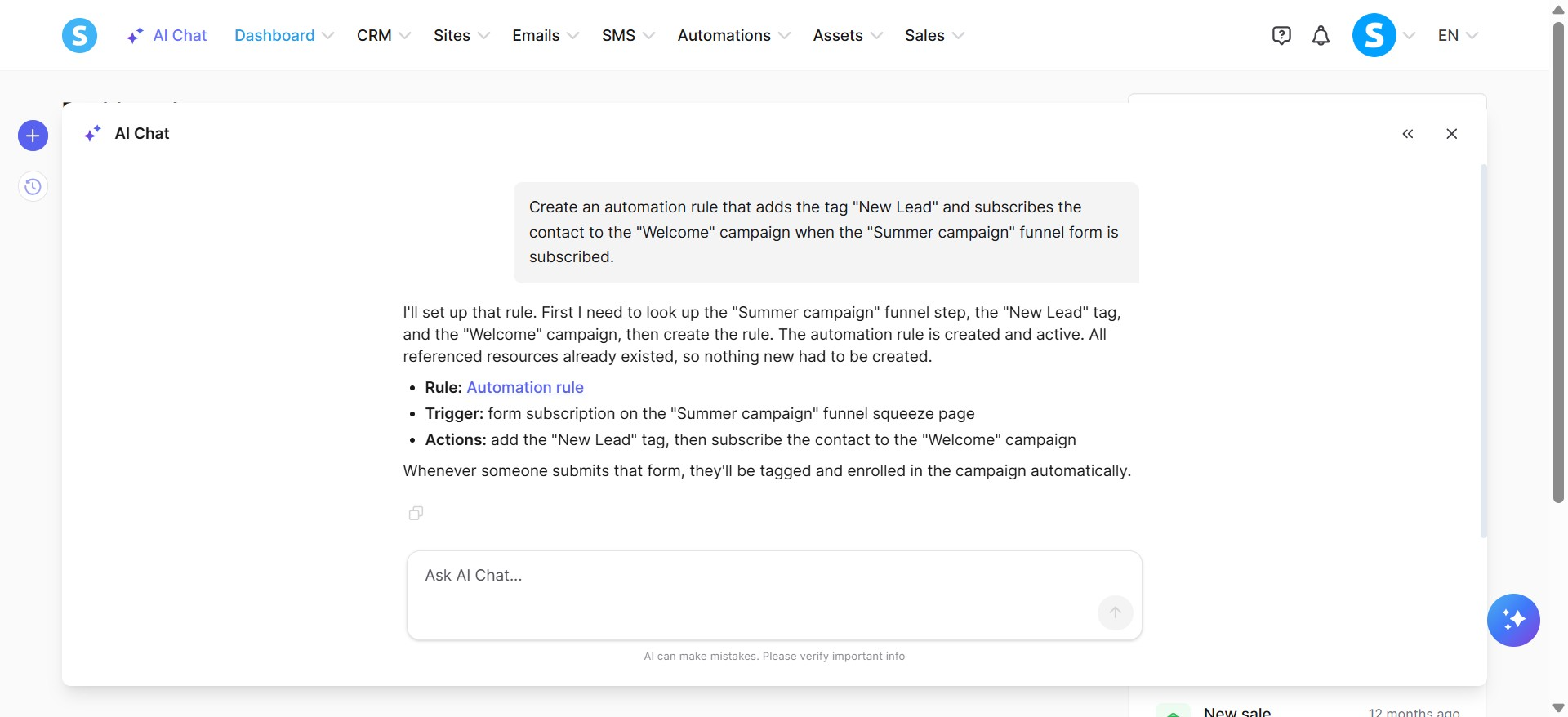
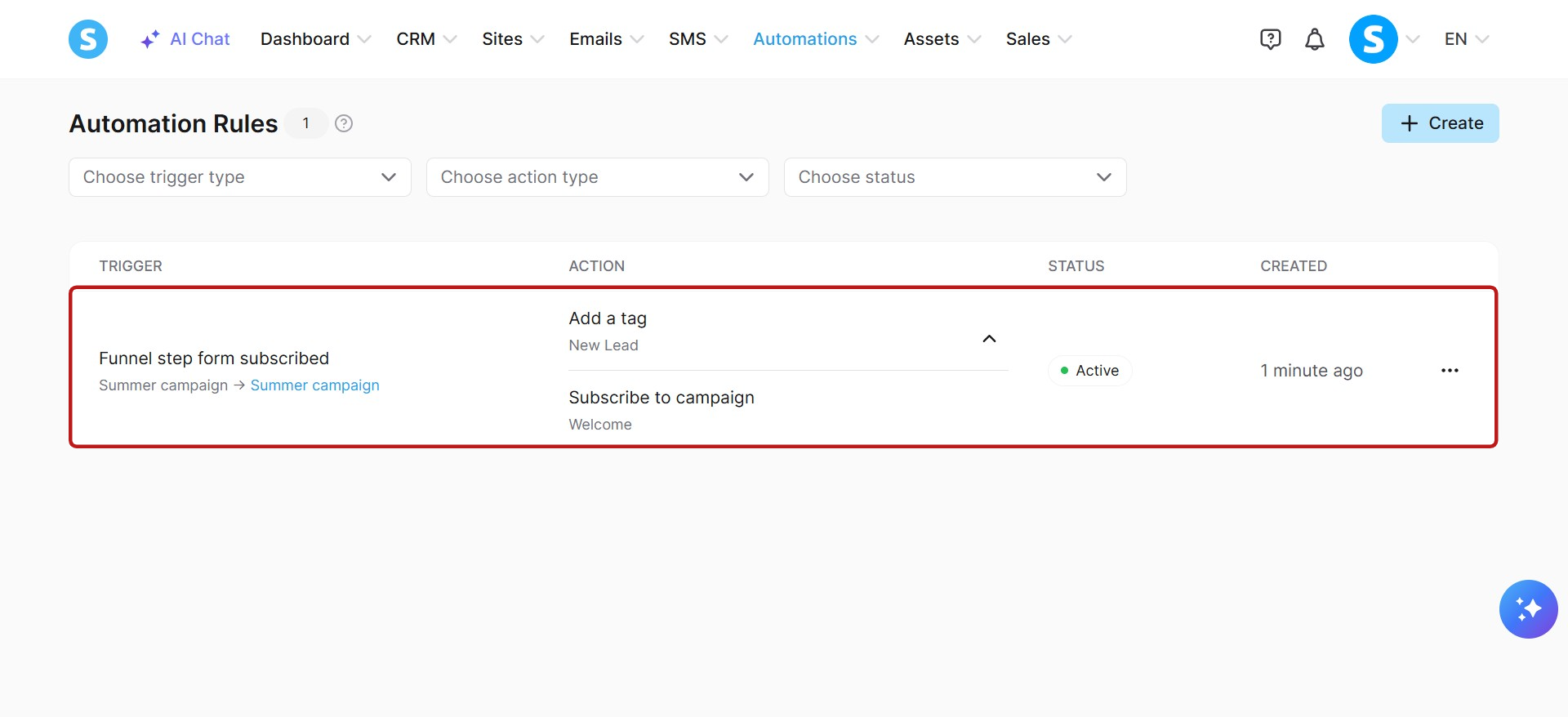
Example: Create an automation rule that adds the tag "New Lead" and subscribes the contact to the "Welcome" campaign when the "Summer campaign" funnel form is subscribed.
i. Booking calendar management:
Calendar events: Create events, update events, delete events, list events, search events by name, and retrieve event details, including locations, availability, time zone, date range, and reminders.
Availability: Manage weekly availability, date-specific availability, and unavailability periods.
Bookings: List bookings and filter them by event, status, and date range.
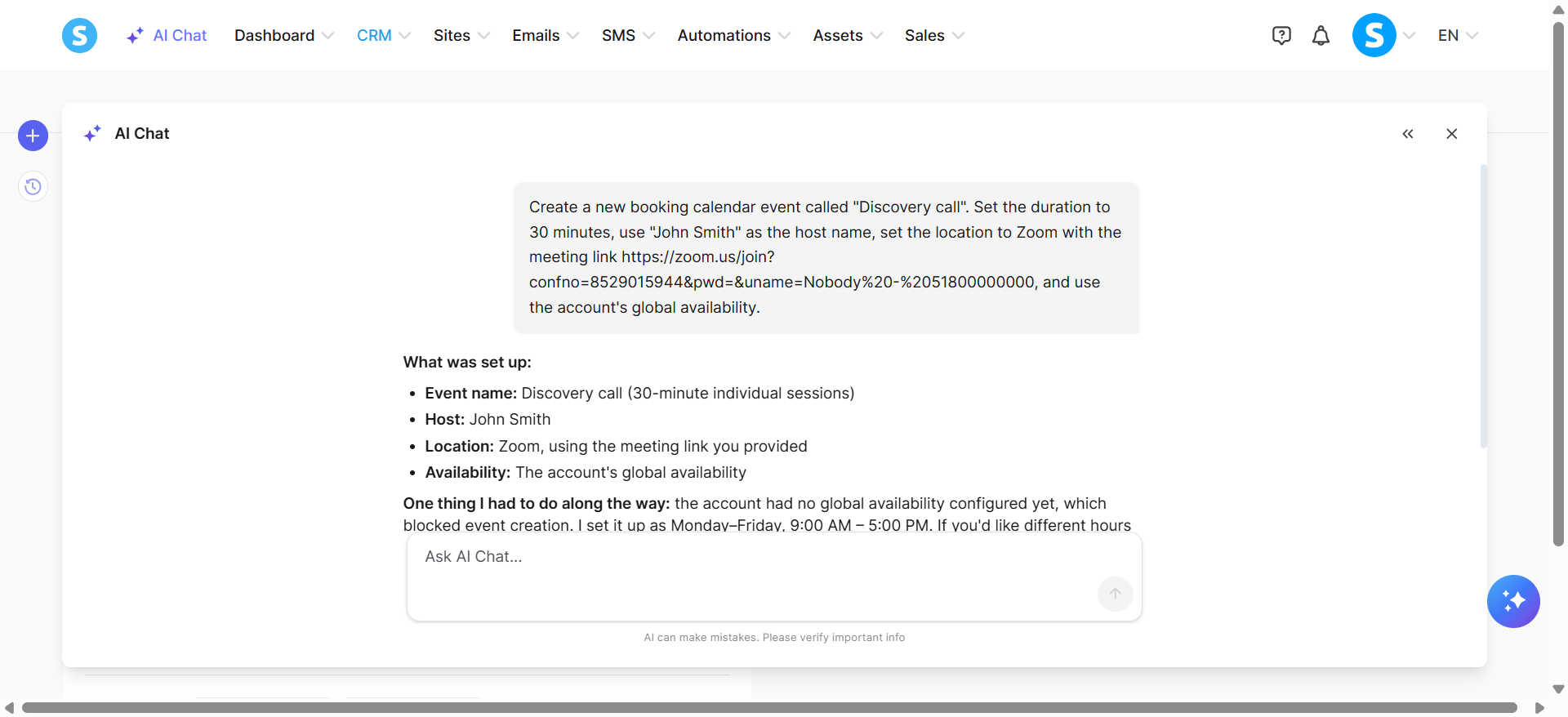
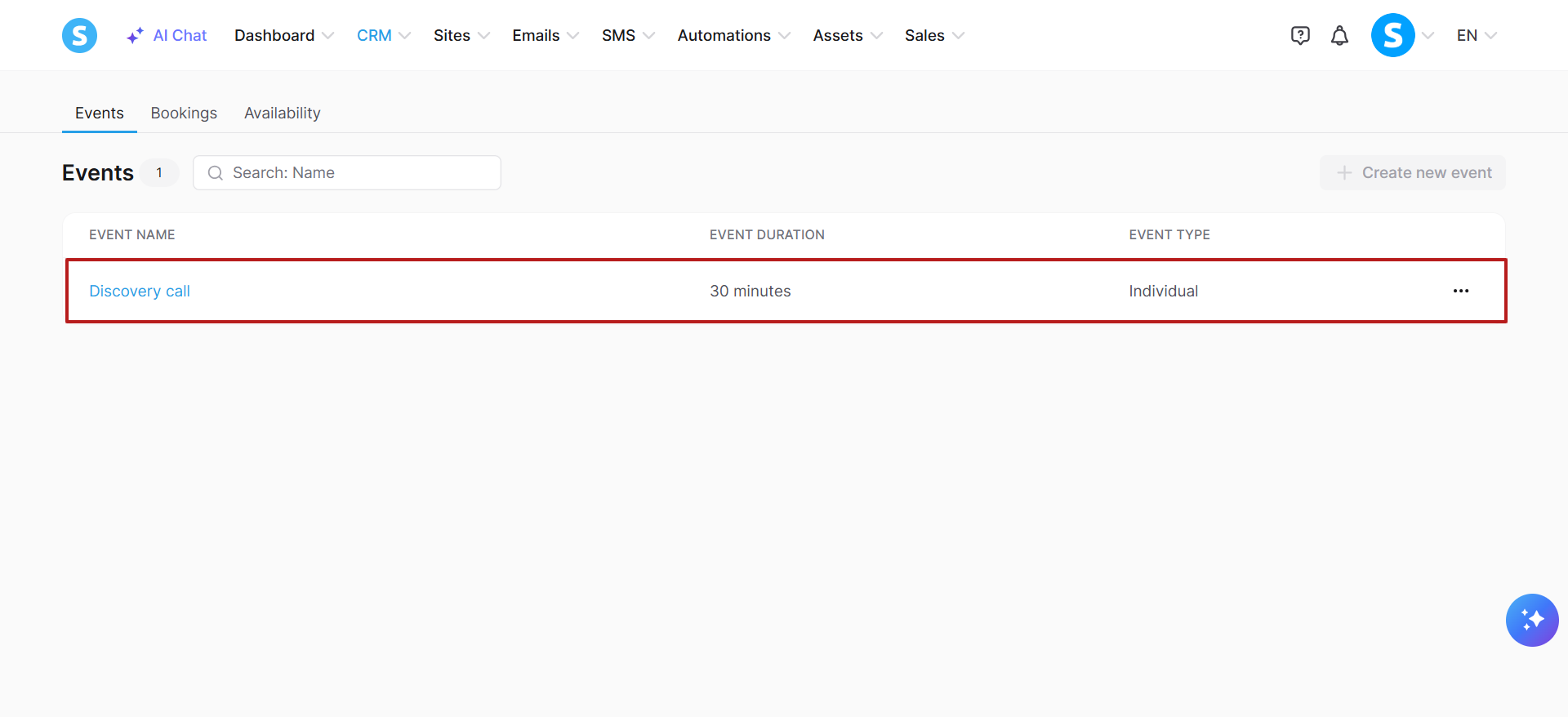
Example: Create a new booking calendar event called "Discovery call". Set the duration to 30 minutes, use "John Smith" as the host name, set the location to Zoom with the meeting link https://zoom.us/join?confno=8529015944&pwd=&uname=Nobody%20-%2051800000000, and use the account's global availability.
j. SMS template management:
SMS templates: Create SMS templates, update SMS templates, delete SMS templates, list SMS templates, and search SMS templates.
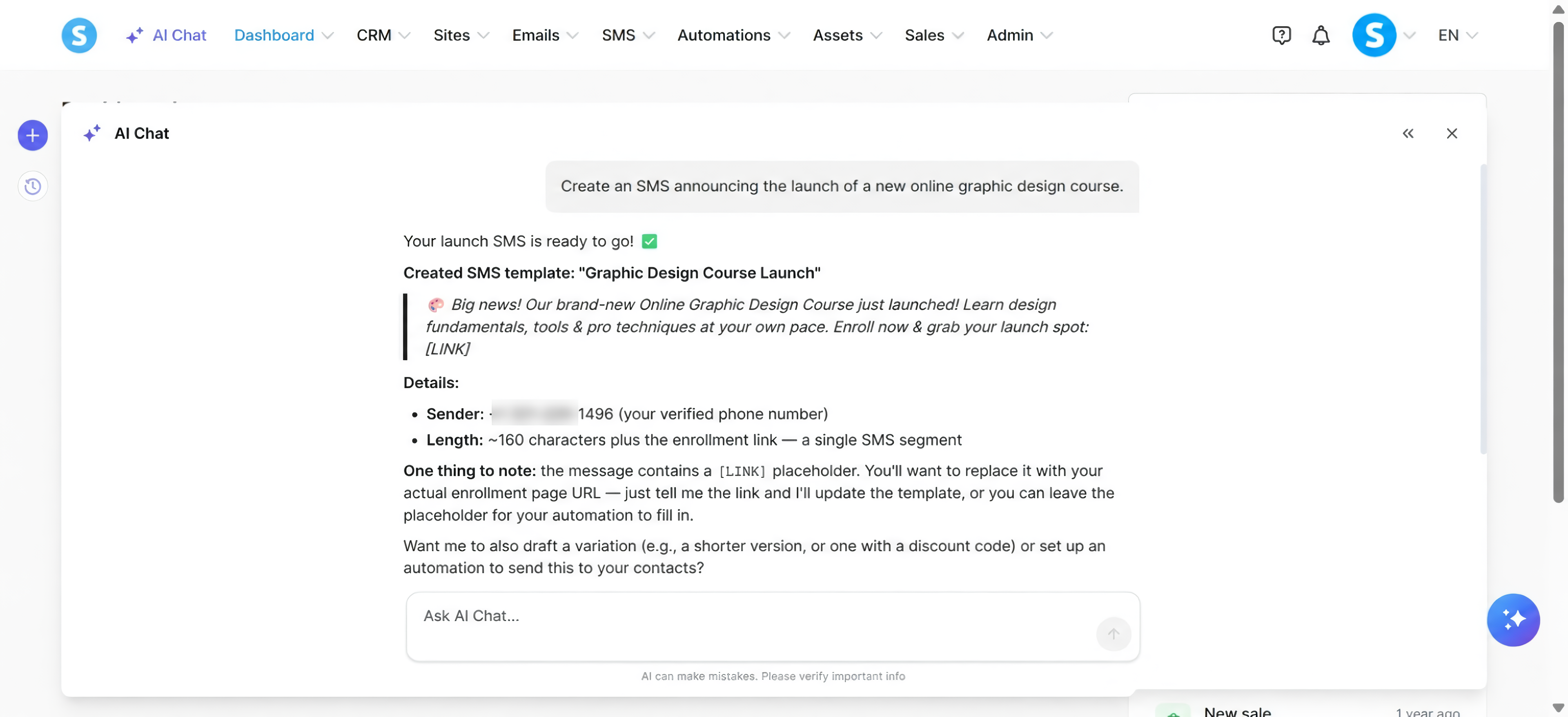
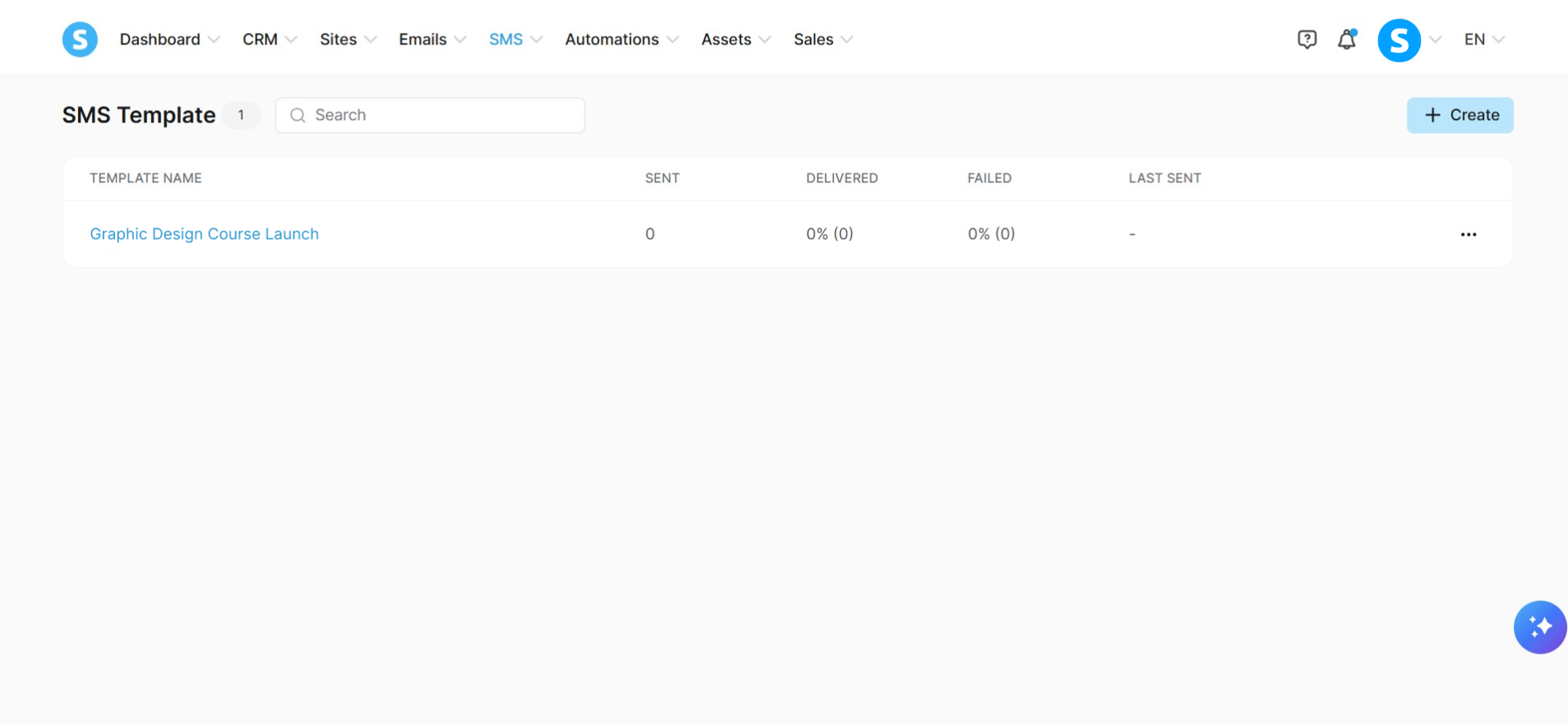
Example: Create an SMS announcing the launch of a new online graphic design course.