Loading
In this article, you will learn how to create an evergreen (automated) webinar on systeme.io. To get started, you will need a systeme.io account on either:
A Webinar plan
An Unlimited plan
1. Creating and configuring an evergreen webinar funnel
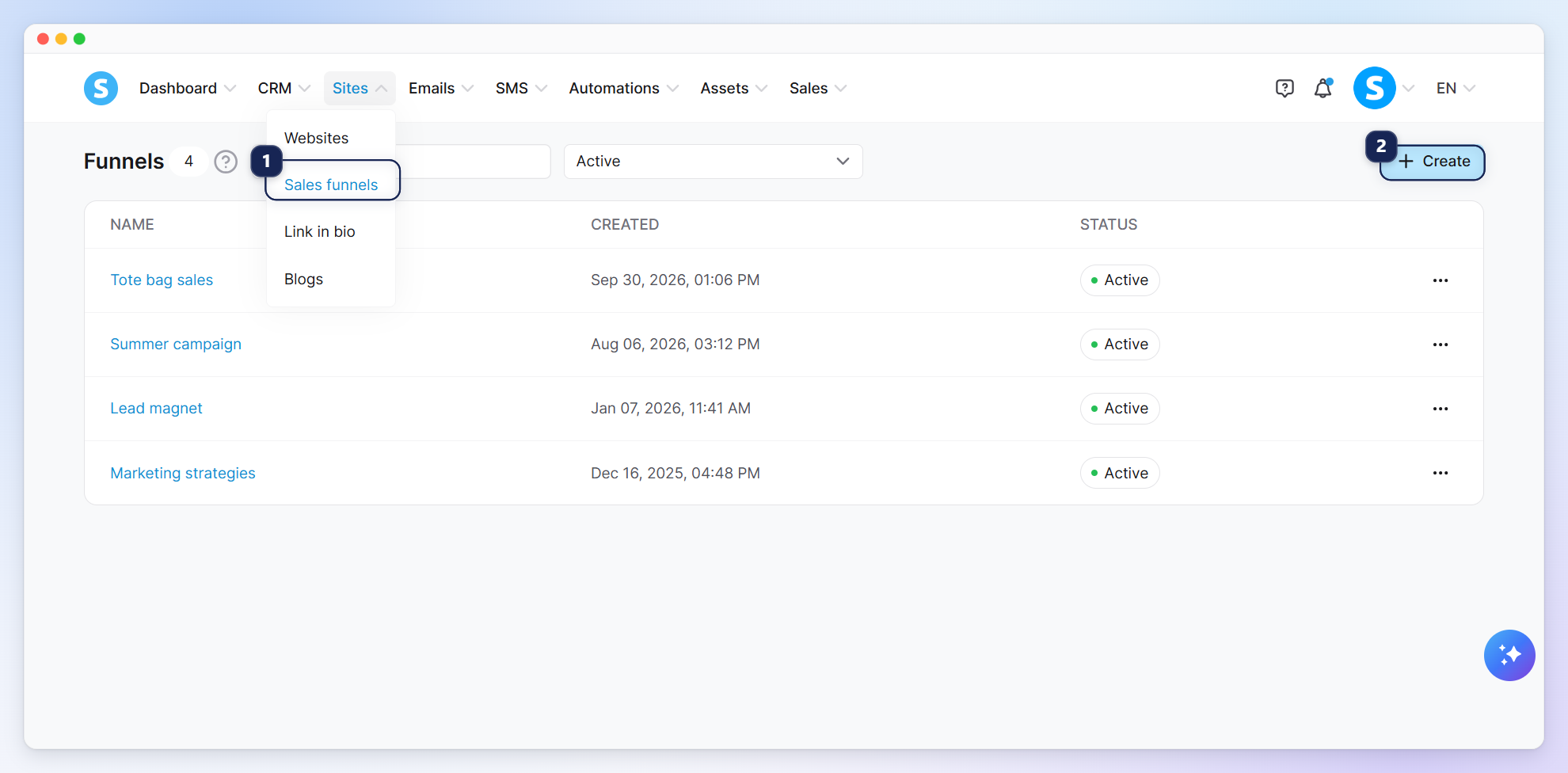
Click Sales funnels (1) under the sites tab, then click Create (2).
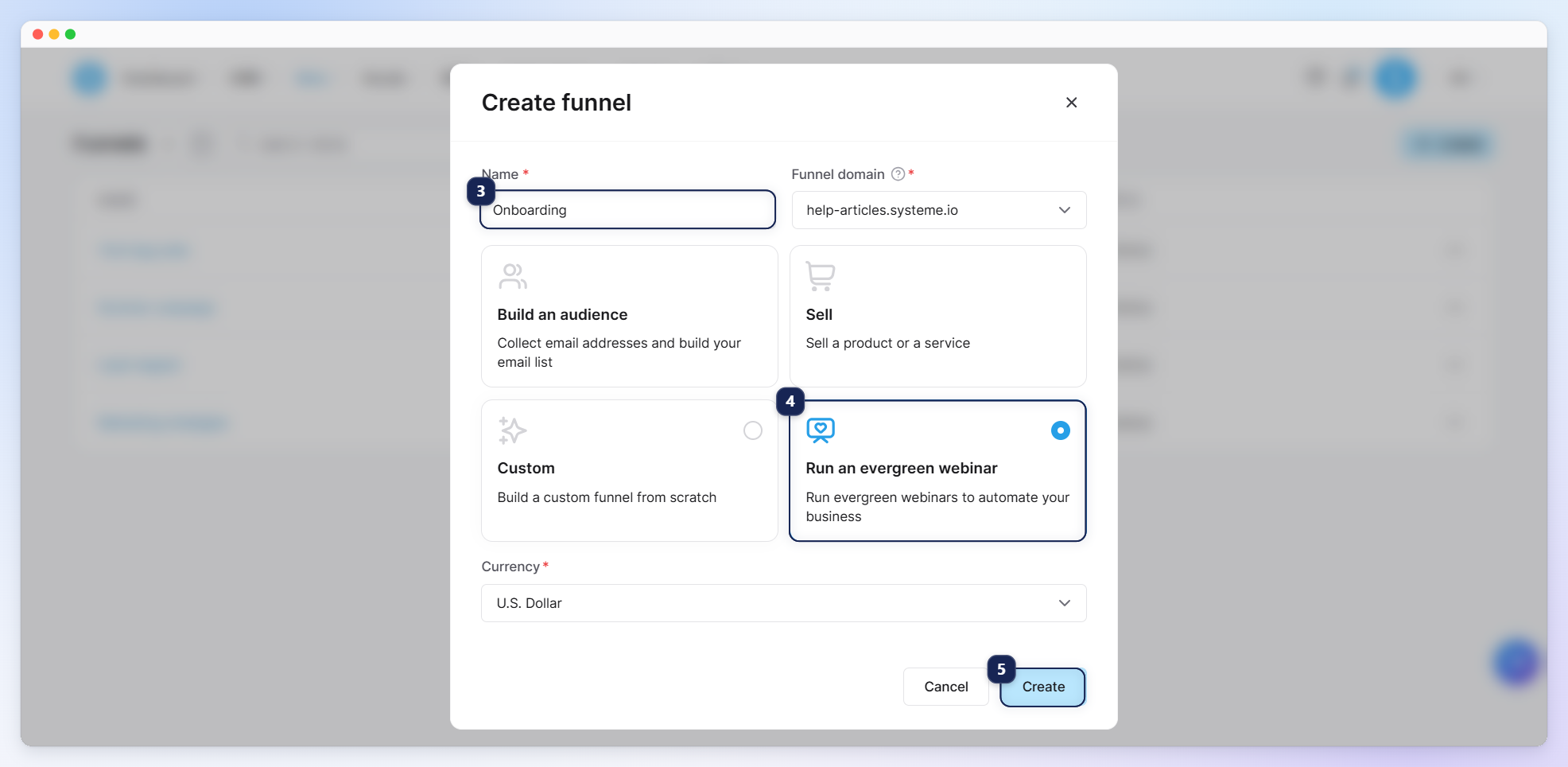
Name your funnel (3), select Run an evergreen webinar (4) as the goal, and click Create (5) (you can also select a domain and set a currency).
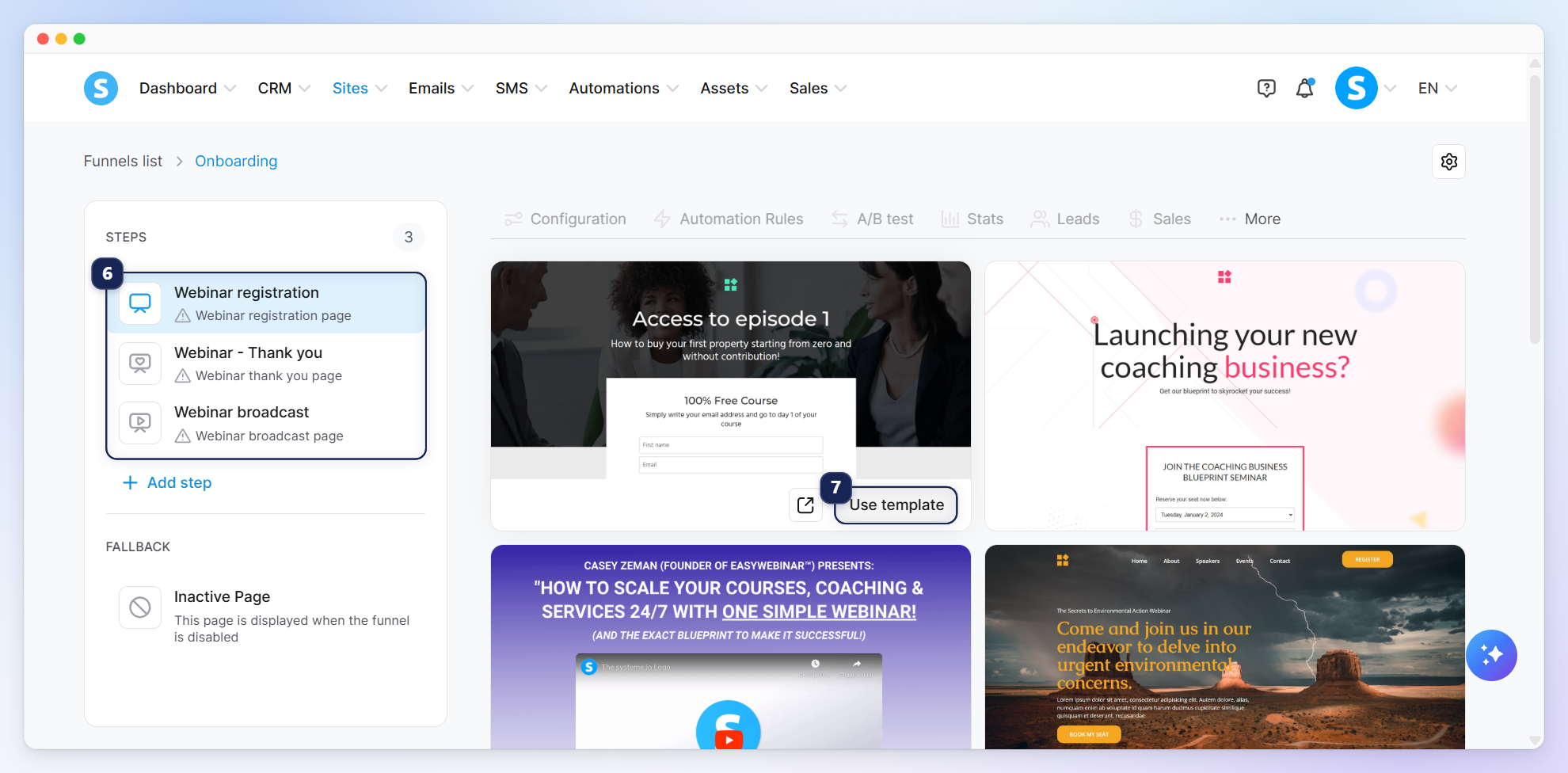
Your funnel will be created with three pages by default (6), listed in the left-hand column. Browse the available templates, and once you've chosen one, click Use template (7) for your registration page.
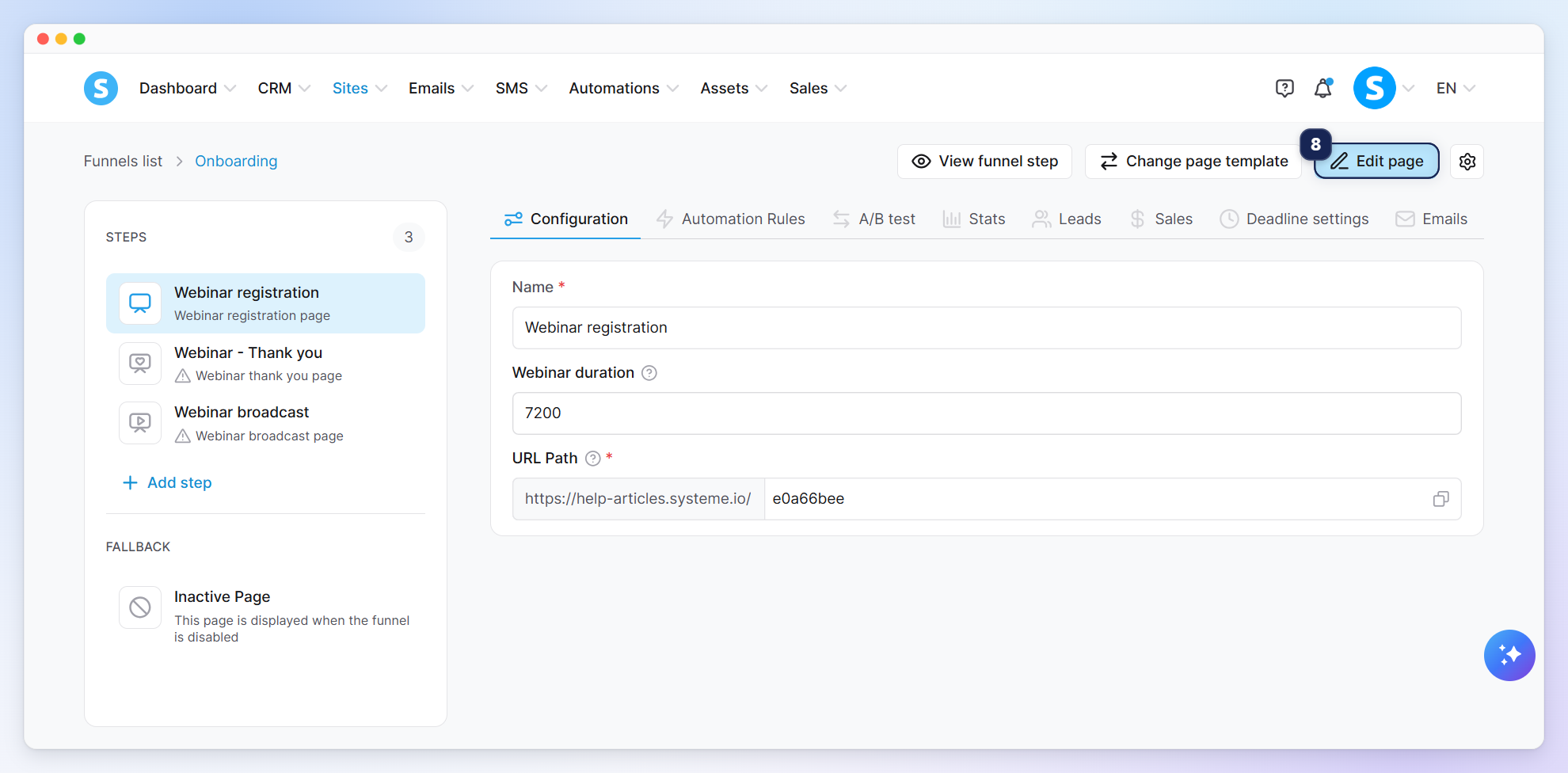
To customize the page content, click Edit page (8).
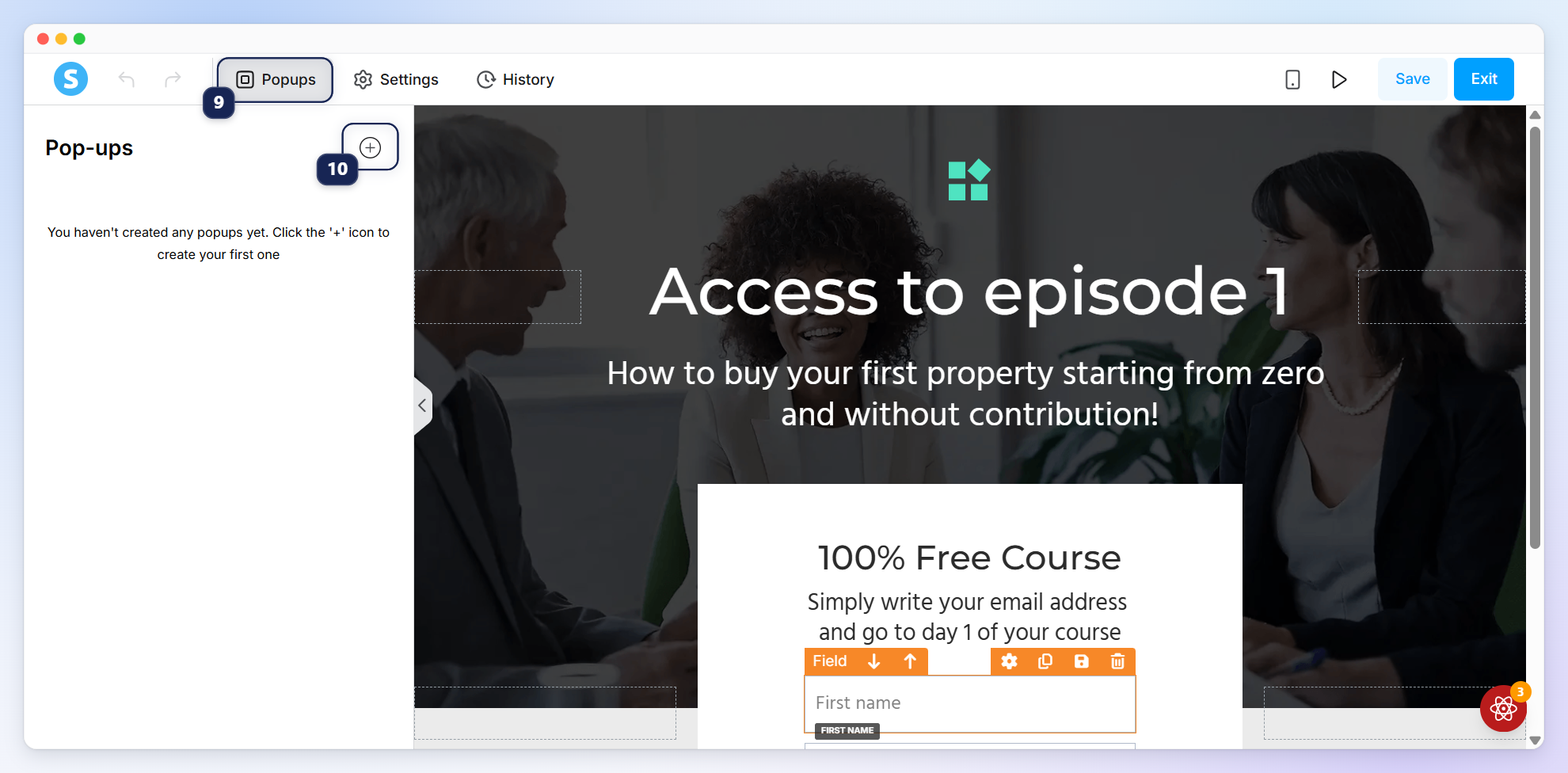
Click Popups (9), then click the + icon (10) to add a new popup.
Click Edit popup settings (11) to configure the registration form. The settings will appear in the left-hand sidebar (12).
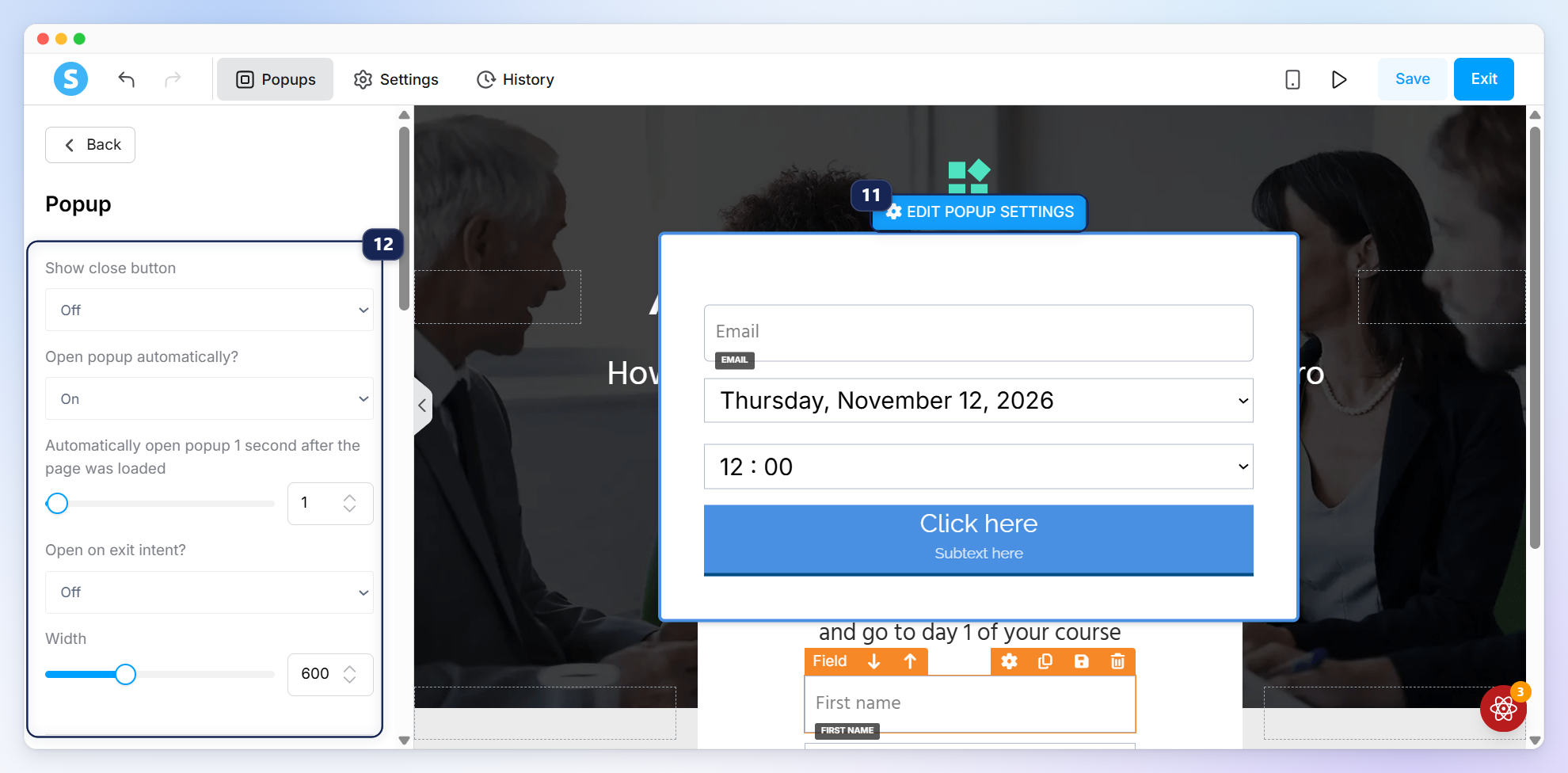
Note: Configuring the webinar registration date is mandatory.
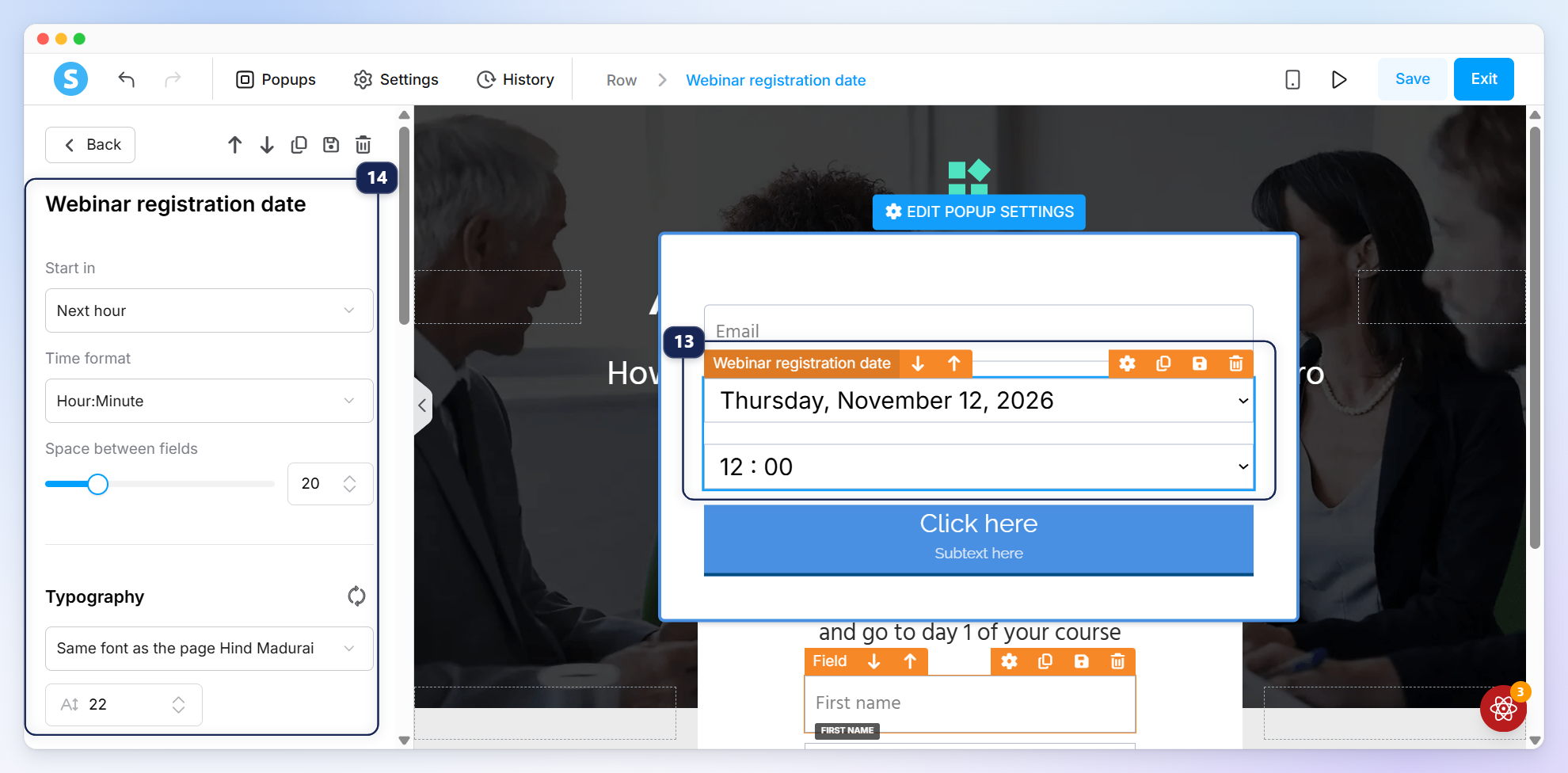
To configure it, click the webinar date element on your form (13), then adjust its options as needed (14).
2. Frequently asked questions:
Question: Can I add multiple webinar pages in a funnel?
Answer: You cannot have multiple webinar pages in a single funnel. However, you can add a button to your page that links to a sign-up page for a different funnel.
Question: Why can't I access my "thank you" and "conference" pages when I put the URLs in my browser?
Answer: These pages cannot be accessed directly via URL; they are only visible after a lead has registered. You can, however, preview these pages inside the editor.
Question: How do I configure a webinar to play on a specific date?
Answer: It is not possible to set a fixed calendar date (e.g., October 5th) for an evergreen webinar. Because the format is automated, leads will only see sessions available for the specific day they visit the page (e.g., "Today at 2:00 PM").
Question: Is it possible to do a live webinar?
Answer: No. systeme.io currently only supports automated (evergreen) webinars.