How to add a systeme.io calendar to your page
In this article, you will learn how to add a calendar to your systeme.io pages. You can add calendars to blogs, capture pages, sales pages, and popups.
How to add a calendar to your page:
Open the page editor, then drag and drop the Calendar element onto your page.
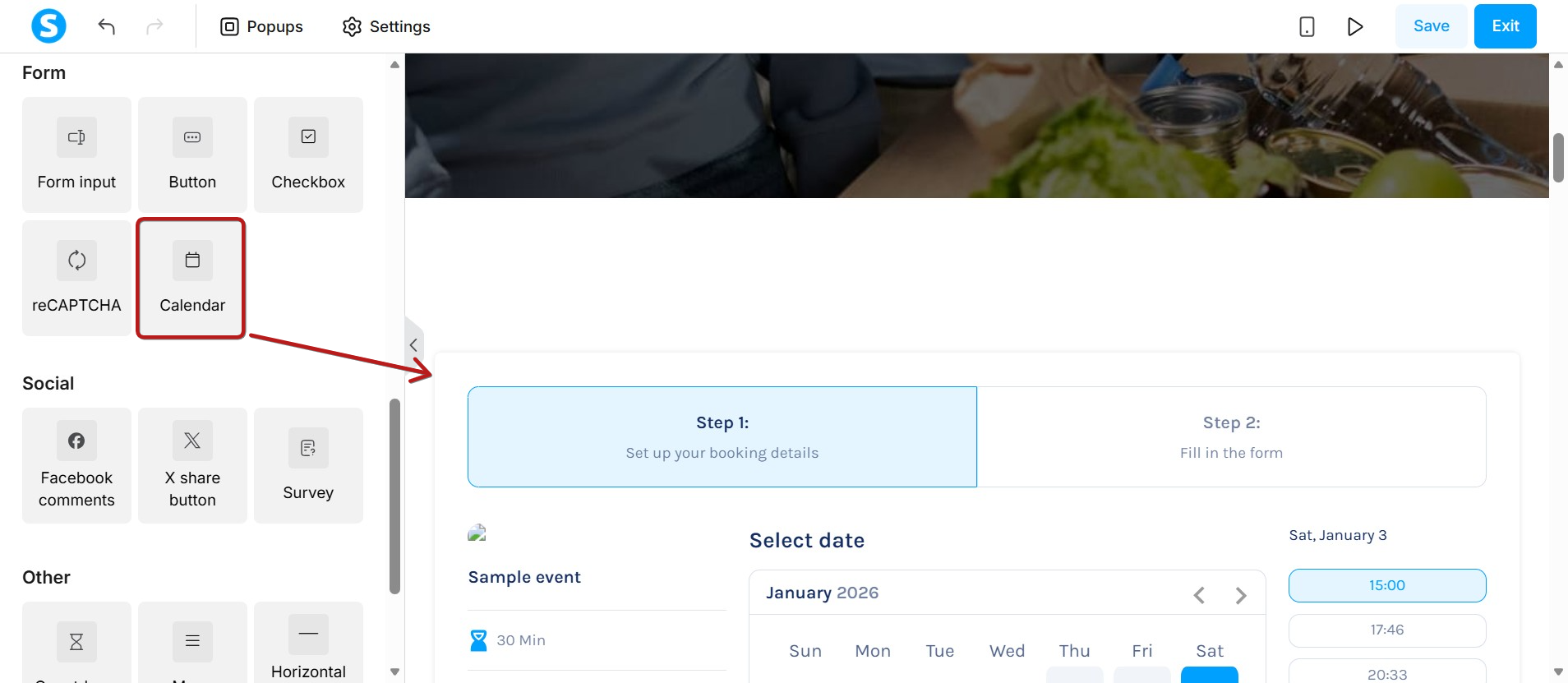
The Calendar element consists of three stages:
Step 1: Booking Interface
Step 2: Submission Form
Step 3: Confirmation
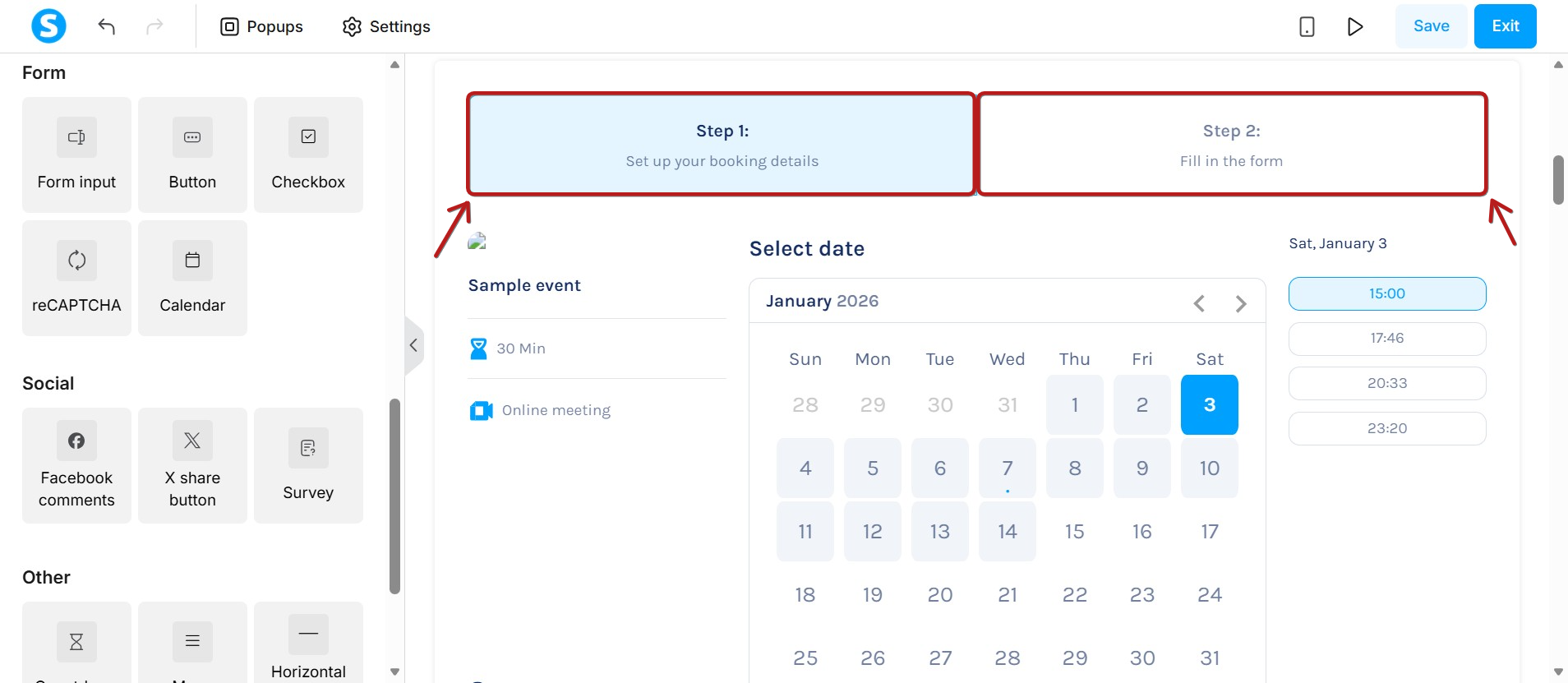
Step 1: Booking Interface
This step displays event details and the booking calendar where contacts schedule their appointments.
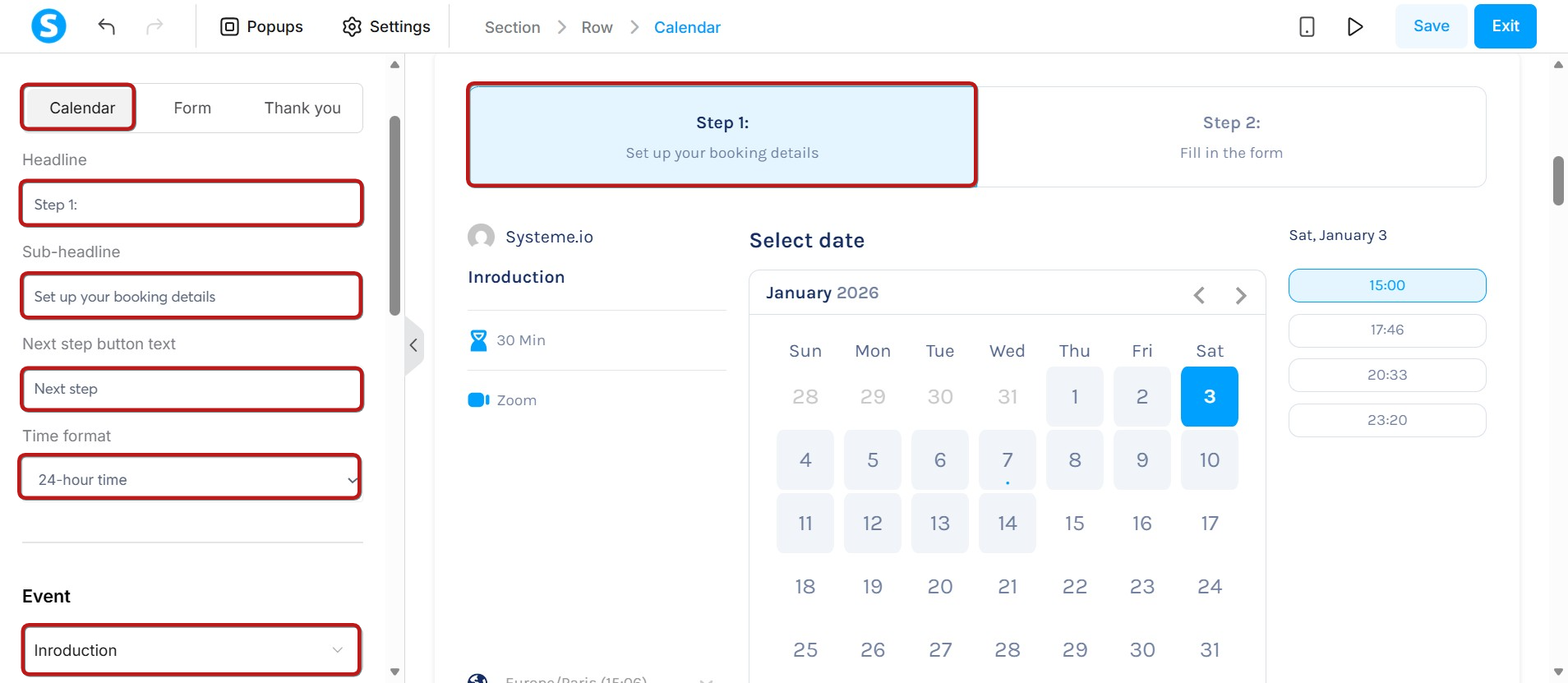
In the settings menu, several configuration options are available, including:
- Headline and sub-headline
- Next Step button text.
- Time format
- Event
- Configuration options for margins, padding, and colors.
Note 1: You must select an event for the calendar to function. If you have multiple events, choose one from the list. If you only have one event, it will be selected automatically.
Step 2: Submission Form
Contacts enter their details here to finalize the booking.
In the settings menu, you will find the same options here as in the Booking Interface step:
- Headline and sub-headline
- Next Step button text.
- Time format
- Event
- Configuration options for margins, padding, and colors.
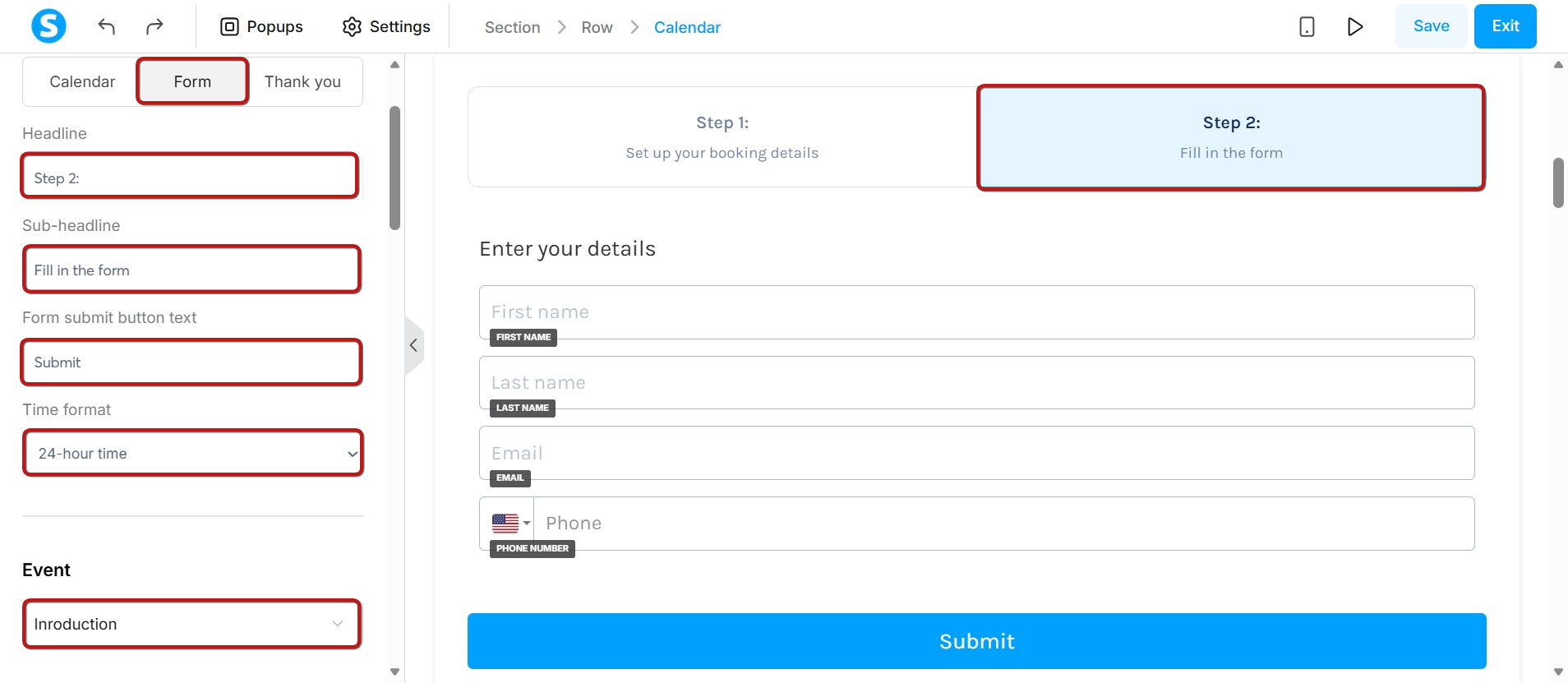
You can also add custom questions for users to answer. To make a question required, check the Mandatory box. To add more questions, click the Add question button.
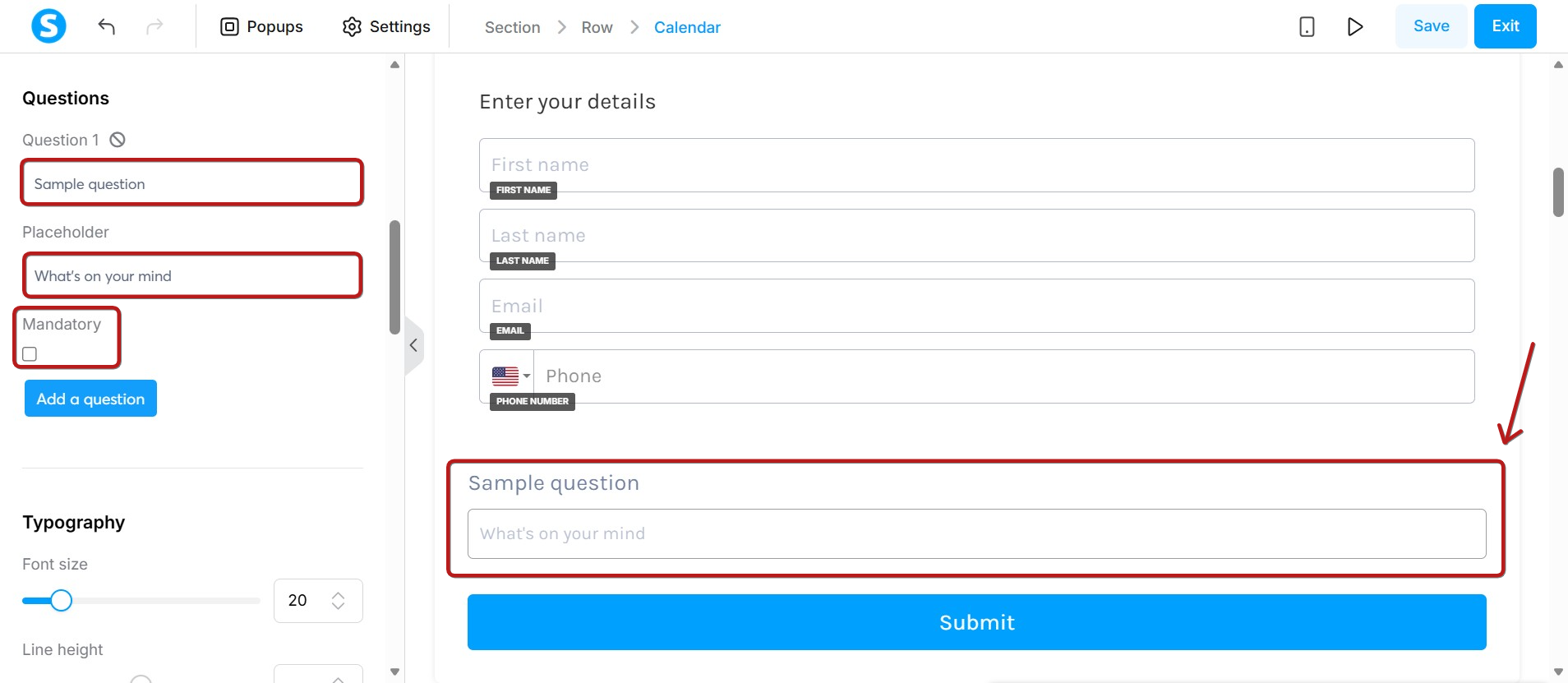
Notes:
- You can add other form fields beyond those already present.
- The font properties (type, size) within the calendar are linked to your page's default typography settings.
Step 3: Confirmation
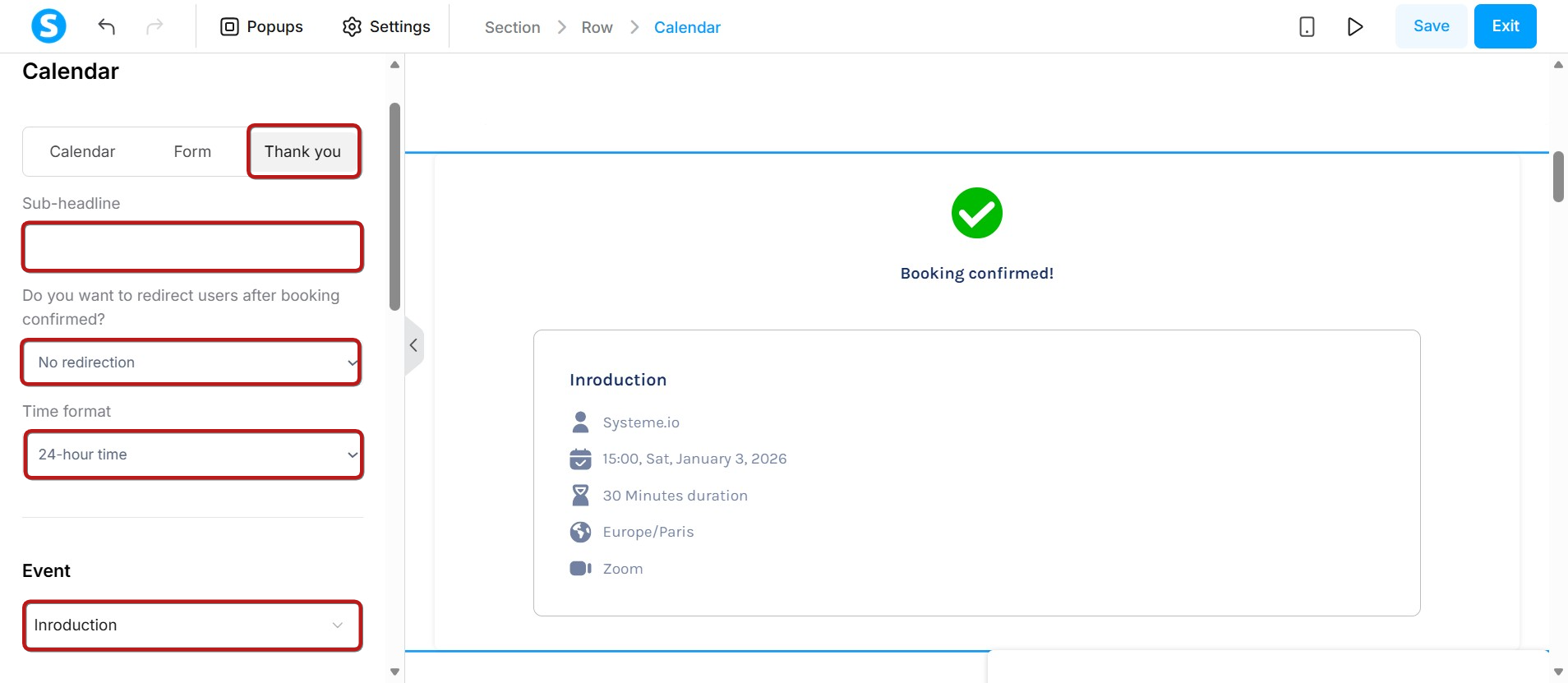
This step will appear after the user fills in their information and confirms their bookings.
In the settings menu, you will find the same option as on the Booking interface step:
- Sub-headline
- The option to redirect users to:
- The next step of your funnel
- To a custom URL
- No redirection
- Time format
- Event
- Configuration options for margins, padding, and colors.
Notification Emails:
Notifications are sent to the event owner and the guest who made the booking in the following cases:
- Booking Confirmation: Confirmation emails are sent to both parties to indicate that the booking was successful.
- Rescheduling: In the event of rescheduling, notification emails are sent to both parties with the new booking details.
- Cancellation: If either party cancels a booking, cancellation emails are sent to both parties.
Note: Emails sent to guests include a Cancel button. When clicked, the user is redirected to a confirmation page. Once confirmed, the cancellation is processed, and email notifications are sent.