Loading
In this article, you will learn how to create a DMARC record for the application of the DMARC policy of "none" on Cloudflare.
One of the essential steps to complete the authentication of your domain is to add a DMARC record. You can find the necessary values in the popup window containing your DNS records.
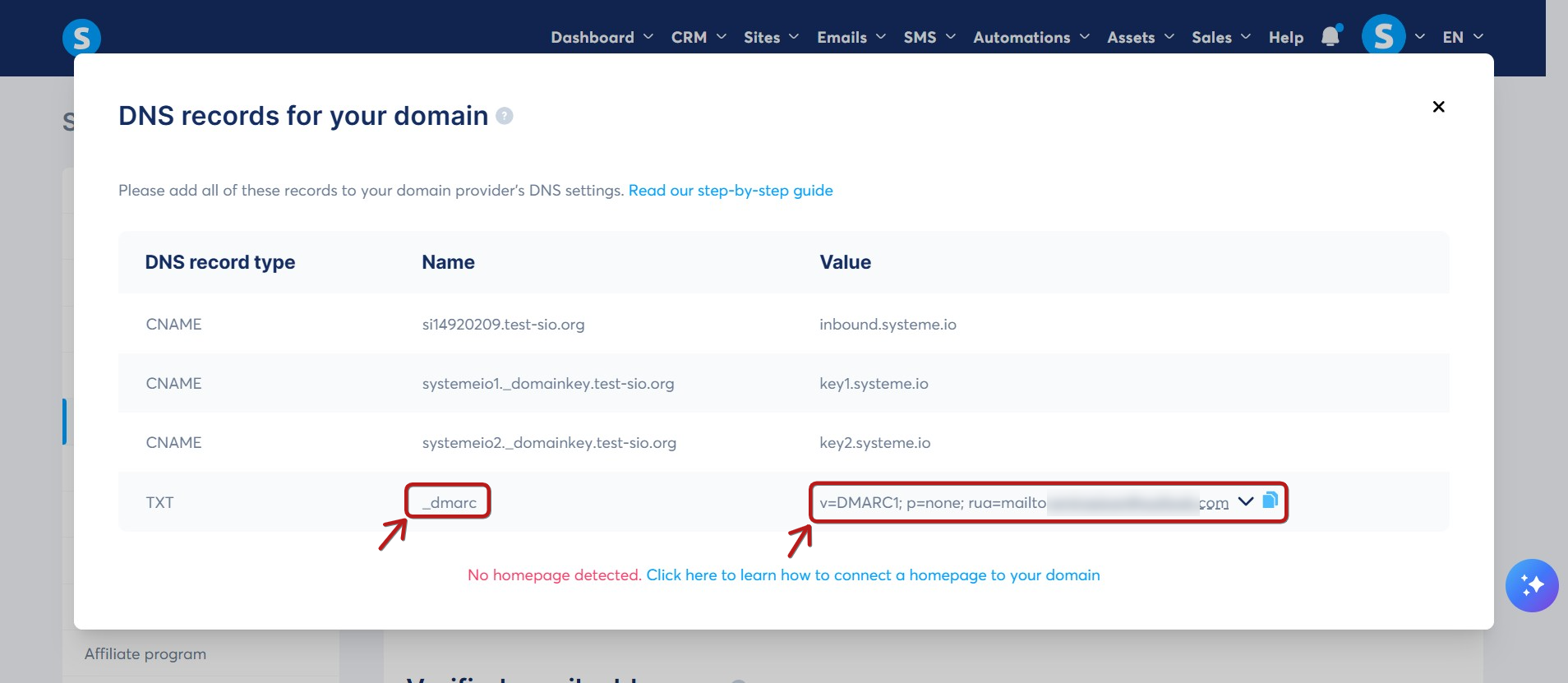
To add the DMARC record, log in to your Cloudflare dashboard, select your domain, and navigate to the DNS section.
Create a new DNS record by following these steps:
1. Navigate to DNS > Records. Click Add record and select TXT from the Type dropdown menu.

2. In the Name field, enter _dmarc (as shown in the Name column of the systeme.io popup).

3. In the Content (value) field, paste the DMARC value provided by systeme.io:
v=DMARC1; p=none; rua=mailto:youraddress@yourdomain.com
Example: If your email address is example@example.com, you would enter:
v=DMARC1; p=none; rua=mailto:example@example.com

4. Finally, click Save.
Remarks:
1. You must have only one DMARC record in your DNS zone for authentication to work. If an old DMARC record already exists, delete it and keep only the new one you just created.
2. Once the DMARC record is added, email providers will generate and send a daily report. These reports will be sent to the email address specified in the rua tag of your DMARC record.
Note: To avoid cluttering your main inbox, we recommend using a dedicated email address for these reports. You can set this up by editing the rua=mailto:example@example.com section of the value.
3. DMARC reports are sent in a raw format that can be difficult to read. Click here to learn how to interpret them. If you need further assistance, please contact our support team using this link.
4. You can verify your DMARC record is set up correctly by searching for your domain at https://mxtoolbox.com/dmarc.aspx

Notes:
Adding this DMARC record ensures that receiving servers properly authenticate your legitimate emails.
The DMARC reports you receive will help you verify that all your legitimate emails are being correctly identified and authenticated.