How to manage your booking calendar with the systeme.io MCP server
In this article, you will learn how to manage your systeme.io booking calendar using natural language through our native MCP server. By connecting an AI tool like ChatGPT or Claude, you can easily create, view, update, and delete calendar events, as well as manage your bookings seamlessly without leaving your chat window.
What you will need:
A systeme.io account
An MCP key generated from your systeme.io account (How to use the systeme.io MCP server (Model Context Protocol))
An AI tool connected to your systeme.io account using MCP keys:
1. Managing booking calendar events
The MCP server allows you to perform full management actions on your booking calendar events directly from the chat. Just provide the name of the event and specify the action you want to perform.
a. Create a calendar event: You can ask the AI to generate a brand-new booking calendar event in your account and include many details.
Example: Create a new individual booking calendar event named "Discovery call" with a 1-hour duration, 30-minute start time increments, hosted by John Doe, with Google Meet as the meeting location (link: https://meet.google.com/aao-eiqt-mcf). Use the local timezone, make the event indefinitely bookable, and set availability with a recurring slot every Friday at 3 PM.
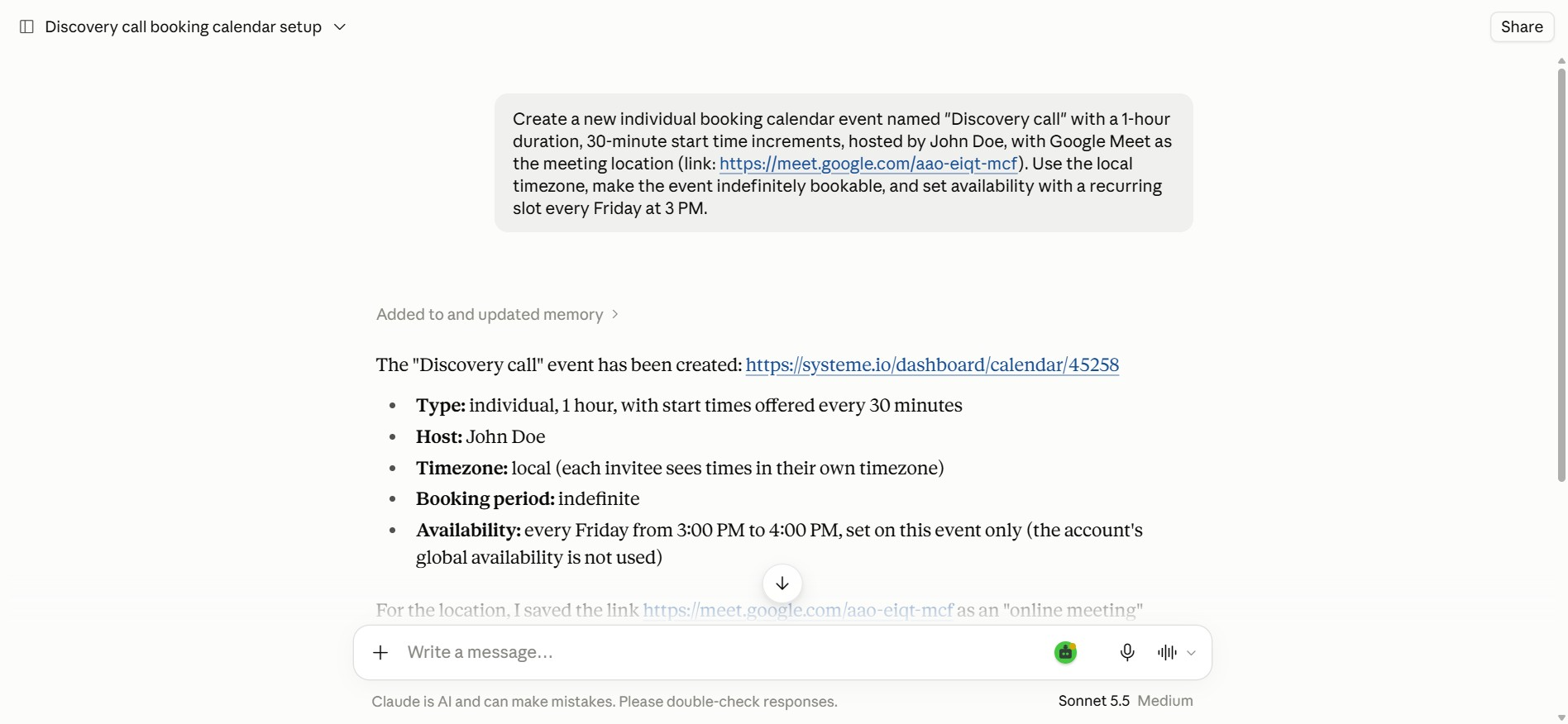
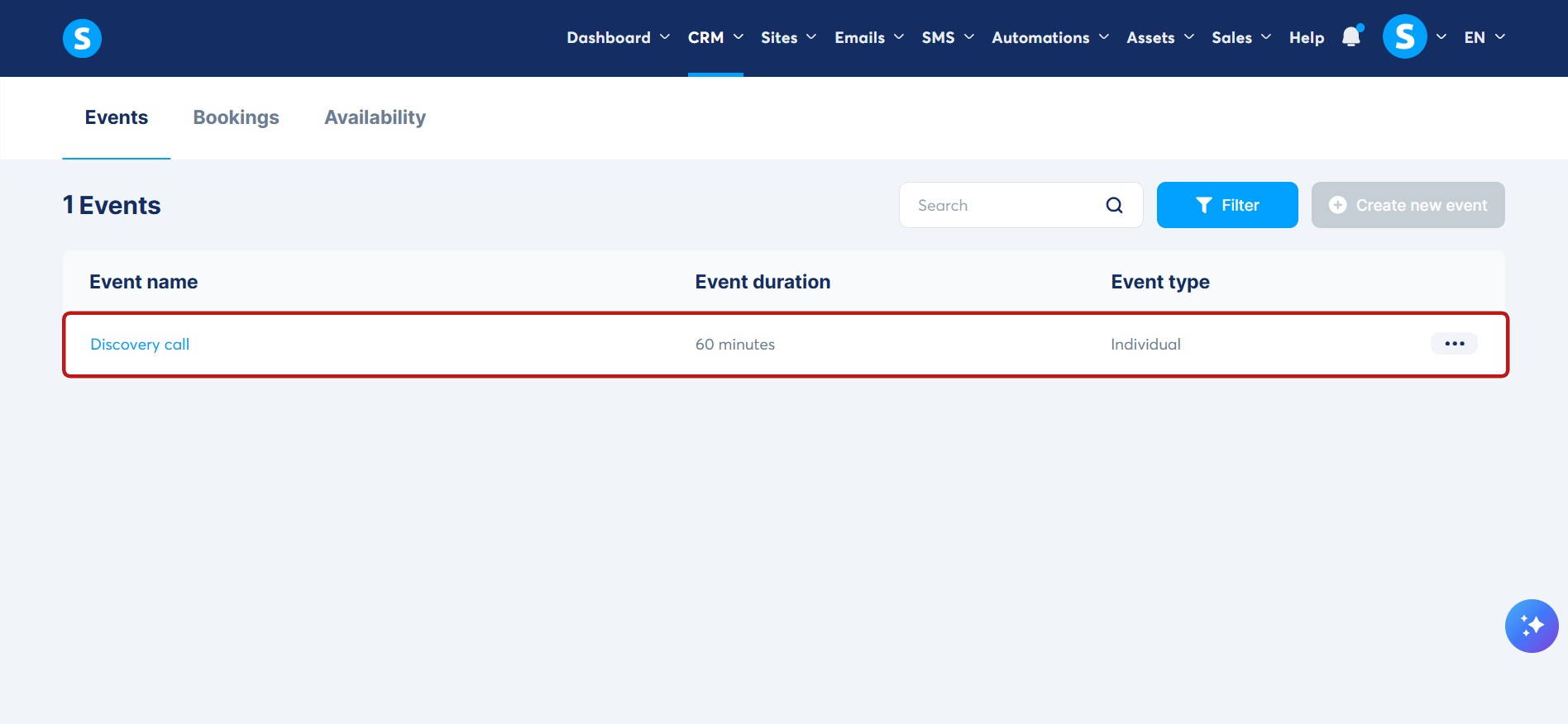
(All details were added to the event as specified in the prompt).
b. Update a calendar event: If you need to change an event's details, you can instruct the AI to easily make those updates.
Example: Update the "Discovery call" event and change its duration to 45 minutes.
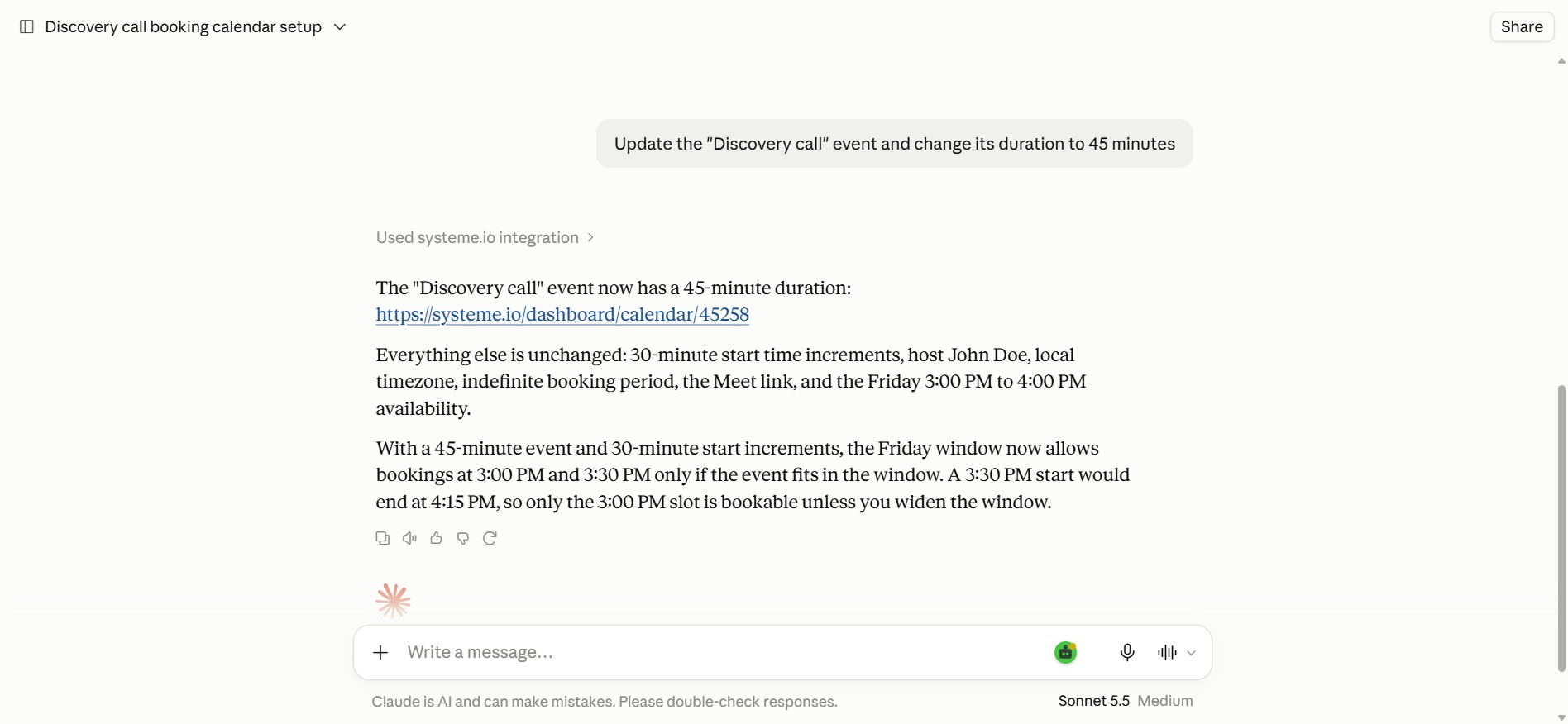
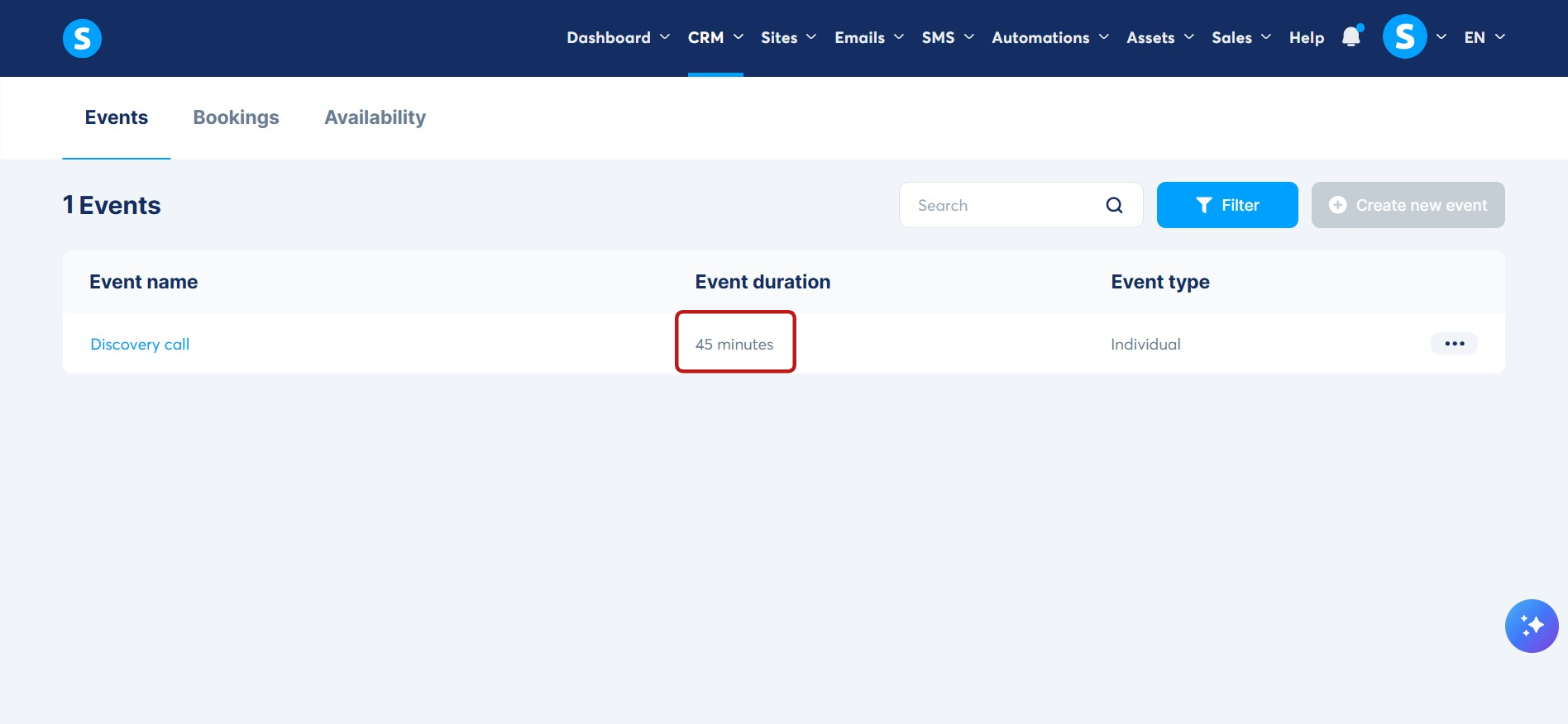
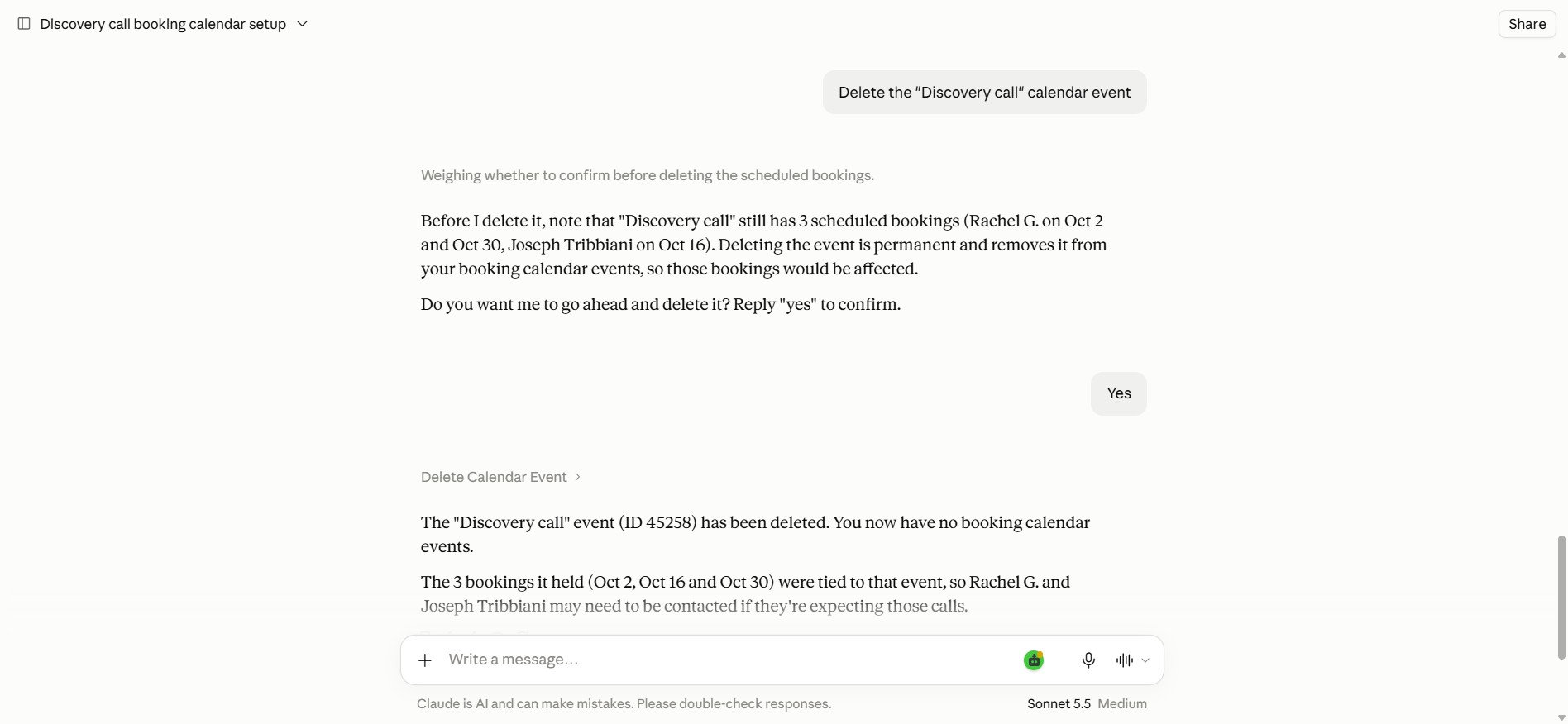
c. Delete a calendar event: You can instruct the AI to delete booking calendar events that you no longer need.
Example: Delete the "Discovery call" calendar event.
2. Retrieving events and bookings
You can also use the MCP server to review your calendar information and see who has booked a slot with you, without having to manually open the booking calendar in your dashboard.
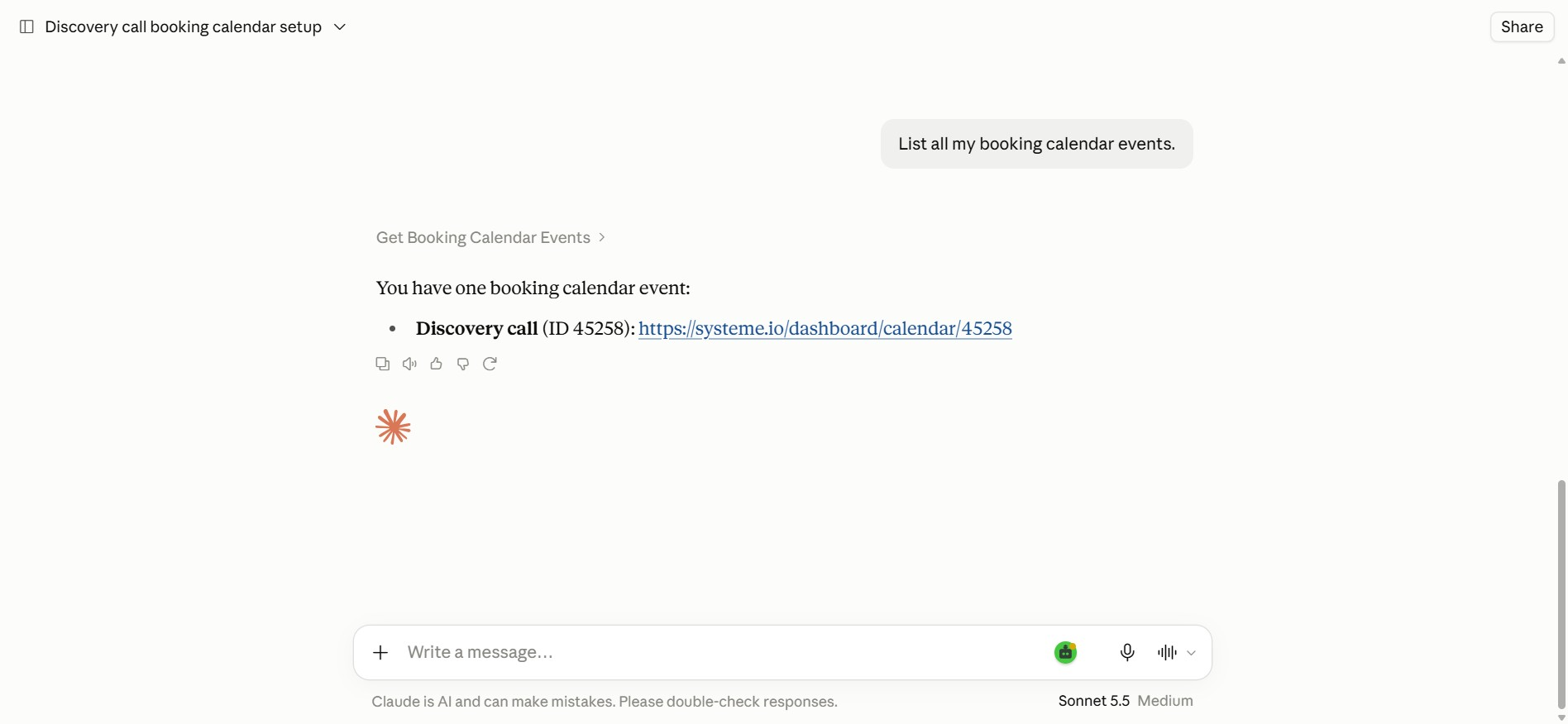
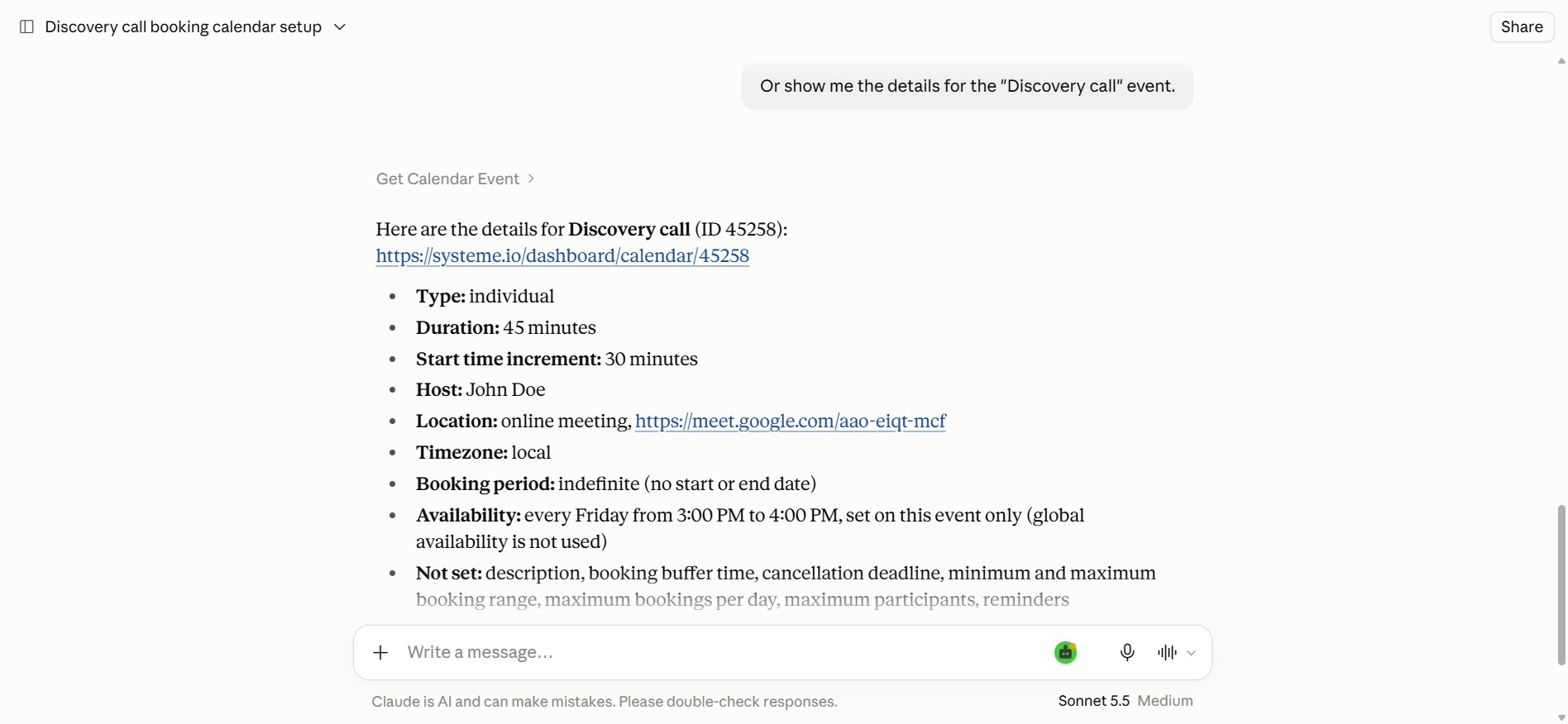
a. List, search, and view event details: You can use the AI to browse through your existing booking calendar events, search for a specific one by name, or fetch its full details (including locations, availability, time zone, date range, and reminders).
Example: List all my booking calendar events.
Or show me the details for the "Discovery call" event.
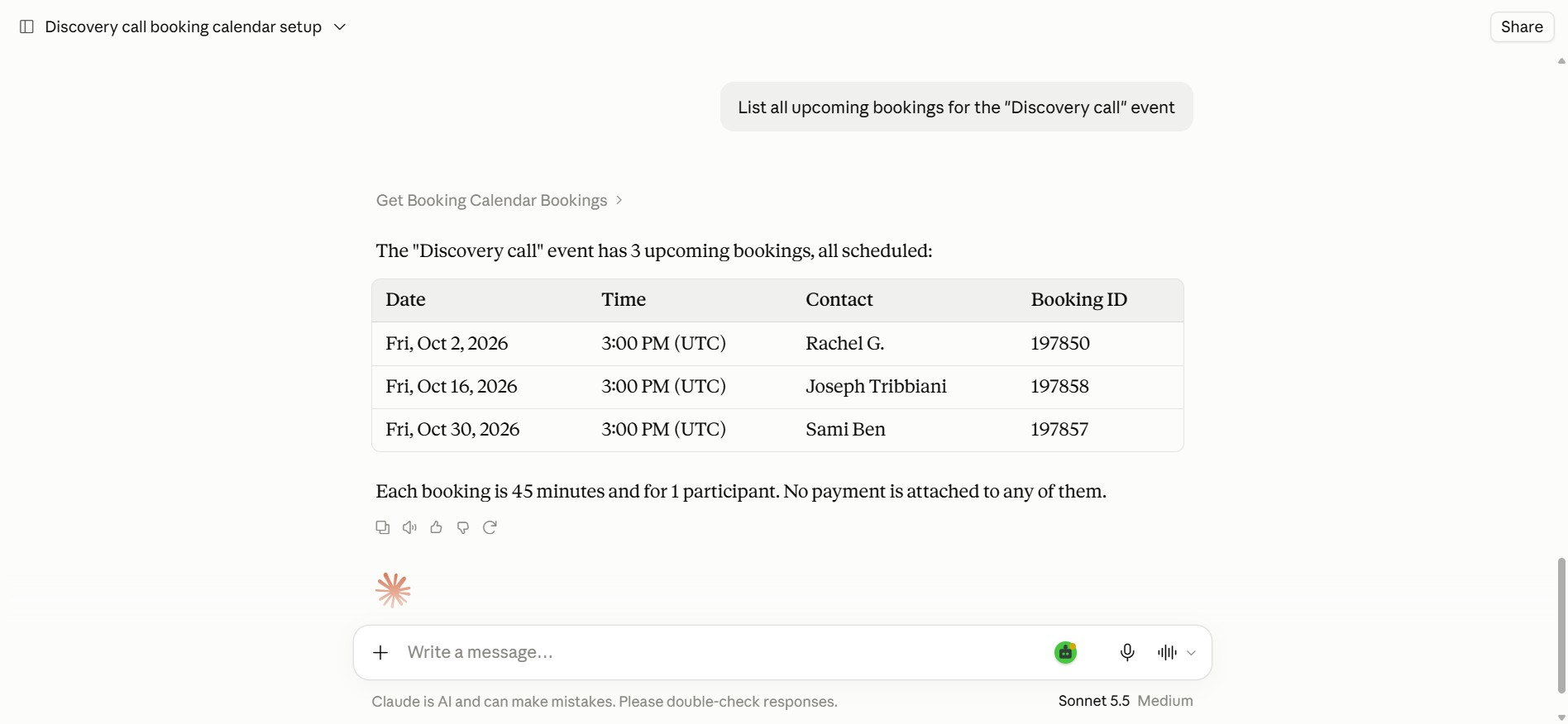
b. List and filter bookings: You can instruct the AI to retrieve your actual calendar bookings and filter them by specific criteria, such as the event name, status, or a date range.
Example: List all upcoming bookings for the "Discovery call" event.
Notes:
Updating an existing calendar event's type is not currently supported through MCP.
The AI will require confirmation prompts depending on the platform you use (for example, ChatGPT may ask for permission to run the action before creating or deleting an event).