How to manage your physical products with the systeme.io MCP server
In this article, you will learn how to manage your systeme.io physical products using natural language through our native MCP server. By connecting an AI tool like ChatGPT or Claude, you can easily create, view, update, and delete physical products, as well as set up your selling flows seamlessly without leaving your chat window.
What you will need:
A systeme.io account
An MCP key generated from your systeme.io account (How to use the systeme.io MCP server (Model Context Protocol))
An AI tool connected to your systeme.io account using MCP keys:
1. Managing physical products
The MCP server allows you to perform full management actions on your physical products directly from the chat. Just provide the name of the physical product and specify the action you want to perform.
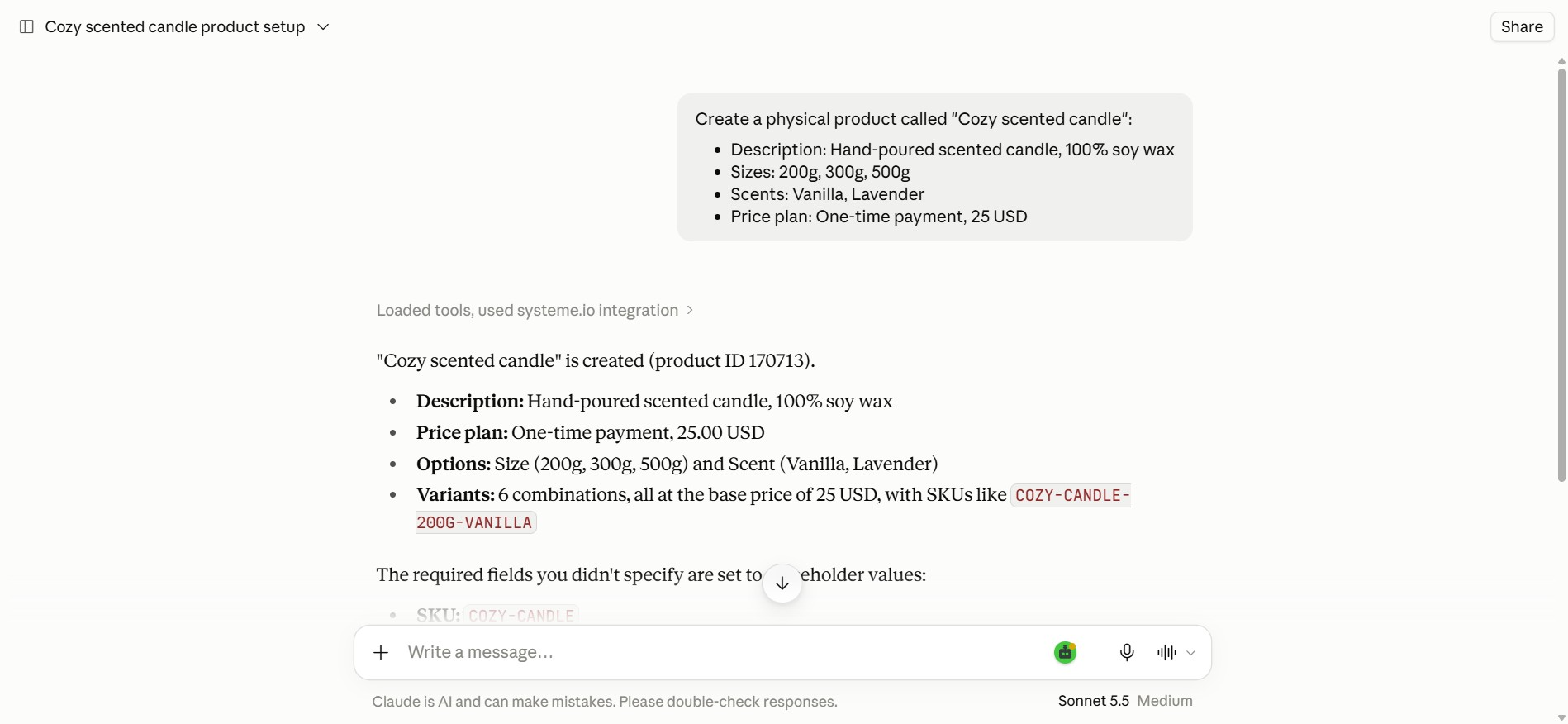
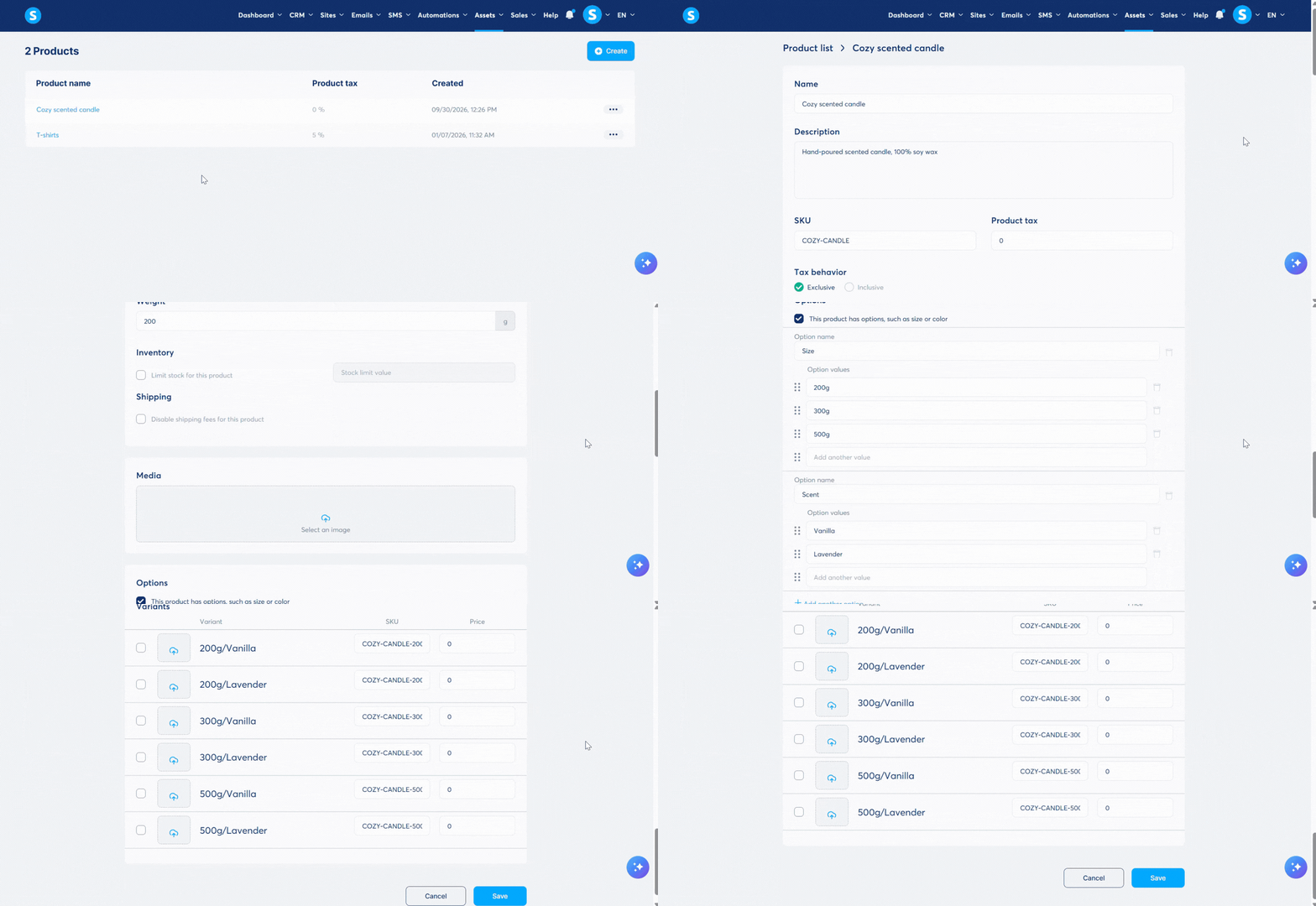
a. Create a physical product: You can ask the AI to generate a brand-new physical product in your account.
Example: Create a physical product called "Cozy scented candle":
Description: Hand-poured scented candle, 100% soy wax
Sizes: 200g, 300g, 500g
Scents: Vanilla, Lavender
Price plan: One-time payment, 25 USD
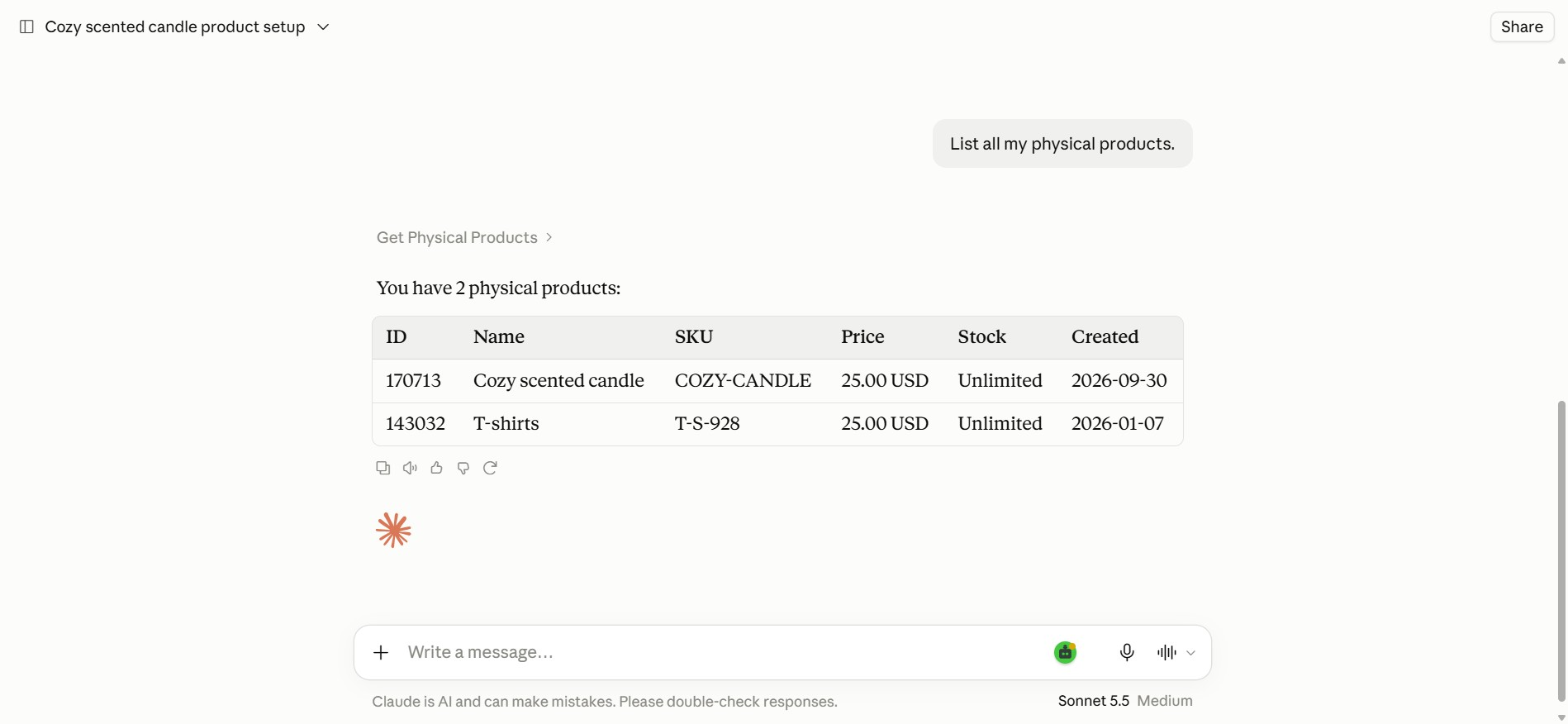
b. List, retrieve, and view physical products: You can use the AI to browse your existing physical products, search for a specific one, or fetch its detailed information.
Example: List all my physical products.
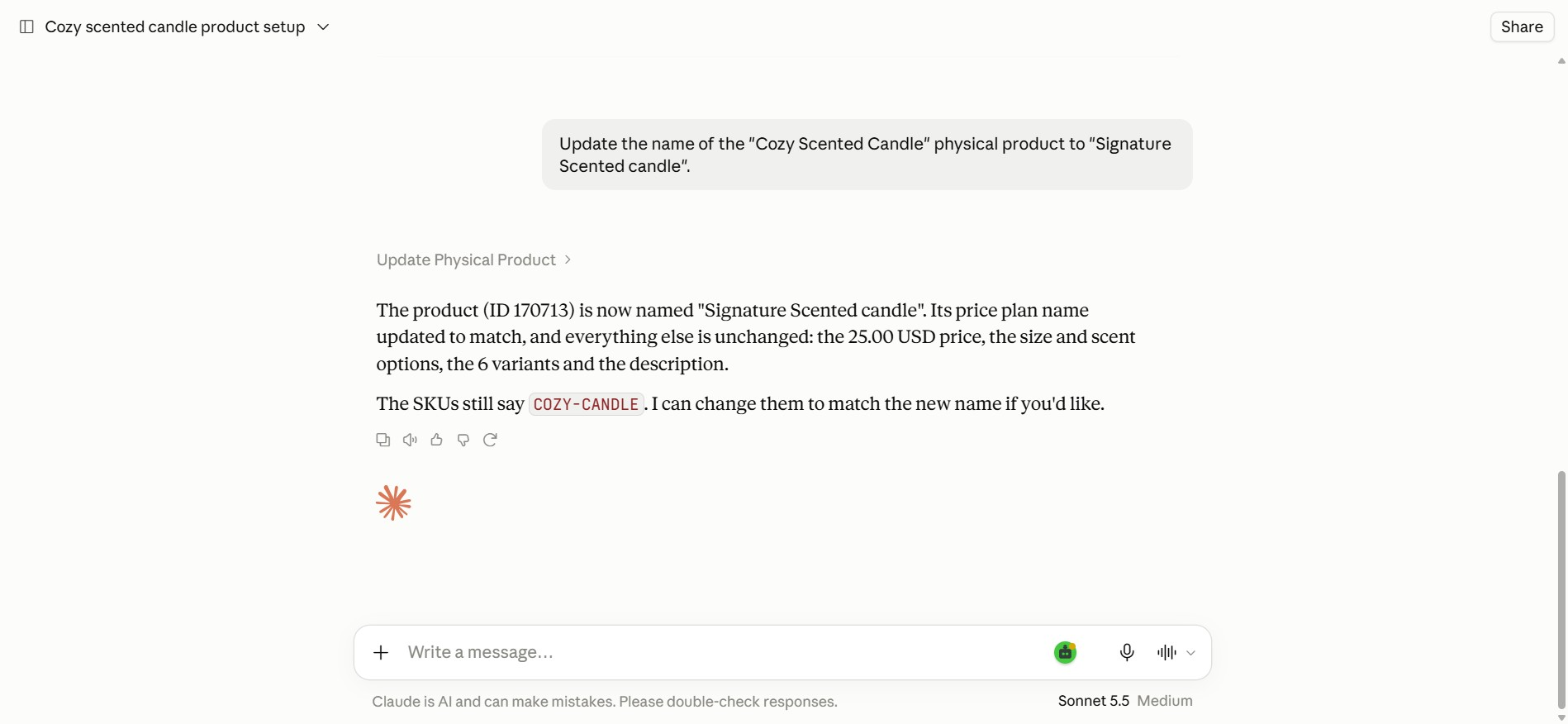
c. Update a physical product: If you need to change a physical product's details, you can instruct the AI to easily make those updates.
Example: Update the name of the "Cozy Scented Candle" physical product to "Signature Scented candle".
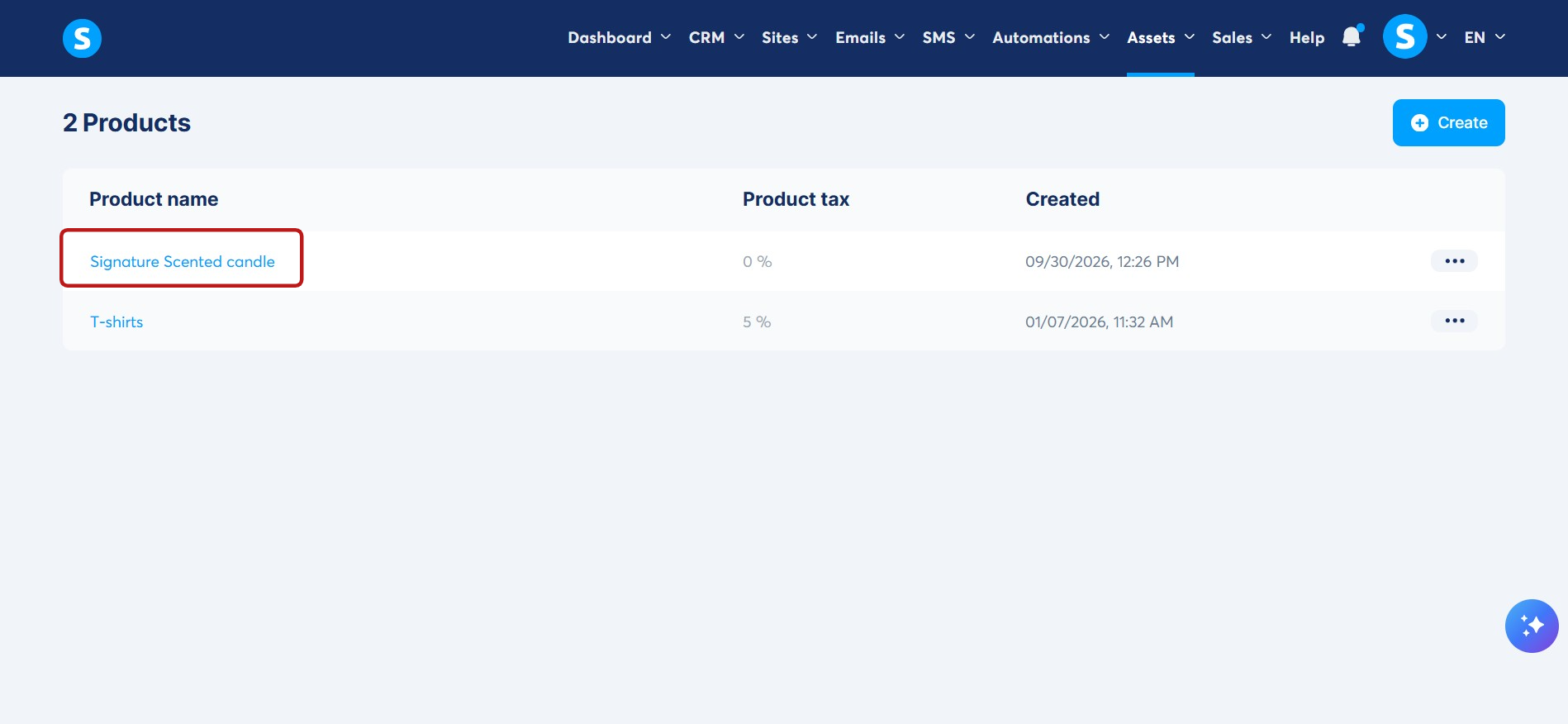
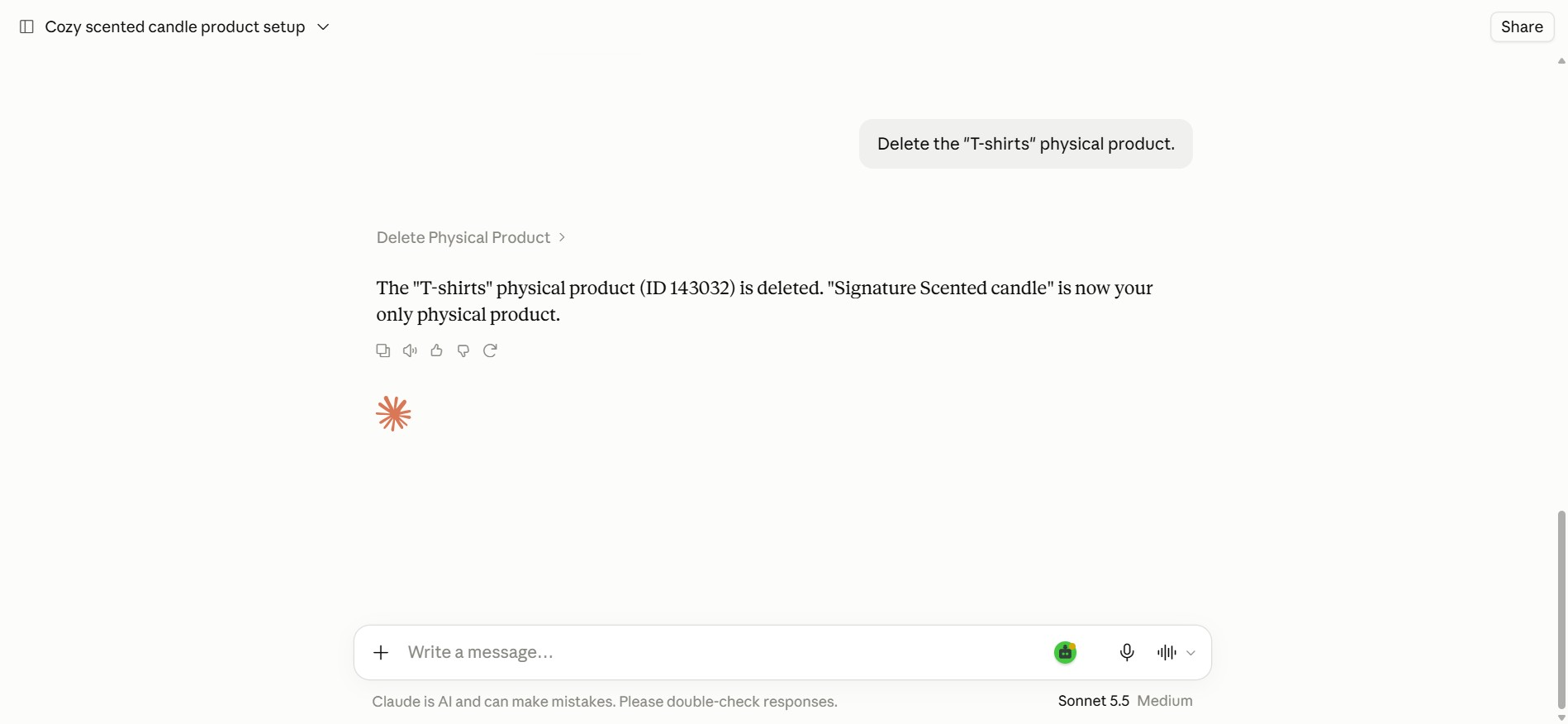
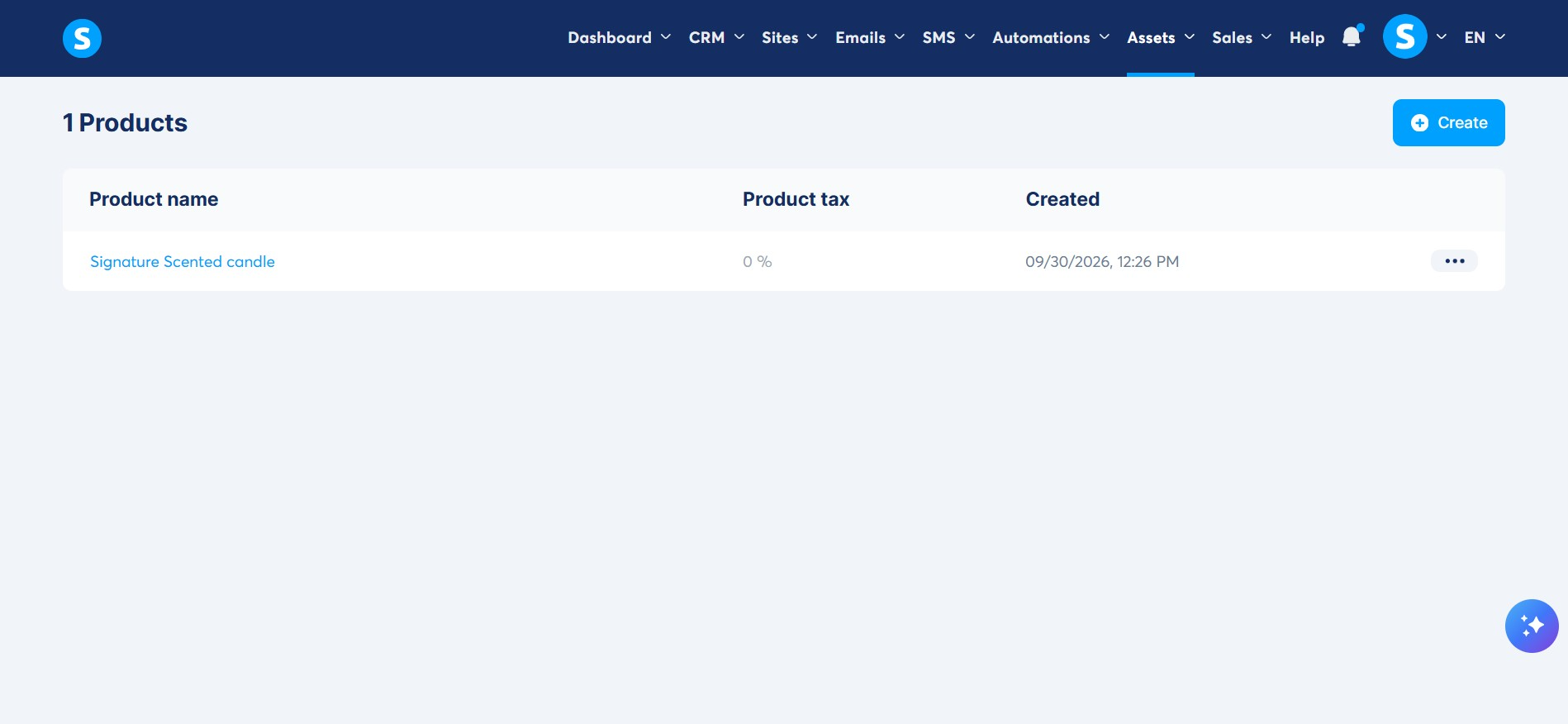
d. Delete a physical product: You can instruct the AI to delete physical products that you no longer need.
Example: Delete the "T-shirts" physical product.
2. Configuring offers and sales settings
You can also use the MCP server to set up the selling flow for your physical products. You can instruct the AI to handle these steps individually or combine them into a single prompt to set up your entire offer at once.
Through the chat, you can:
Create and configure offers for selling flows (such as order forms, upsells, and downsells).
Attach your physical products to an offer.
Configure offer settings, including coupons, order bumps, currency, payment methods, tax settings, affiliate commissions, payout delays, and sales limits.
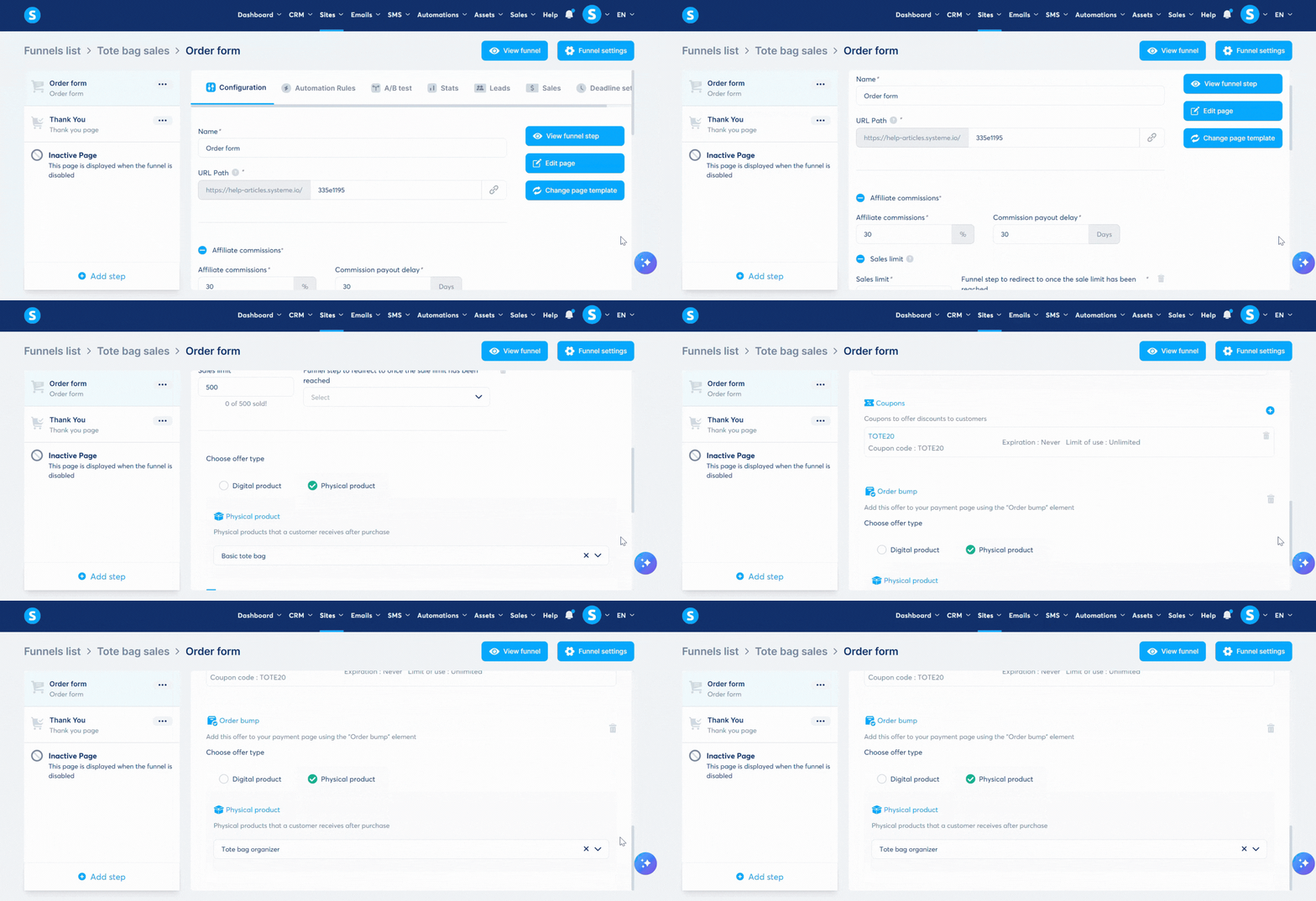
Example: Create a complete selling flow for my physical product "Basic tote bag".
Create the physical product with the following details:
Description: Reusable canvas tote bag with reinforced handles
Sizes: Small, Medium, Large
Colors: Natural, Black, Beige
Weight: 250 g
Price: 20 USD
Stock: Unlimited
SKU: Use the same SKU for all size and color variants: BASIC-TOTE-BAG
Create an order bump physical product called "Tote bag organizer" with the following details:
Description: Compact organizer insert designed to fit inside a tote bag
Weight: 100 g
Price: 10 USD
Stock: Unlimited
SKU: TOTE-BAG-ORGANIZER
Then create a new sales funnel called "Tote bag sales" with an order form for the tote bag.
Configure the order form with:
Main product: "Basic tote bag"
Price: 20 USD
Currency: USD
Payment method: Cash on delivery
Create a coupon code "TOTE20" with a 20% discount in USD and apply it to the offer
Order bump: "Tote bag organizer"
Affiliate commission: 30%
Payout delay: 30 days
Sales limit: 500 purchases
Taxes: disabled
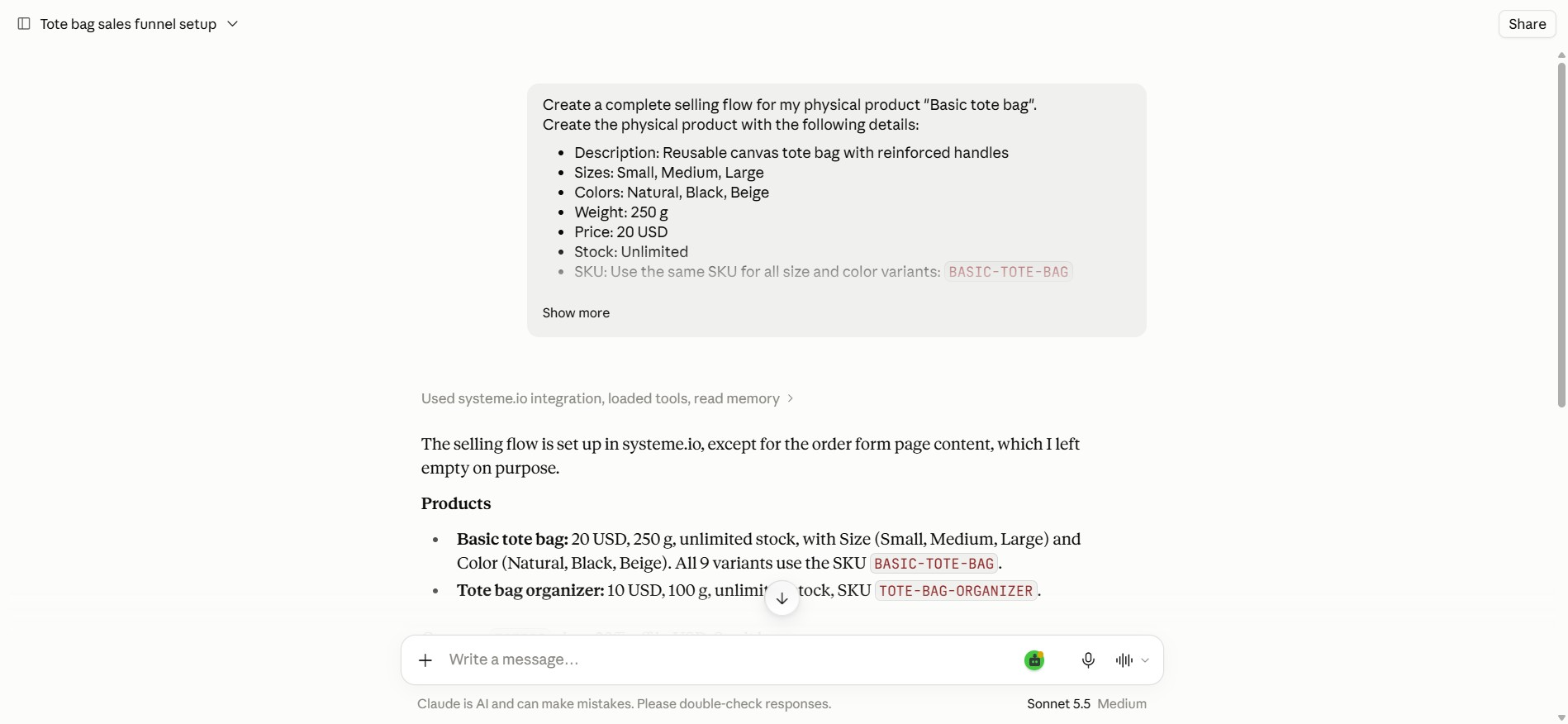
Note: The AI will require confirmation prompts depending on the platform you use (for example, ChatGPT may ask for permission to run the action before creating or deleting a physical product).