Loading
In this article, you will learn how to send an email containing a file to your customer after they make a purchase.
What you will need:
A systeme.io account
A sales funnel with a payment page
The file you want to send
1. Creating an automation rule
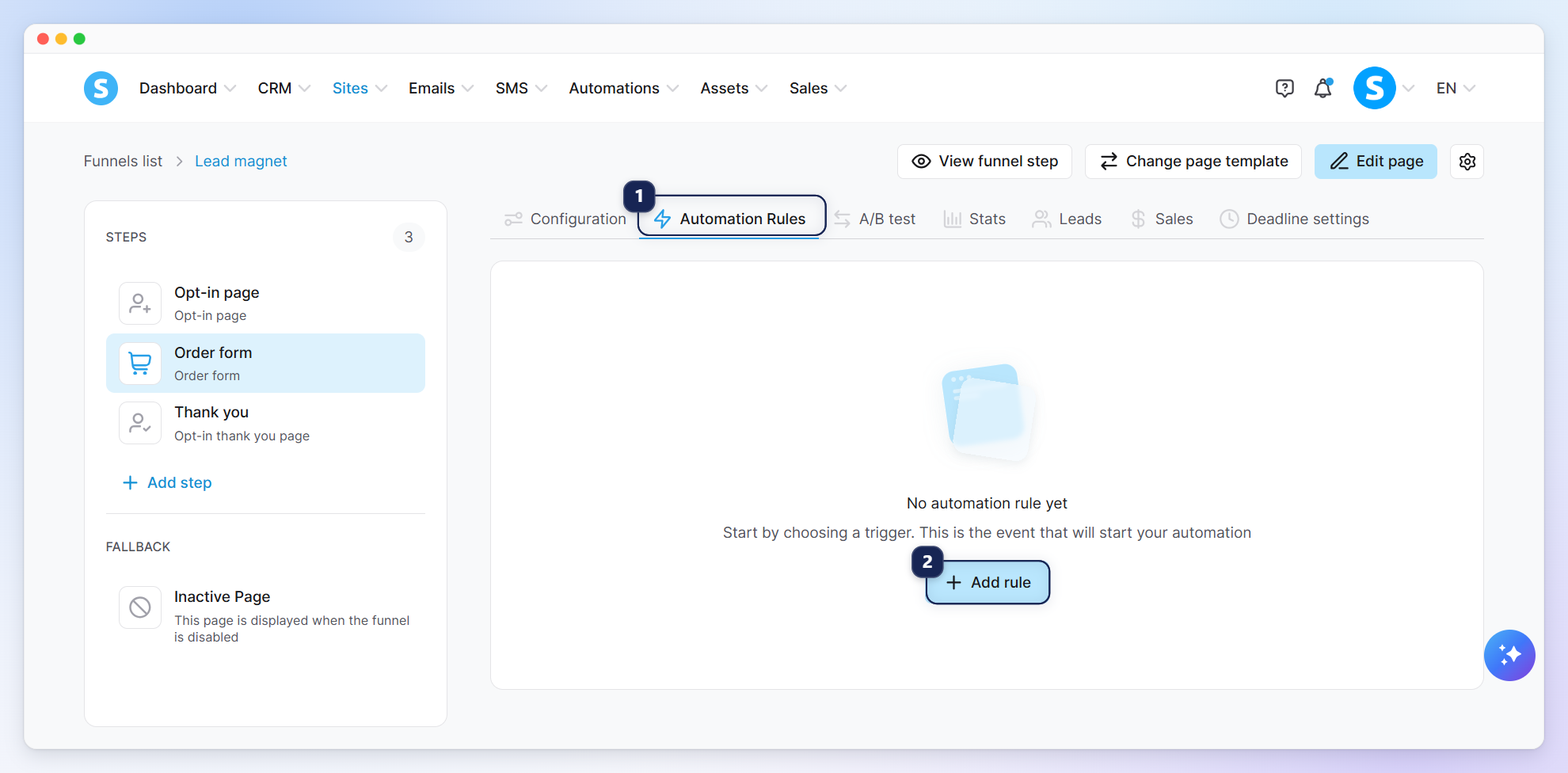
Select your payment page from the funnel list on the left, then click the Automation Rules tab (1) and Add rule (2).
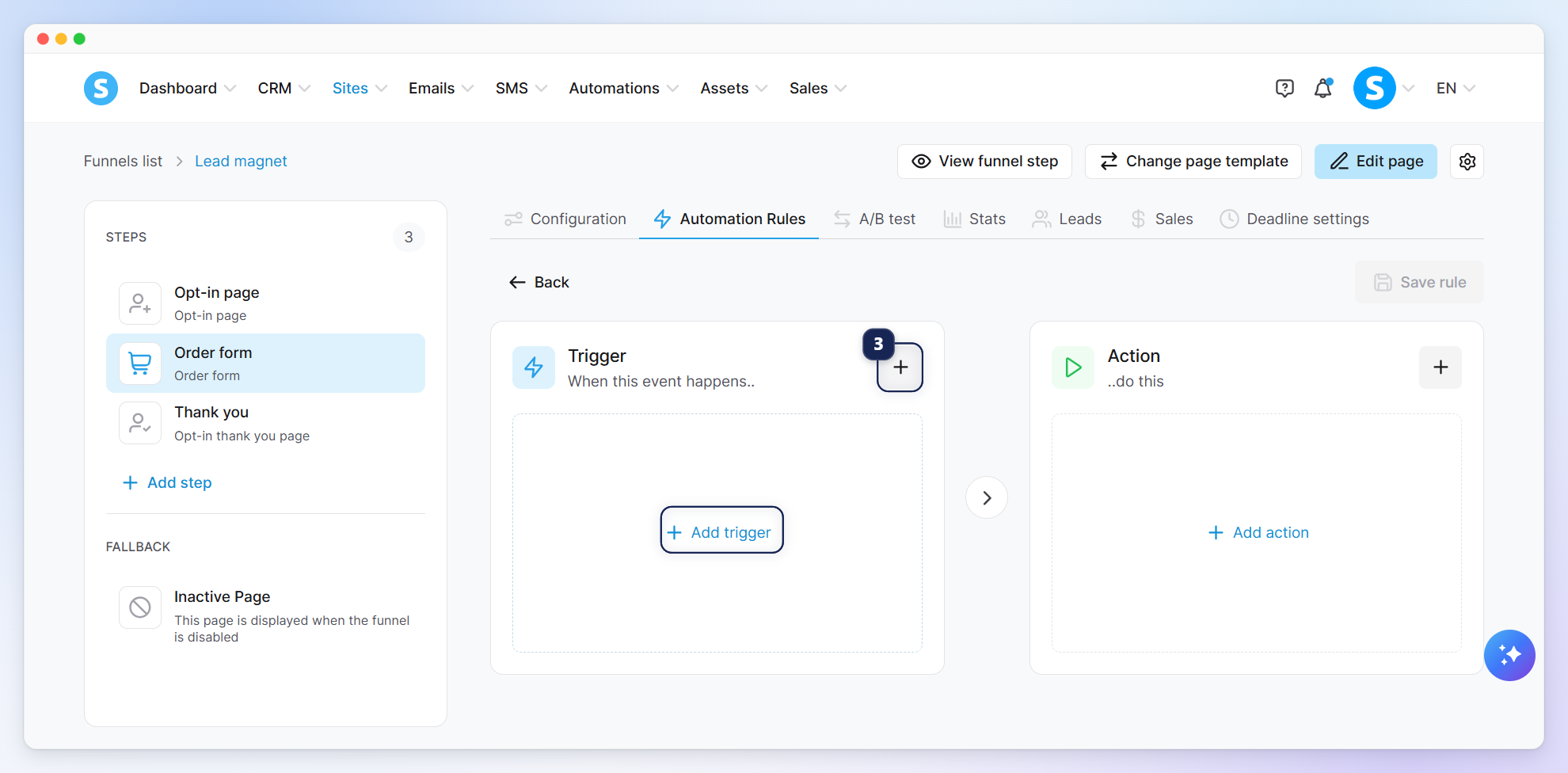
Click the + icon add a new trigger (3).
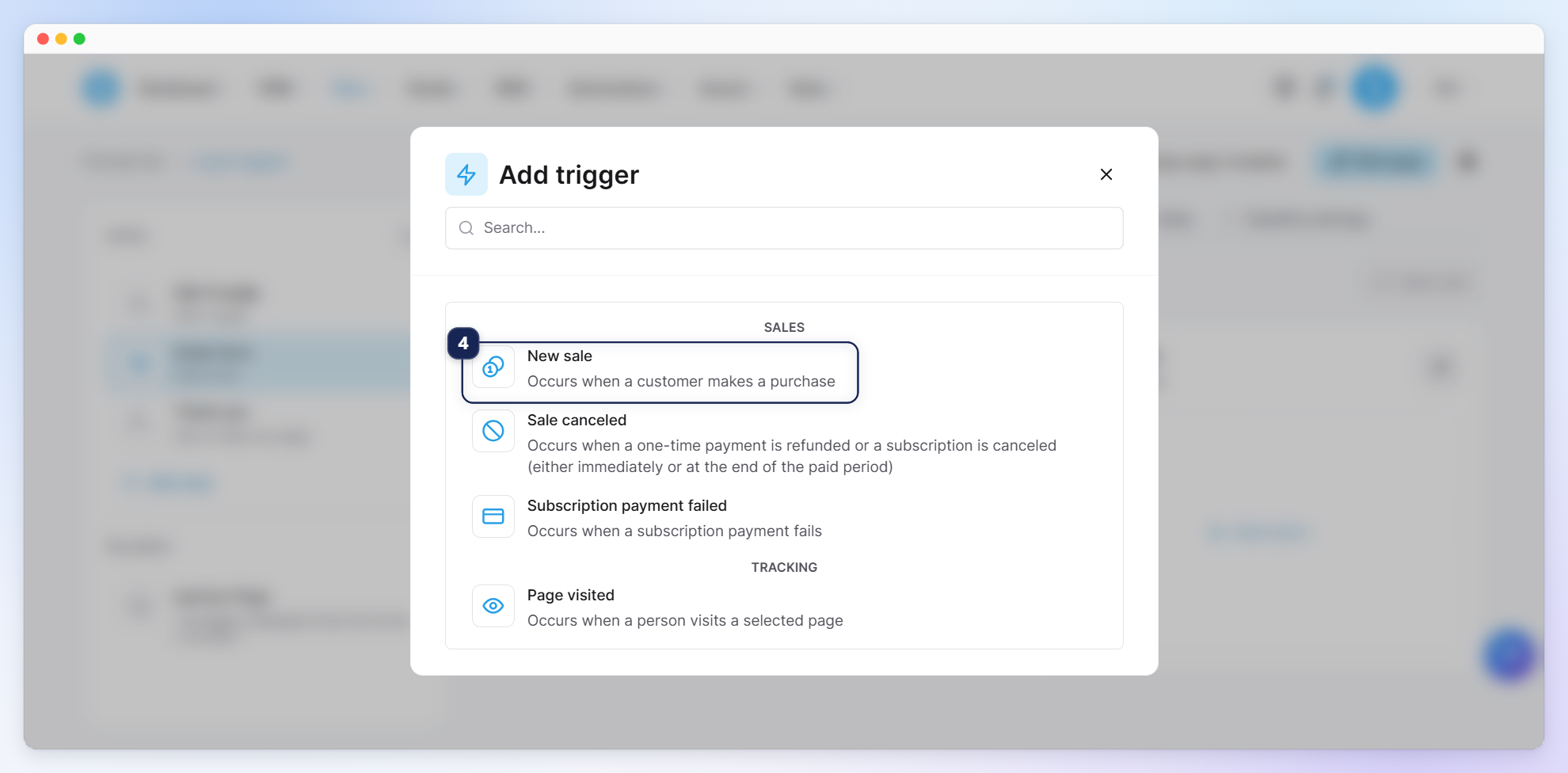
Select New sale (4).
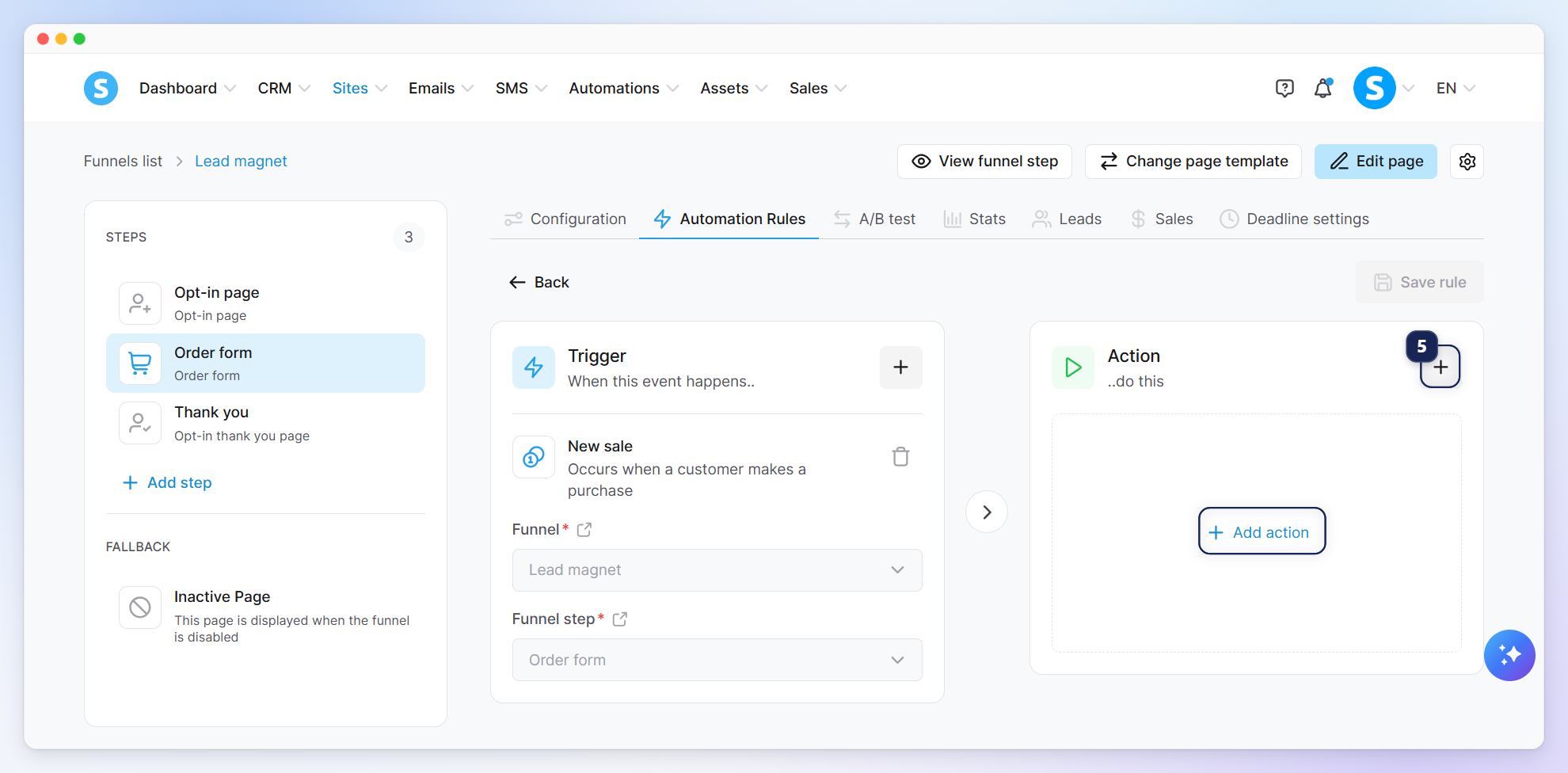
Click the + icon to add an action (5).
To learn more about automation rules, check out our dedicated help article: How automation rules work.
Select Send email action (6).
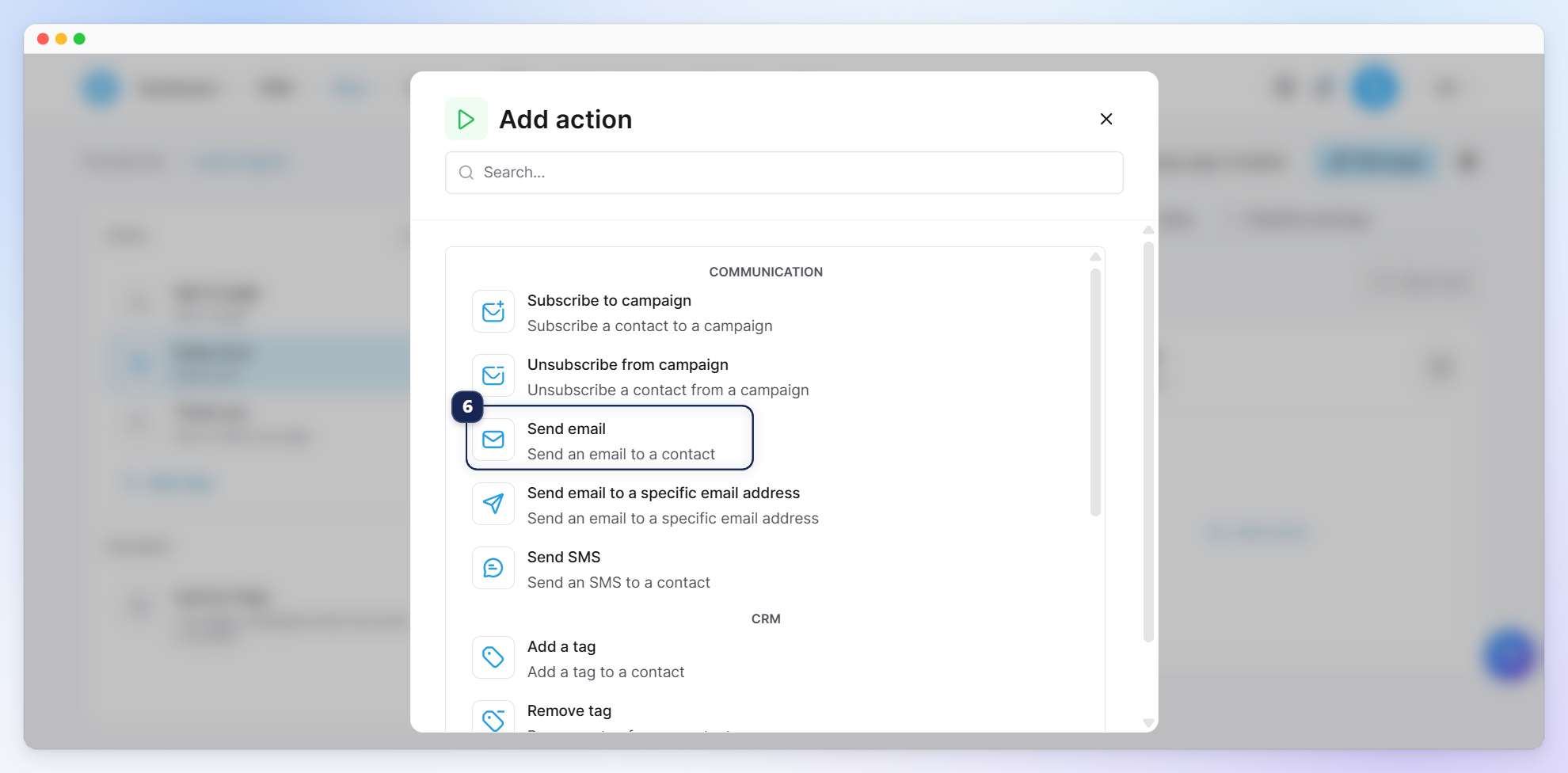
Tip: You can also add the "Add a tag" action to segment these contacts. To learn more how to create a tag, check out our dedicated help article: How to create a tag.
2. Creating an email and attaching your file
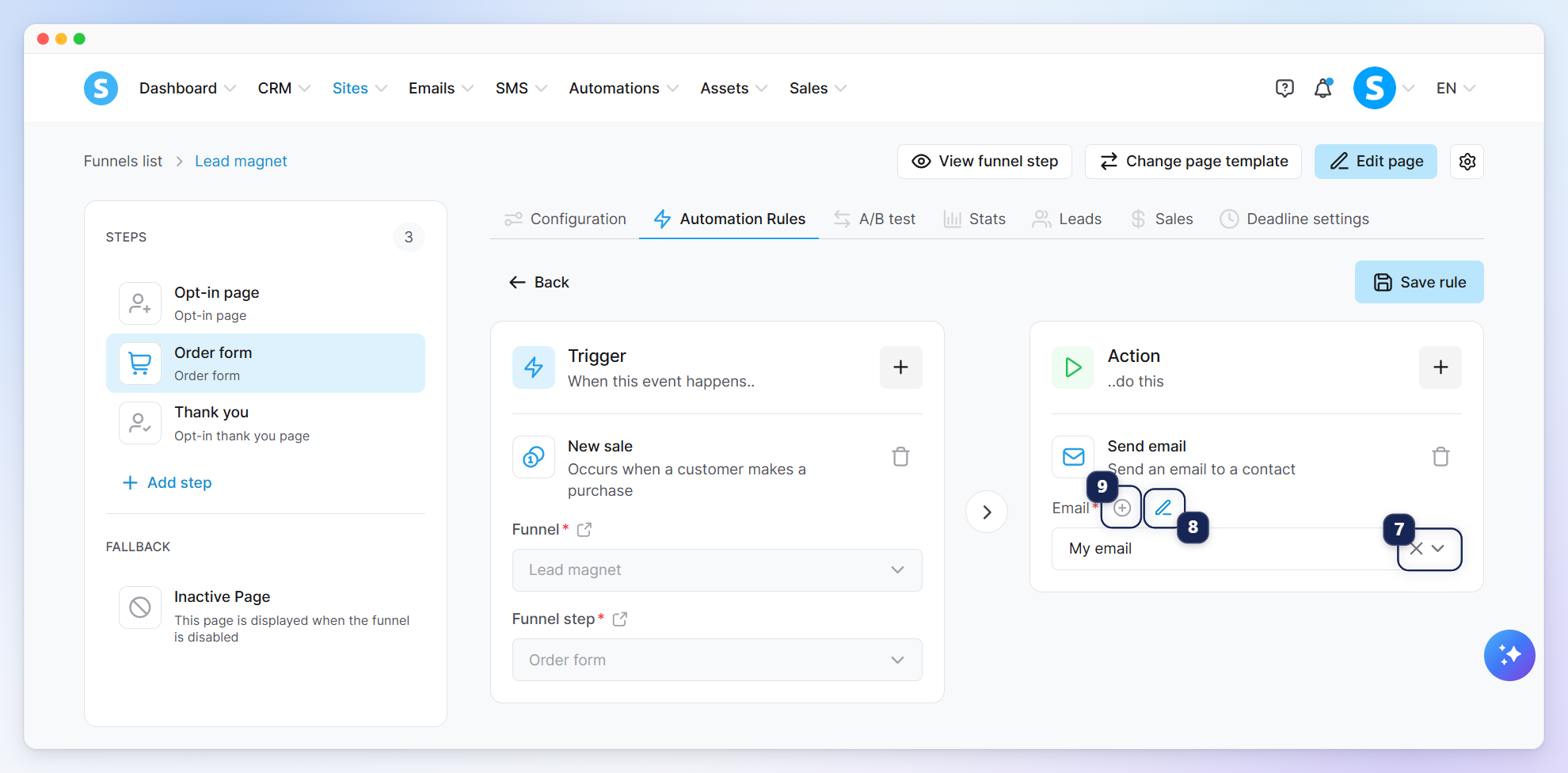
Select an existing email from the list (7) and click the pencil icon to edit it (8), or click the (+) icon (9) to create a new one.
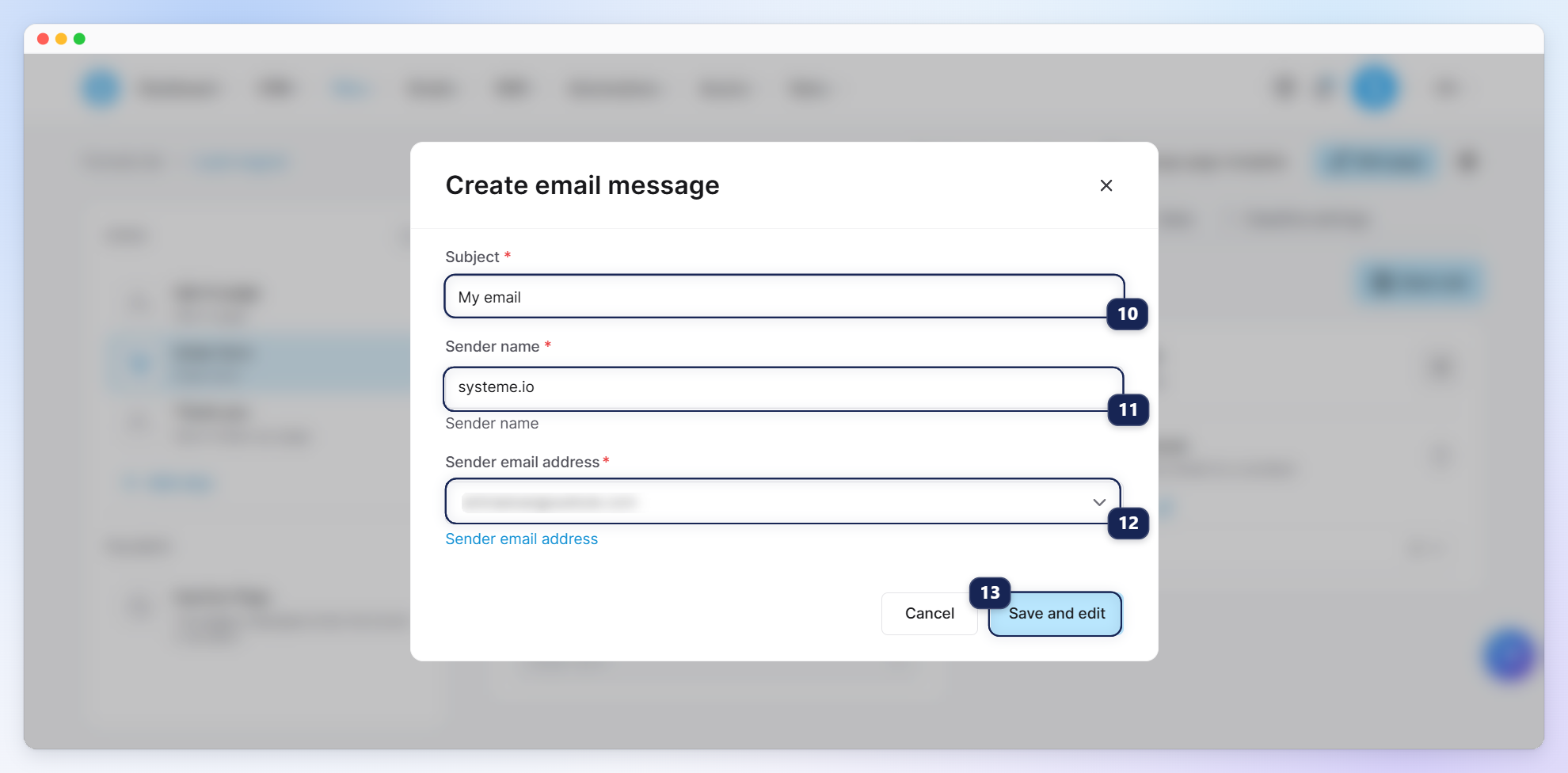
In the popup that appears when creating a new email, enter the email subject (10) and sender name (11), select a sender email address (12), then click Save and edit (13).
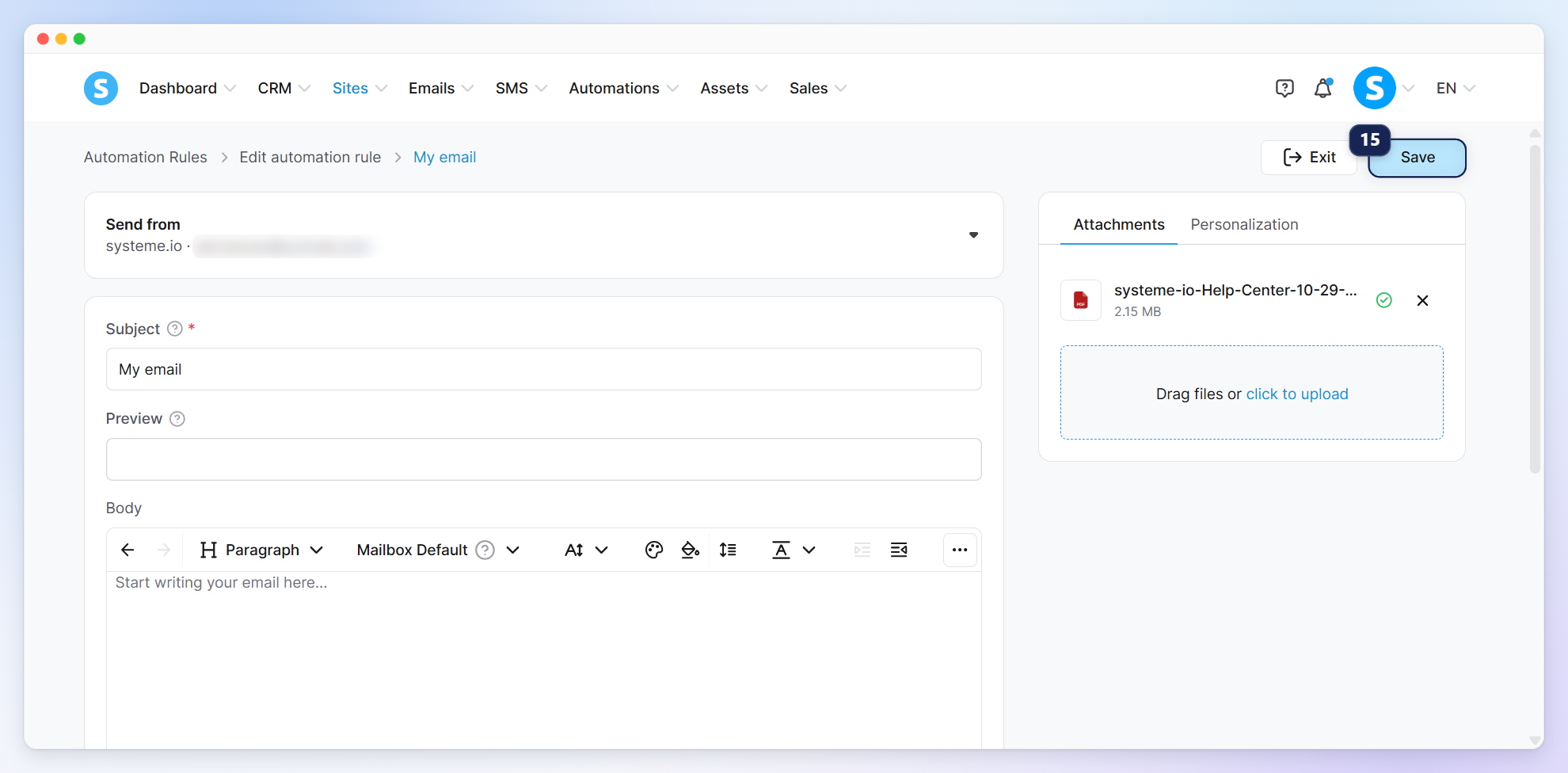
Click the cloud icon to browse your files and attach one, or drag and drop your file directly (14).
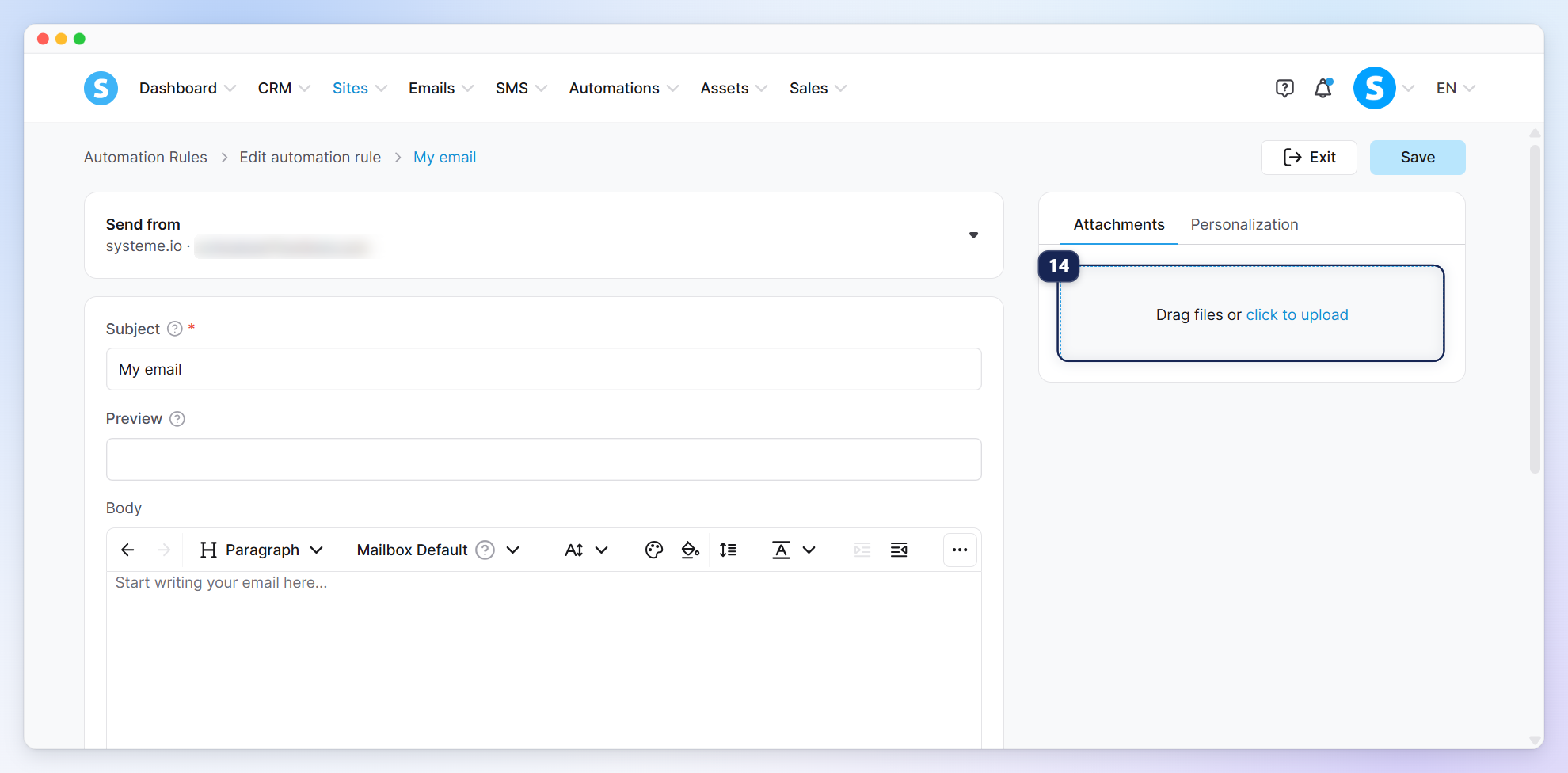
Note: To improve email deliverability, we restrict the size of file attachments to 5MB. If your file is larger than 5MB, you will need to compress it before adding it.
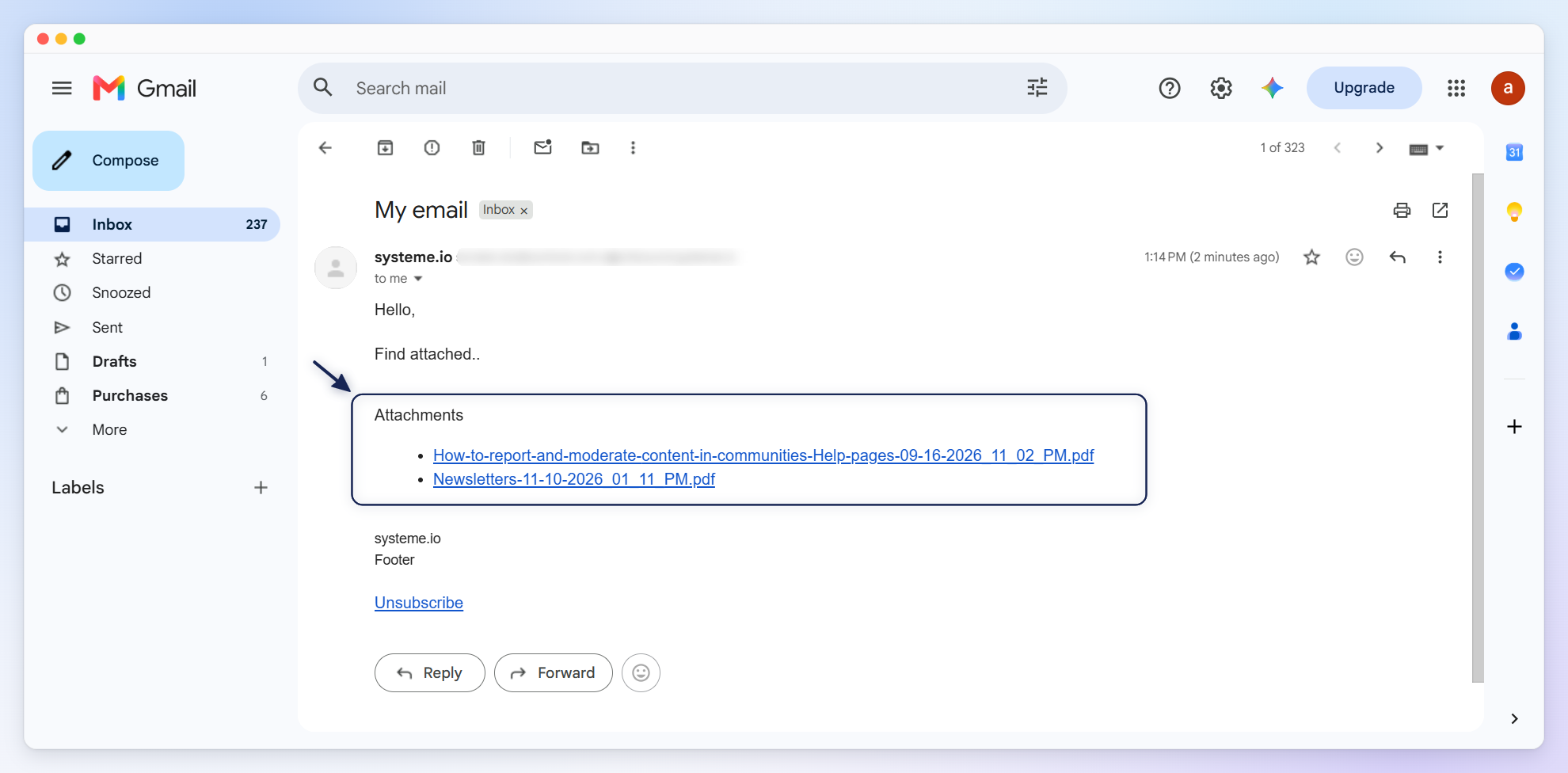
Attachments are displayed as links at the end of the email rather than being sent as direct files. This method aligns with deliverability recommendations from all major Internet Service Providers (ISPs).
Once you've finished editing the email and attached your file, click Save (15).
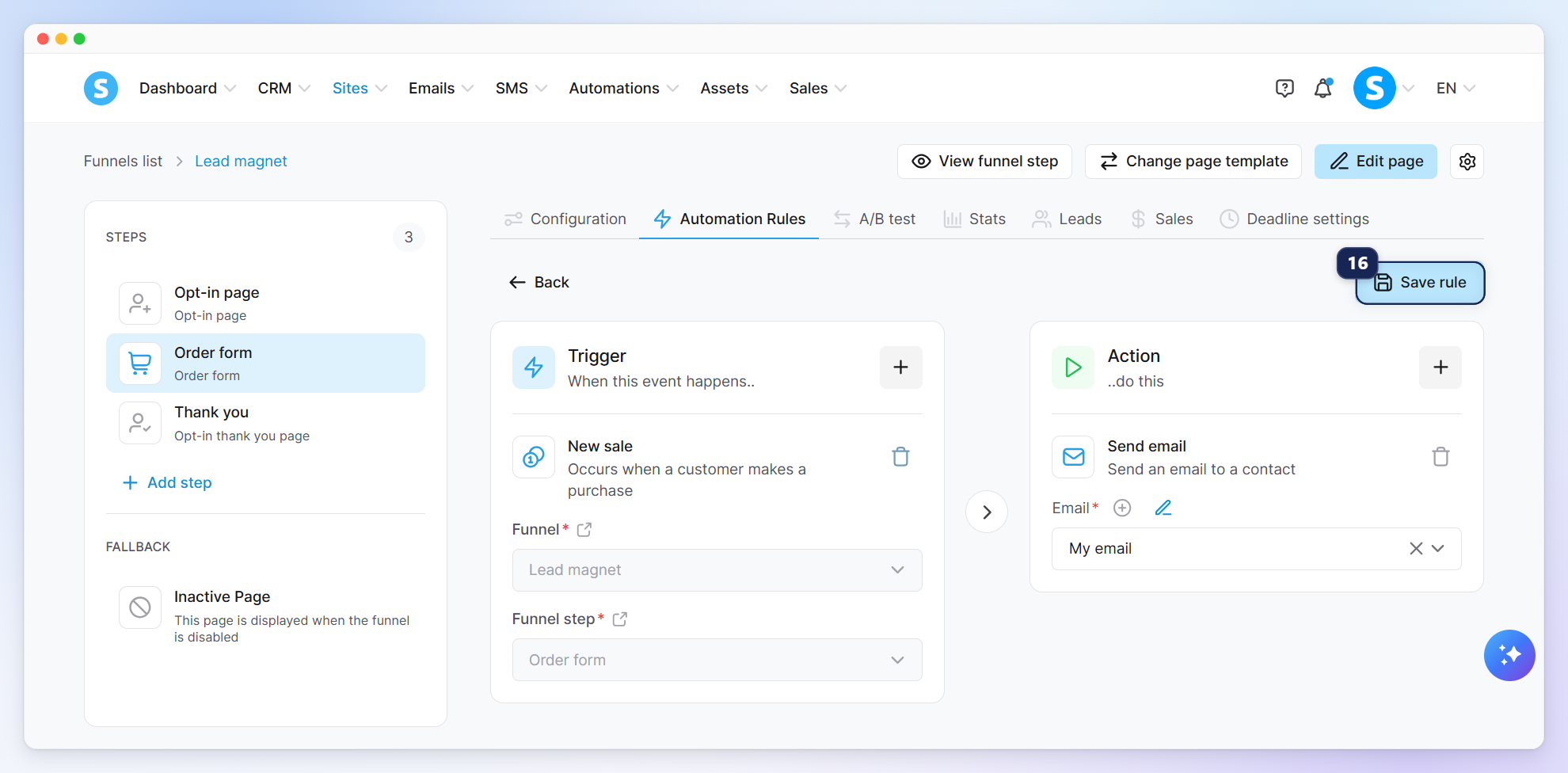
After saving the email, click Save rule (16) to save the automation rule again.
3. Testing the email automation
We recommend making a test purchase through your payment page to confirm that everything is working properly.
If you encounter issues, such as your email not being sent or your file not being accepted, contact the systeme.io support team by here.
To learn how to make a test purchase, check out out dedicated help article: how to make a test purchase.